USB to TTL Cable for Reading IoT Logs
A USB to TTL converter cable allows you to read raw log data directly from the IoT module via a serial connection. This is useful for advanced diagnostics when wireless log retrieval is not possible.
What to Buy
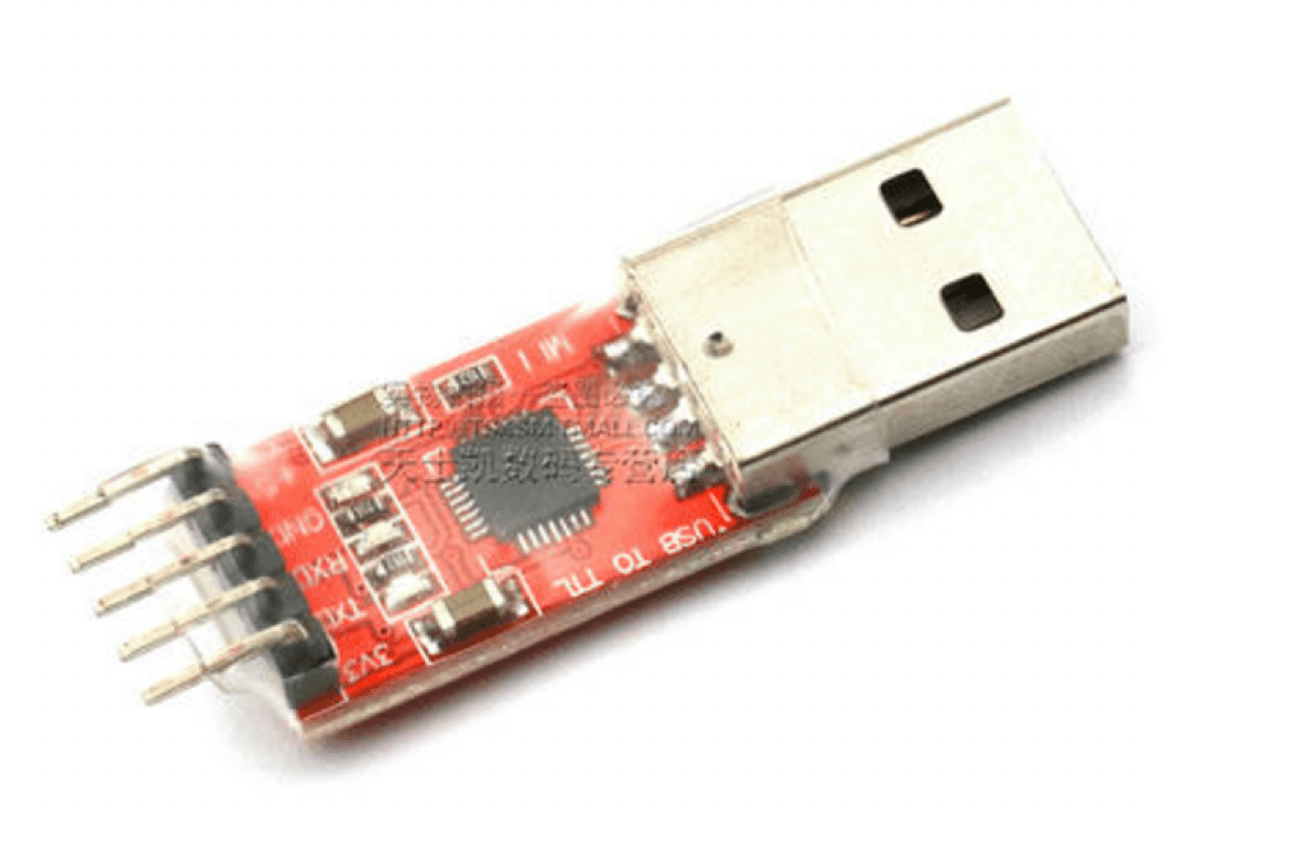
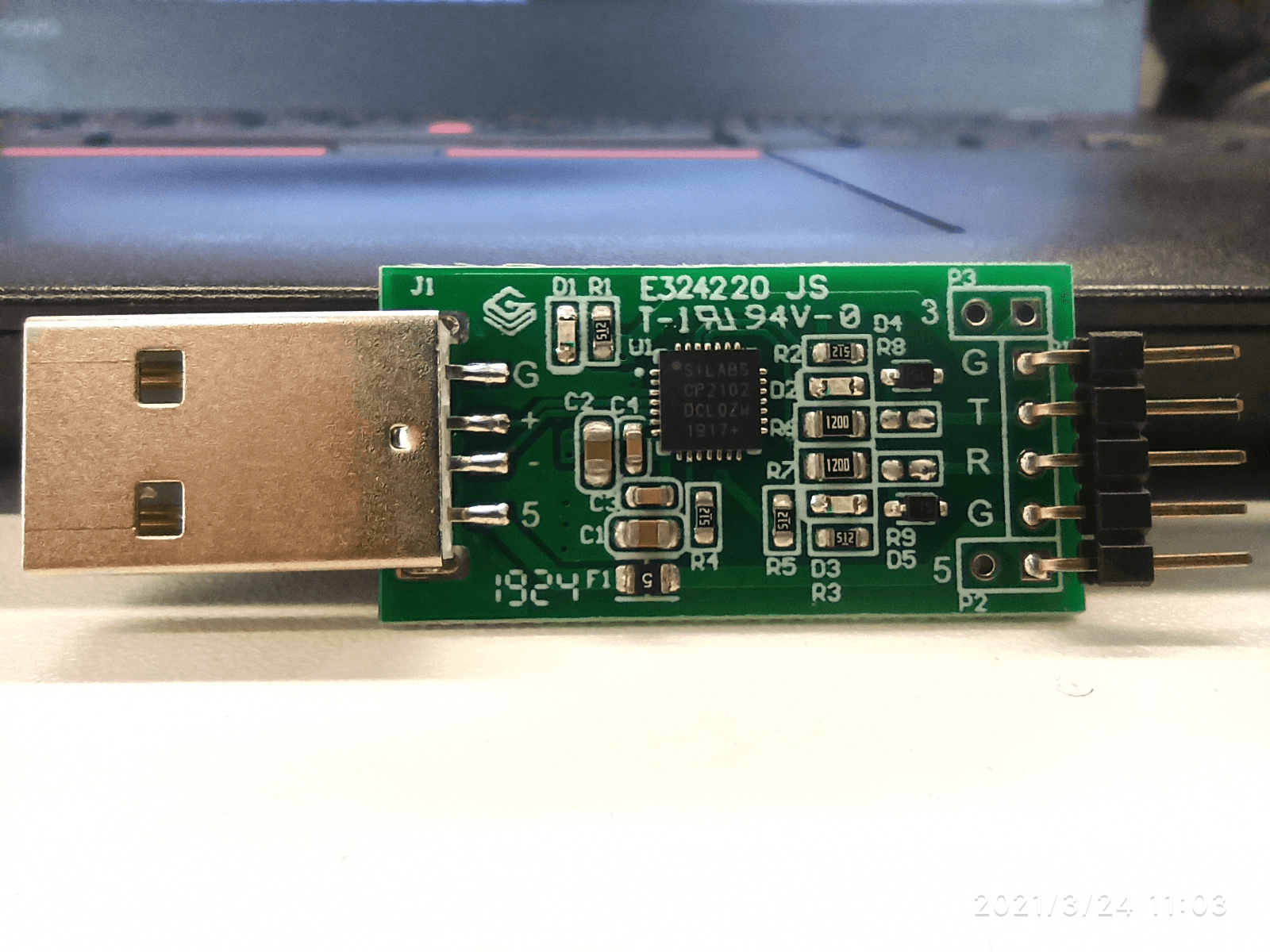
Purchase a USB to TTL converter online. Common variants include red-board and green-board versions. Any variant works as long as it exposes at minimum three pins:
- GND (Ground)
- RX (Receive)
- TX (Transmit)
For External IoT Modules (NB-O, NB-S3, NB-O3)
The USB to TTL cable connects to the diagnostic port on the external IoT housing. The wiring is:
- GND → GND on IoT
- TX (computer side) → RX on IoT
- RX (computer side) → TX on IoT
For Internal IoT Modules (Queclink/NB-Y on MAX PLUS)
On MAX PLUS scooters, you need to partially disassemble the dashboard to access the IoT's serial port. See Firmware Update via Cable - MAX PLUS for the disassembly steps.
Reading Logs on Windows
- Connect the USB to TTL cable to your computer
- Open Device Manager to identify the COM port assigned to the adapter
- Open a serial terminal application (SSCOM, Tera Term, or PuTTY)
- Configure the terminal: select the correct COM port, baud rate 115200, 8 data bits, no parity, 1 stop bit
- Connect and power on the scooter to see log output
Reading Logs on Mac/Linux
Use a terminal application such as screen or minicom:
screen /dev/tty.usbserial-XXXX 115200
Replace XXXX with the actual device identifier shown in /dev/.
Interpreting Logs
Common log events to look for:
- Power on sequence - confirms the IoT is booting correctly
- Network registration - shows SIM card and network status
- Server connection - shows whether the IoT successfully connects to the Segway server
- Error codes - any error prefixes indicate hardware or configuration issues
If you need help interpreting logs, send the log file to Segway support along with the scooter SN and IoT type.
Running a fleet on this hardware?
Levy Fleets runs scooters, e-bikes, mopeds and golf carts on the IoT hardware you already have, with integration pages for 29 vendors including Segway, Okai, Omni, Queclink, Invers and Comodule. Keyless unlock, geofencing, rider payments and rider support are included, and the Managed plan is a share of revenue with no per-vehicle software fee.