Omni BLE Tool - Reading Logs and Upgrading Firmware
The Omni-Login.apk app is used to communicate with Omni IoT modules (found on ES4, MAX, and MAX PRO scooters) via Bluetooth. It can be used for two main tasks: reading diagnostic logs and upgrading firmware. This guide covers both.
Prerequisites
- An Android smartphone
- Omni-Login.apk installed (contact Segway to obtain the APK file)
- Important: Set your phone's system language to English before opening the app, or it will display in Chinese
Installation
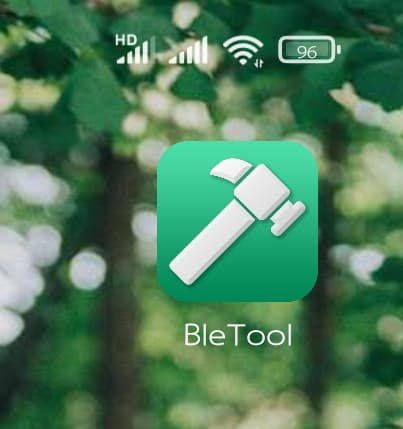
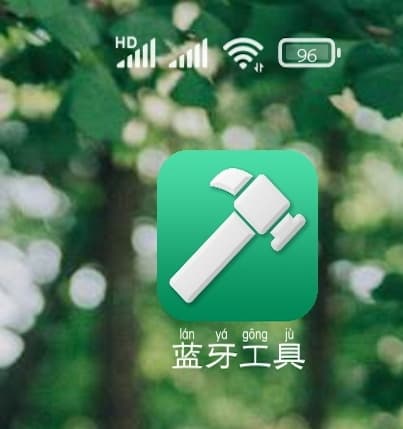
Step 1: Install the Omni-Login APK. After installation you will see the app icon.
Connecting to the IoT Module
Step 2: Open the app and log in with your credentials (contact Segway if you need login details).
Step 3: Enable Bluetooth on your phone and stand near the scooter.
Step 4: Tap Scan in the app to find the IoT device. Select it from the list to connect.
Step 5: Once connected, you will see the device dashboard.
Task A: Reading IoT Logs
Logs are useful for diagnosing connectivity, firmware, and hardware issues.
Step 6: Navigate to Log > Get Log or the equivalent logging section in the app.
Step 7: Tap Get Log to download the current log from the IoT.
Step 8: The log will be saved to your phone. Share it via email or messaging app when requested by Segway support.
What to look for in logs:
- Connection events (online/offline transitions)
- Error codes and fault events
- Command acknowledgments
- Network registration status
Task B: Upgrading Firmware via BLE
Warning: Only upgrade firmware using files provided by Segway. Installing incorrect firmware can brick the IoT module.
Step 6: Navigate to Upgrade > Firmware Upgrade in the app.
Step 7: Select the firmware file (.bin) that Segway provided for your IoT model.
Step 8: Tap Start Upgrade. Keep your phone close to the scooter and do not close the app during the upgrade.
Step 9: Wait for the upgrade to complete. The IoT will restart automatically.
Step 10: Verify the new firmware version in the app under Device Info.
Important Notes
- The app must be in English mode (set phone language to English)
- Keep the scooter powered on throughout the upgrade
- Do not use this method for mass firmware updates — use the Dashboard OTA feature for fleets
- For Queclink/NB-Y IoT modules on MAX PLUS scooters, use the ZK600 app instead
Running a fleet on this hardware?
Levy Fleets runs scooters, e-bikes, mopeds and golf carts on the IoT hardware you already have, with integration pages for 29 vendors including Segway, Okai, Omni, Queclink, Invers and Comodule. Keyless unlock, geofencing, rider payments and rider support are included, and the Managed plan is a share of revenue with no per-vehicle software fee.