ZK600 App Master Guide
The ZK600 app is used to configure and diagnose NB-Y (Queclink) IoT modules found on Segway MAX PLUS scooters and certain e-bikes. This master guide covers all four main tasks you can perform with the app: checking/changing IP and APN, getting the IMEI, getting the ICCID, and printing device logs.
Who this guide is for
This tool and Levy's configuration support are for current Levy Fleets customers using scooters or vehicles already onboarded to the Levy Fleets software platform. They cannot be used as a standalone Levy service for other vehicles. Downloading the APK, owning compatible hardware, or having a rider account does not establish fleet operator access.
Before requesting login or configuration help, please confirm your fleet/business name, the email associated with your Levy Fleets account, and that the vehicle is already onboarded. Include its vehicle number or IoT IMEI if available. An onboarded scooter can still use this support when it is offline. If you are not a current customer or the vehicle has not been onboarded, Levy onboarding is required first. For independent use of the manufacturer's tool, contact the manufacturer or your existing software provider.
Prerequisites
- An Android smartphone
- ZK600_Android_Manage_Tool app (latest version: V0.5.28 or later — contact Segway to obtain)
- ZK600 login credentials (contact Segway support if you don't have these)
- Bluetooth enabled on your phone
Steps 1-5: App Installation and Login (Common to All Tasks)
These steps are the same regardless of what you need to do with the app.
Step 1 - Install: Install the latest ZK600 app. After installation you will see the ZK600 icon in your app list.
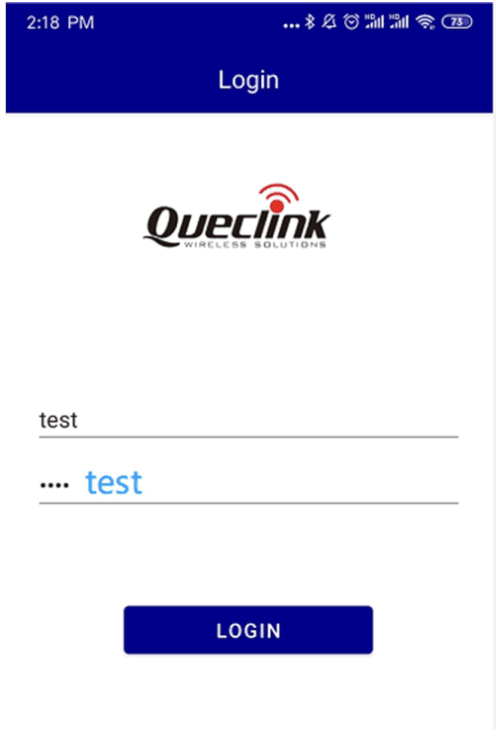
Step 2 - Login: Open the ZK600 app and log in using your credentials.
Step 3 - Config Password: Tap the settings icon in the top right corner. Enter the Bluetooth key (device password) and device name, then tap OK.
Default Bluetooth name format:
NB-Yfollowed by digits. Default password: •••••sign in.
Step 4 - Scan: Tap Scan or Connect to search for nearby IoT devices. Select your device from the list.
Step 5 - Connected: Once connected, you will see the device dashboard. From here, proceed to the specific task below.
Task A: Check or Change IP Address and APN
Use this when a scooter is offline and you suspect incorrect network settings.
Step 6: Navigate to Parameter Settings > Network Settings
Step 7: Check the Server IP and APN values
- If they are incorrect, tap to edit them
- Contact Segway support for the correct IP address and APN for your deployment
Step 8: Tap Save / Set to apply changes. The IoT will reconnect with the new settings.
Task B: Get the IMEI
The IMEI is the unique identifier for the IoT module's cellular modem.
Step 6: Navigate to Real Time Operation > SIM
Step 7: Look for the IMEI field in the SIM information section
Note: IMEI is different from ICCID. IMEI identifies the hardware modem; ICCID identifies the SIM card installed in it.
Task C: Get the ICCID
The ICCID is the unique identifier for the SIM card installed in the IoT module.
Step 6: Navigate to Real Time Operation > SIM
Step 7: Look for field Q41 — this contains the ICCID value
The ICCID may be needed when troubleshooting SIM card activation or network registration issues.
Task D: Print Logs
Logs captured from the IoT help diagnose connectivity issues and firmware problems.
Step 6: Navigate to Real Time Operation > Logs (or equivalent logging section)
Step 7: Tap Print Logs or Get Logs to retrieve the device log
Step 8: Share or export the log file. Segway support may request this when diagnosing persistent connectivity issues.
Applies To
The ZK600 app is used with:
- Segway MAX PLUS scooters (NB-Y IoT type)
- Segway e-bikes with NB-Y (Queclink) IoT modules
For ES4, MAX, and MAX PRO scooters (Omni IoT type), see the Omni BLE Tool Guide.
Running a fleet on this hardware?
Levy Fleets runs scooters, e-bikes, mopeds and golf carts on the IoT hardware you already have, with integration pages for 29 vendors including Segway, Okai, Omni, Queclink, Invers and Comodule. Keyless unlock, geofencing, rider payments and rider support are included, and the Managed plan is a share of revenue with no per-vehicle software fee.