Converting Audio Files for Queclink IoT
Queclink (NB-Y) IoT modules can play custom audio. Before installing an audio file, it must meet specific technical requirements. This guide explains how to convert an audio file to the correct format using Audacity.
Required Audio Format
The file must meet ALL of the following requirements:
- Format: WAV
- Channel: Mono (1 channel)
- Bit rate: 8 kHz
- Sampling: 16 bit
- File size: Less than 160 KB
Step-by-Step Conversion with Audacity
Step 1: Download and install Audacity from https://www.audacityteam.org/
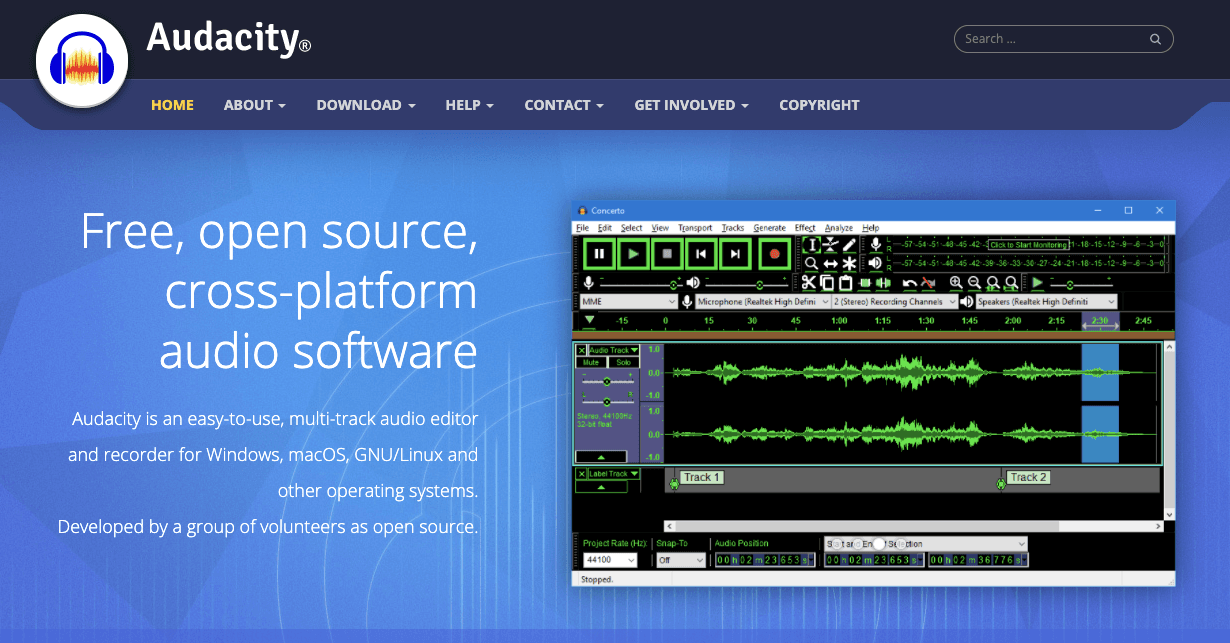
Step 2: Open Audacity and import your audio file (File > Import > Audio)
Step 3: If the audio is stereo (2 channels), convert to mono:
- Go to Tracks > Mix > Mix Stereo Down to Mono
Step 4: Change the sample rate to 8000 Hz:
- At the bottom left of the screen, change the Project Rate to 8000 Hz
Step 5: Export as WAV:
- Go to File > Export > Export as WAV
- In the export dialog, set Encoding to Signed 16-bit PCM
- Save the file
Step 6: Check the file size. If it exceeds 160 KB, trim or shorten the audio and re-export.
Installing the Audio File
Once converted, the audio file can be uploaded to the IoT module using the ZK600 app (for NB-Y/Queclink modules). Contact Segway support for instructions on uploading custom audio to your specific IoT type.
Running a fleet on this hardware?
Levy Fleets runs scooters, e-bikes, mopeds and golf carts on the IoT hardware you already have, with integration pages for 29 vendors including Segway, Okai, Omni, Queclink, Invers and Comodule. Keyless unlock, geofencing, rider payments and rider support are included, and the Managed plan is a share of revenue with no per-vehicle software fee.