Configure Queclink IoT from the Operator App
This is the fastest way to (re)configure a Segway MAX PLUS scooter (or any NB-Y / Queclink IoT module) so it can talk to our servers. You don't need the ZK600 Android app, a USB cable, or any Segway-supplied tooling — everything happens over Bluetooth from the Levy Operator app, and the correct settings are pre-filled for you.
Use this whenever a scooter:
- Is brand new and has never come online
- Just received a new SIM card and isn't reconnecting
- Was moved to a different region and needs its APN updated
Who this guide is for
This tool and Levy's configuration support are for current Levy Fleets customers using scooters or vehicles already onboarded to the Levy Fleets software platform. They cannot be used as a standalone Levy service for other vehicles. Downloading the APK, owning compatible hardware, or having a rider account does not establish fleet operator access.
Before requesting login or configuration help, please confirm your fleet/business name, the email associated with your Levy Fleets account, and that the vehicle is already onboarded. Include its vehicle number or IoT IMEI if available. An onboarded scooter can still use this support when it is offline. If you are not a current customer or the vehicle has not been onboarded, Levy onboarding is required first. For independent use of the manufacturer's tool, contact the manufacturer or your existing software provider.
When to use this vs. the older "Configure IoT" flow
| Button on vehicle detail | Use it for |
|---|---|
| Queclink BLE | Segway MAX PLUS and any other NB-Y / Queclink IoT module |
| Configure IoT (a.k.a. Segway/Omni) | Older Segway and Omni IoT (NB-O, Omni). See Bluetooth IoT Configuration. |
If your vehicle shows the Queclink BLE button, follow this guide.
Requirements
- Levy Operator app installed and signed in to your fleet account
- iOS: App Store
- Android: Google Play
- Bluetooth enabled on your phone
- Location permission granted to the operator app (required by iOS for Bluetooth scanning)
- The scooter is powered on with its SIM inserted
- You are within a few feet of the scooter
Step-by-Step
1. Open the vehicle in the operator app
Find the scooter you want to configure (search by vehicle number or scan its QR code), and open the vehicle detail screen.
2. Tap "Queclink BLE"
Scroll down to the device action buttons and tap Queclink BLE.
Sub-text on the button reads "Lock, unlock, and transfer logs via Bluetooth." That's the correct button — it also handles network configuration.
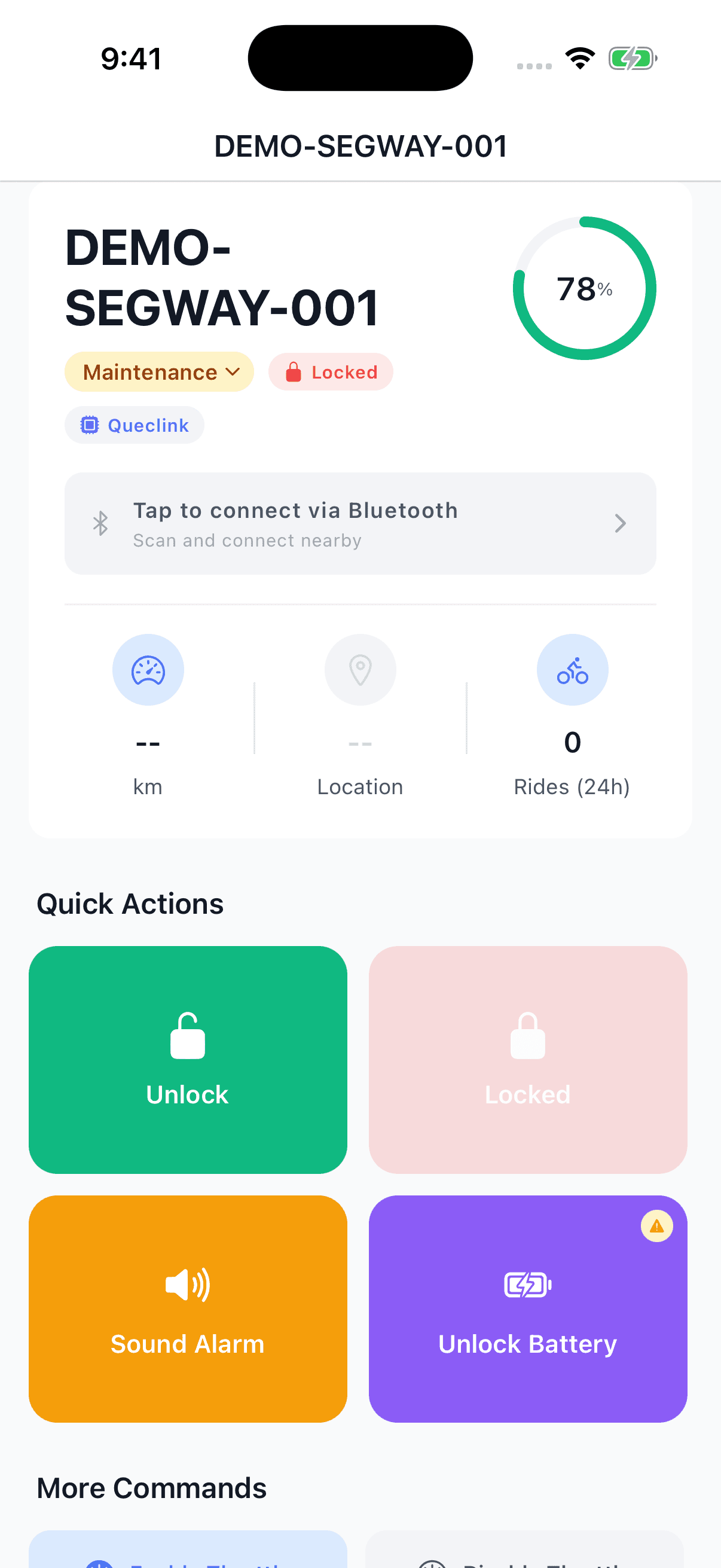
The Tap to connect via Bluetooth banner near the top of Vehicle Detail opens the same Queclink screen:
3. Let the app scan and connect
The screen opens and immediately starts scanning for nearby Bluetooth devices. When your scooter appears in the list, tap it. The app will:
- Connect over Bluetooth
- Authenticate using the scooter's stored Bluetooth key (handled automatically per vehicle)
- Show a green Connected banner once it's ready
Tip: stand as close to the scooter as possible. If multiple devices appear, the closest one usually has the strongest signal (highest dBm — closer to 0 is stronger).
After connecting, the Queclink screen's Connected panel includes Unlock and Lock controls. Follow its Lock Before Configuring instruction before applying network settings. If you return to Vehicle Detail, its green BLE Connected banner confirms the local connection remains active:
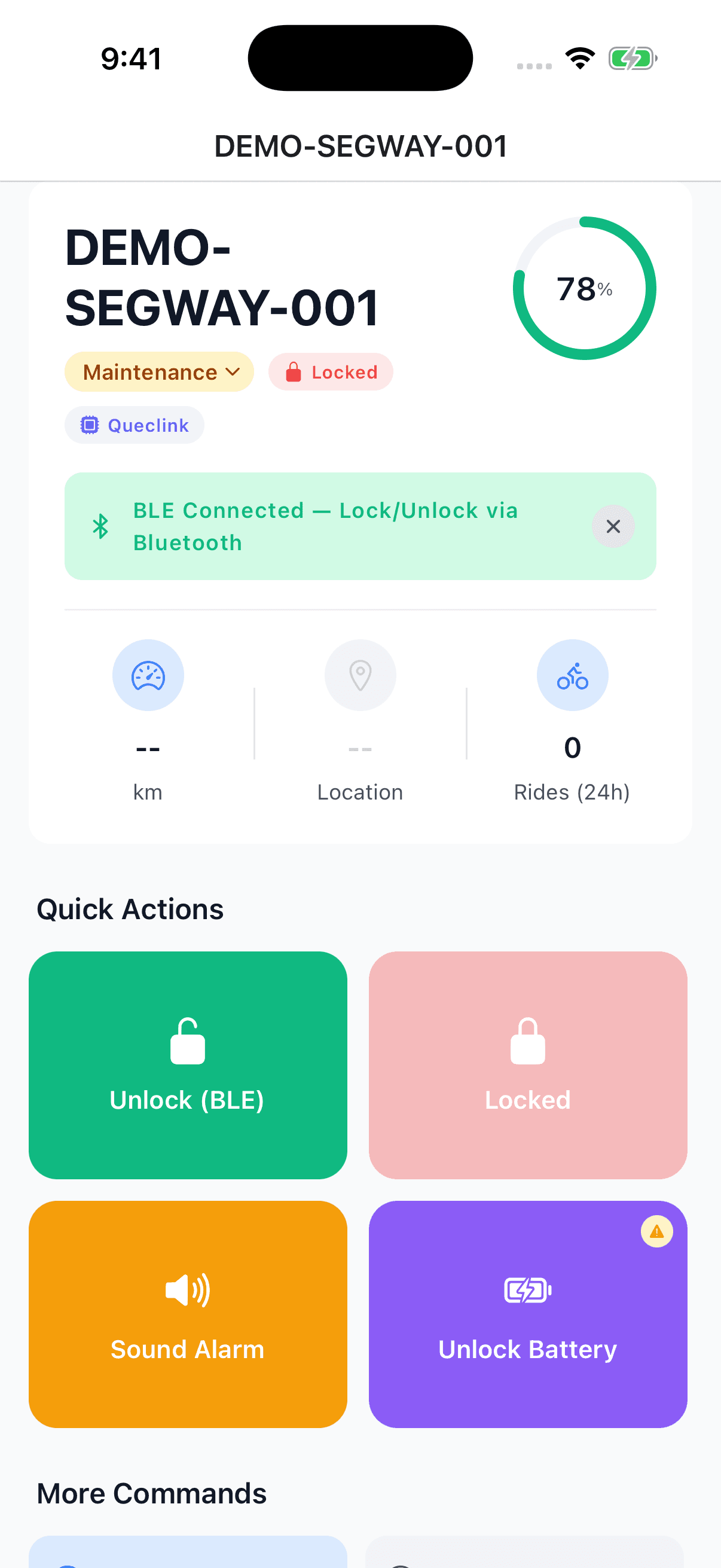
The screenshots use a demonstration vehicle and simulated Bluetooth state. They do not show a configuration being applied to real hardware. The network form is described below; return to Queclink BLE to configure it.
4. Confirm the Network Configuration values
The form is pre-filled with the correct production values. You should not need to change anything unless support has told you otherwise.
| Field | Default | What it is |
|---|---|---|
| APN | simbase | The cellular APN. This is the value used for new Simbase SIM cards. |
| APN Username | (blank) | Not required for Simbase. |
| APN Password | (blank) | Not required for Simbase. |
| Server | •••••sign in | The Levy IoT proxy server address. |
| Port | •••••sign in | The Queclink TCP port on our server. |
Leaving APN Username / Password blank is correct for Simbase. The form will warn that blank fields will clear any previously stored values — that's fine.
5. Tap "Apply Configuration"
Tap Apply Configuration. A confirmation dialog summarizes what will be sent. Tap Apply to confirm.
What happens next:
- The new settings are sent to the IoT module over Bluetooth (a few seconds)
- A green "Configuration Applied" banner appears
- The scooter reboots automatically, so the Bluetooth connection will drop — this is expected
- The IoT module reconnects to our server over cellular within 1–2 minutes
That's it — once the scooter is back online you'll see it transition to "available" in the dashboard, and lock/unlock commands will work normally.
6. (Optional) Verify with "Read Current Config"
If you want to double-check the values that are now stored on the device, reconnect over Bluetooth and tap Read Current Config. The form will populate with whatever the device currently has set. Useful if a scooter still won't come online and you want to confirm the APN actually saved.
Troubleshooting
The scooter doesn't appear in the scan list
- Make sure Bluetooth is enabled in your phone's settings
- Grant the operator app location permission (iOS requires this for BLE)
- Stand within a few feet of the scooter
- Power-cycle the scooter and try scanning again
Connection fails or times out
- Move closer to the scooter
- Make sure no one else is connected to that scooter over Bluetooth
- Try tapping the device in the list again — first connection sometimes needs a retry
"Configuration Failed"
- Stay near the scooter throughout the process — don't walk away while it's sending
- Make sure the scooter is powered on (not in deep sleep)
- Try once more; the actual transfer takes only a few seconds
Scooter still doesn't come online after Apply Configuration
- Wait a full 2 minutes for the reboot and reconnection
- Verify the SIM card is fully seated and the scooter is powered on
- Reconnect over Bluetooth and tap Read Current Config — confirm APN is
simbase, Server is •••••sign in, Port is •••••sign in - If the SIM has never connected to the cellular network at all, the issue is the SIM (not the config) — contact Levy support so we can check the SIM's status on Simbase
- If config is correct and the SIM is registered but the device still won't connect, capture device logs with the Start Log Transfer button at the bottom of the same screen and share them with support
Related Guides
- ZK600 App Master Guide — fallback method using the Segway-supplied Android app
- Bluetooth IoT Configuration — same flow for older Segway / Omni IoT (uses the "Configure IoT" button, port •••••sign in)
- Reasons Behind an Offline IoT — broader troubleshooting for offline scooters