Bluetooth IoT Configuration
Reconfigure your scooter's network settings directly from your phone using Bluetooth. This lets you update the APN, server IP, and port without any cables or external tools.
Download the Operator App
| Platform | Link |
|---|---|
| iOS | App Store |
| Android | Google Play |
Requirements
- Levy Operator app version 1.2 or later (update if needed)
- Bluetooth enabled on your phone
- Location permission granted (required by iOS for Bluetooth scanning)
- Be within a few feet of the scooter
This feature works with Segway and Omni IoT devices.
Step-by-Step Guide
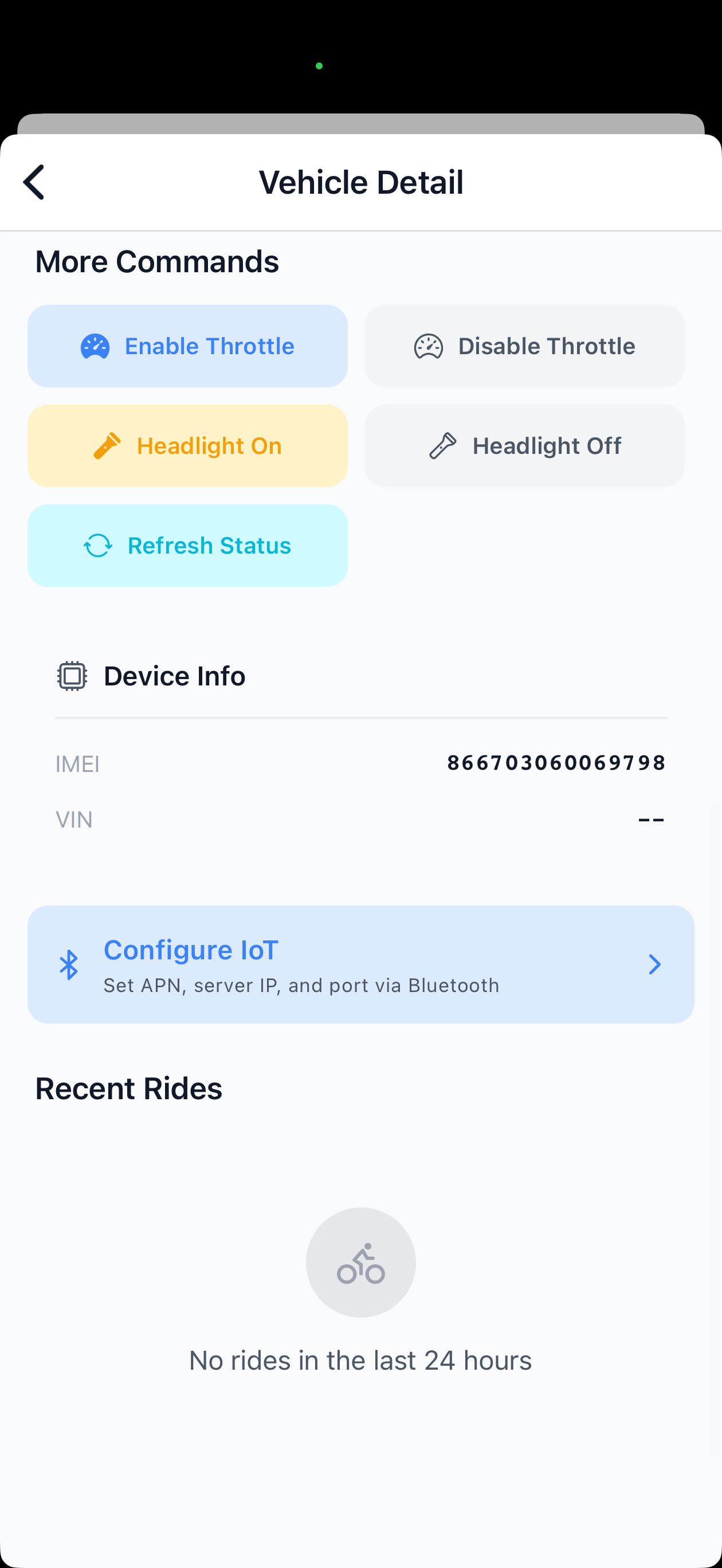
1. Open the Vehicle Detail
Find the vehicle you want to configure. You can search by vehicle number or scan its QR code. Scroll down to the Device Info section and tap Configure IoT.
2. Review Network Settings
The configuration screen opens with default settings pre-filled:
| Field | Default | Description |
|---|---|---|
| APN | simbase | The cellular APN for the SIM card |
| Server IP | •••••sign in | The IoT proxy server address |
| Port | •••••sign in | The server port for Segway/Omni devices |
In most cases, the defaults are correct. Only change these if instructed by the Levy support team.
3. Scan for the Scooter
The app automatically starts scanning for nearby Bluetooth devices when you open the screen. You'll see a list of detected scooters sorted by signal strength (closest first).
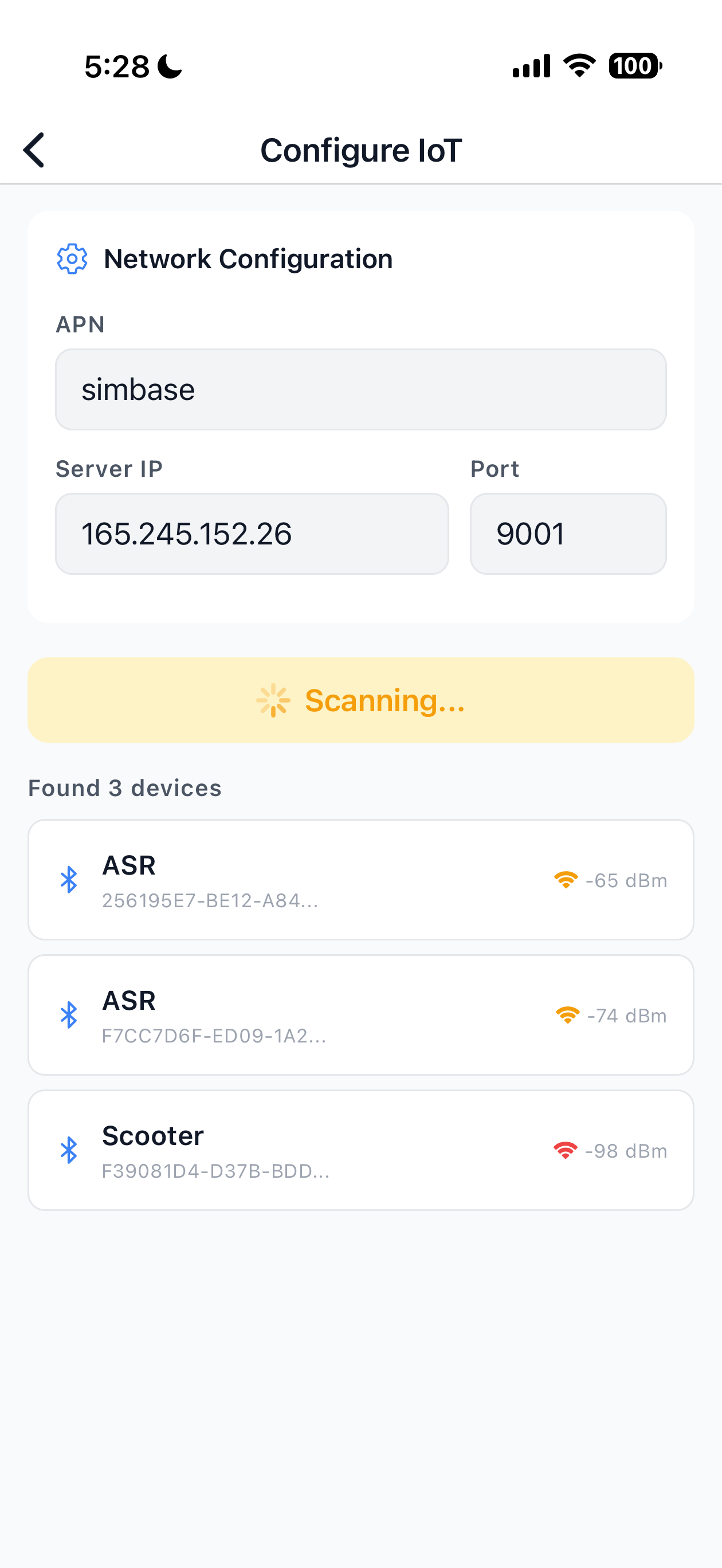
Tip: Stand as close to the scooter as possible. The device you're looking for will usually be the one with the strongest signal (listed first). Segway devices appear as "ASR" and Omni devices appear as "Scooter".
4. Connect to the Scooter
Tap the device in the list to connect. The app will:
- Establish a Bluetooth connection
- Authenticate with the scooter's security key
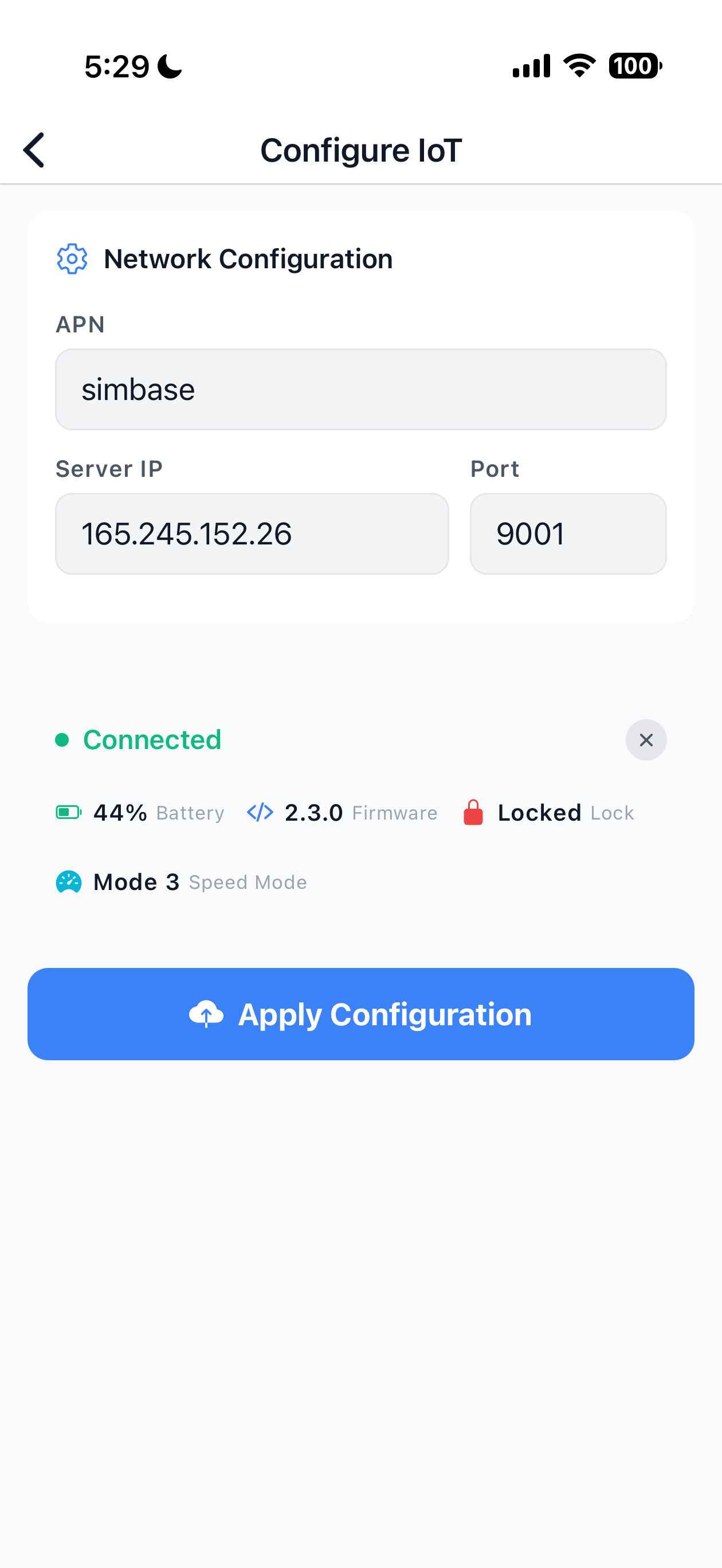
- Read device information (battery level, firmware version, lock state)
Once connected, you'll see the device status below the settings fields.
5. Apply Configuration
Tap Apply Configuration to send the network settings to the scooter. You'll see a confirmation dialog showing exactly what will be changed.
After confirming:
- The settings are transmitted over Bluetooth
- The scooter will reboot automatically to apply the new configuration
- The Bluetooth connection will drop (this is normal)
- The scooter should reconnect to the server within 1-2 minutes
Troubleshooting
Scooter not appearing in scan results
- Make sure Bluetooth is enabled in your phone's Settings
- Grant location permission when prompted (required for Bluetooth on iOS)
- Stand within a few feet of the scooter
- Wait for the full 15-second scan to complete
- Try tapping "Scan for Scooters" again
Connection fails or times out
- Move closer to the scooter
- Make sure no one else is connected to the scooter via Bluetooth
- Power cycle the scooter if possible, then try again
Authentication fails
- Verify you're connecting to the correct scooter. If multiple devices appear, choose the one with the strongest signal
- The Bluetooth key is automatically configured per vehicle. If authentication keeps failing, contact support
Configuration says "Failed"
- Ensure the scooter stays powered on during the transfer
- Don't walk away from the scooter while configuration is being sent
- Try connecting and applying again. The process takes only a few seconds
Scooter doesn't appear online after configuration
- Wait at least 2 minutes for the reboot to complete
- Verify the scooter has a working SIM card with data
- Check the APN setting matches your SIM provider (default:
simbase) - If it still doesn't connect after 5 minutes, try applying the configuration again
Running a fleet on this hardware?
Levy Fleets runs scooters, e-bikes, mopeds and golf carts on the IoT hardware you already have, with integration pages for 29 vendors including Segway, Okai, Omni, Queclink, Invers and Comodule. Keyless unlock, geofencing, rider payments and rider support are included, and the Managed plan is a share of revenue with no per-vehicle software fee.