Levy Operator App
Your complete fleet management dashboard in your pocket. Monitor vehicles, manage rides, control IoT devices, and configure zones — all from your mobile device.
Download
| Platform | Link |
|---|---|
| iOS | App Store |
| Android | Google Play |
1. Vehicle Management
View and manage your entire fleet from a single screen. The Vehicles tab provides real-time status updates, battery levels, and location information for every vehicle in your fleet.
Filter by Status
| Status | Color |
|---|---|
| Available | Green |
| In Use | Blue |
| Maintenance | Yellow |
| Not Ready | Orange |
| Charging | Purple |
| Offline | Gray |
Key Features
- Map View — See all vehicles on an interactive map with real-time locations
- Battery Monitoring — Filter by battery level to find vehicles needing charging
- Quick Search — Find any vehicle by number or identifier instantly
- Status Updates — Change vehicle status directly from the app
2. Rides & Monitoring
Monitor all rides in real-time. View active trips, completed rides, and handle customer issues directly from your mobile device.
Ride Filters
| Filter | Description |
|---|---|
| All Rides | Complete history |
| Active | Currently in progress |
| Completed | Finished rides |
Ride Information
- Duration Tracking — See how long each ride has been in progress with live timers
- Distance & Route — Track distance traveled and view the ride route on a map
- Fare Information — View ride costs and issue refunds when needed
Quick Actions
End active rides directly from the app if a customer needs assistance or reports an issue. Search rides by ride number or customer name to quickly find what you're looking for.
3. Customer Management
Access customer information on the go. The search-first interface lets you quickly find any customer and view their current status and ride history.
Search-First Design
Start typing a customer's name, email, or phone number to instantly find their profile. The app is optimized for quick lookups when customers call or approach you in the field.
Customer Filters
| Filter | Description |
|---|---|
| All Customers | View complete customer list |
| Active Trip | Customers currently on a ride |
| Recently Ended | Just finished a ride |
4. Zone Configuration
Configure and manage geographic zones directly from the field. The interactive map lets you create, edit, and delete zones with visual polygon editing.
Zone Types
| Zone Type | Color |
|---|---|
| Parking | Green |
| No Park | Red |
| No-Go | Dark Gray |
| Speed Limit | Yellow |
| Charging | Purple |
| Bonus | Emerald |
| Service Area | Blue |
Zone Management
- Create Zones in the Field — Draw new zones while on location to capture exact boundaries
- Visual Polygon Editing — Edit zone boundaries with an intuitive touch interface
- Color-Coded Visualization — Easily identify zone types with distinct colors on the map
5. QR Scanner
Instantly look up any vehicle by scanning its QR code. The floating scanner button is always available, no matter which tab you're on.
Always Accessible
The QR scanner button floats above the navigation bar, giving you instant access from anywhere in the app. Point your camera at a vehicle's QR code to immediately view its details.
Scanner Features
- Animated scan interface with visual feedback
- Manual vehicle number entry as backup
- Direct navigation to vehicle details
6. IoT Controls
Control vehicles remotely with a full suite of IoT commands. From the vehicle detail screen, you can lock, unlock, and manage vehicle functions in real-time.
Available Commands
| Command | Description |
|---|---|
| Lock | Remotely lock the vehicle motor |
| Unlock | Remotely unlock the vehicle motor |
| Sound Alarm | Trigger the vehicle horn/buzzer |
| Toggle Throttle | Enable or disable the throttle |
| Toggle Headlight | Control the vehicle lights |
| Unlock Battery | Remote battery compartment release |
Refresh Status
Force a refresh of vehicle telemetry data to get the latest battery level, location, and status information. Useful when troubleshooting or verifying a command was successful.
Unlock and lock an OKAI vehicle over Bluetooth
The Levy Operator app includes nearby Bluetooth Lock and Unlock controls for supported OKAI fleet scooters and bikes. Once connected, these two controls send commands directly from your phone to the vehicle. The vehicle's cellular SIM can be suspended; you do not need to reactivate it just to use these local controls.
Your phone still needs an authorized operator login and access to the vehicle. Sign in and load its details while your phone has internet access. The vehicle must have power, Bluetooth must be enabled on your phone, and the app must have Bluetooth permission. On Android, allow any nearby-device or location permission requested for Bluetooth scanning.
1. Open the correct vehicle
Use the Levy Operator app from the download links above. Sign in with the same authorized account as your fleet dashboard. Open Vehicles, then select the vehicle or scan its QR code. Check the vehicle number before sending a command.
2. Connect while standing next to it
On the vehicle detail screen, tap Tap to connect via Bluetooth. The app scans for the selected OKAI device. Stay next to the powered vehicle while the connection is established. If you have paired this vehicle before, the app may show Reconnect to saved device.
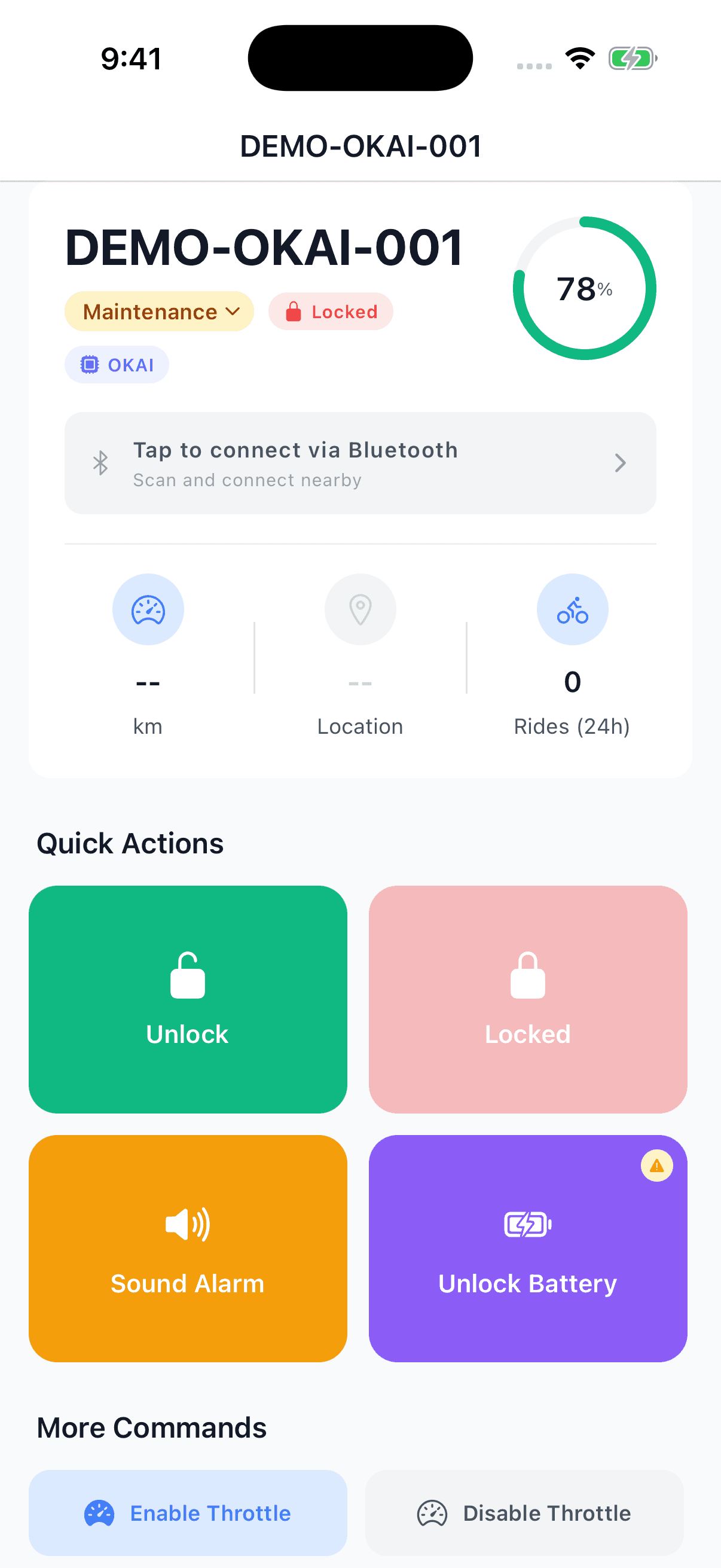
3. Confirm the Bluetooth connection
Wait for the green BLE Connected banner showing Lock/Unlock via Bluetooth. This banner is the confirmation that the Lock and Unlock buttons will use Bluetooth. Seeing the vehicle in the list, or seeing an old online status, does not confirm a Bluetooth connection.
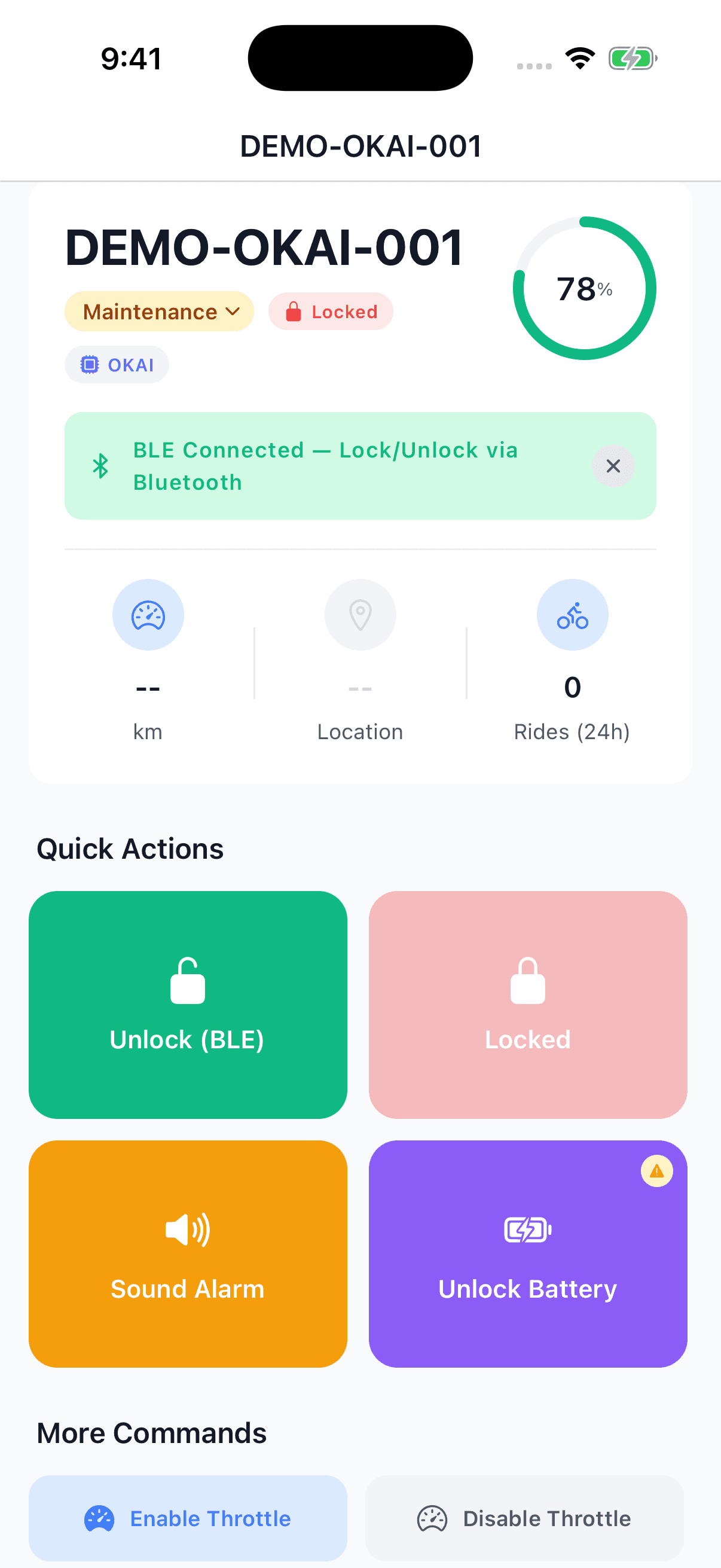
4. Tap Unlock or Lock
With the green banner visible, tap Unlock (BLE) to release the vehicle lock, or Lock (BLE) when finished. A button shows Unlocked or Locked when the vehicle is already in that state. Check that the app reports the result and the physical lock responds before moving the vehicle. If the Bluetooth connection drops, connect again before using these buttons; without a Bluetooth connection they use the remote cellular path.
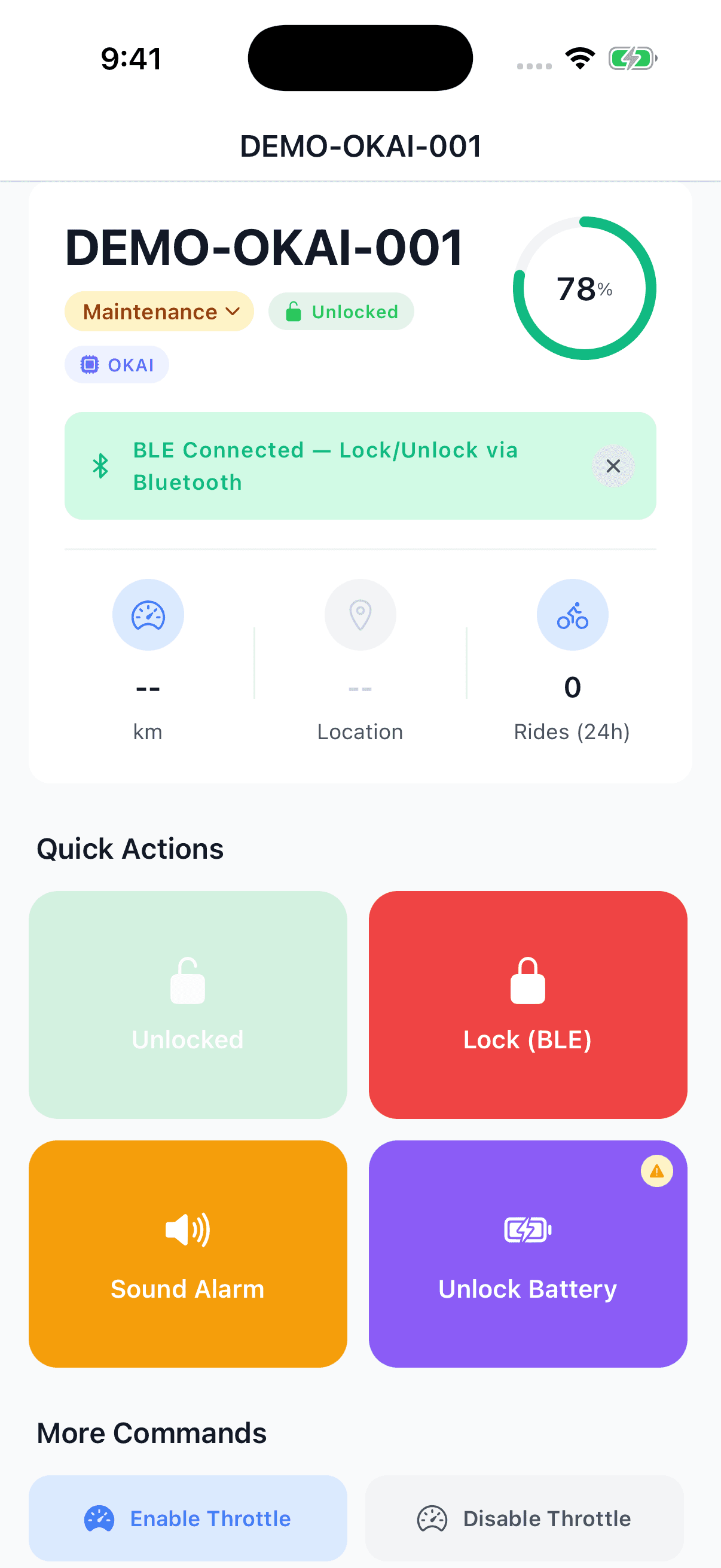
The screenshots show the actual Operator app screen with a demonstration vehicle and simulated Bluetooth states. They illustrate the controls, rather than a live hardware test.
Battery-compartment access is a separate control
For OKAI vehicles, the Unlock Battery button currently uses cellular, even when the Bluetooth banner is green. The Bluetooth steps above cover vehicle Lock and Unlock. They do not provide battery-door access, remote location updates, firmware updates, or full connected rental testing while the SIM is suspended.
If it does not connect or unlock
- No matching device: confirm the vehicle has power, move closer and check Bluetooth permissions. A discharged main battery or IoT backup battery can prevent the vehicle responding.
- Multiple devices: move next to the vehicle you selected and try again so the app can identify it.
- Missing password or rejected command: the vehicle's Bluetooth credential or configuration needs checking. Send support the vehicle number and the exact error shown in the app. Do not guess a password.
- Login fails or vehicle is missing: confirm that your operator account still has access to that fleet. A former owner's retired login does not provide access after a fleet handoff.
- The app reports a result but the lock does not move: stop and have the lock mechanism checked. Bluetooth cannot repair a damaged hub lock or cable. Do not force the vehicle to move while its lock is engaged.
Additional Features
- Multi-Language Support — Available in English, Spanish, and French. Change your language in Settings.
- Push Notifications — Receive real-time alerts for important fleet events, even in background.
- Dark Mode — Automatic dark/light theme based on your device settings.
- Secure Authentication — Credentials stored securely with device-level encryption.
Need Help?
Have questions about the Levy Operator app or need assistance getting started? Contact Support or check the Theft Detection Guide.
Running a fleet on this hardware?
Levy Fleets runs scooters, e-bikes, mopeds and golf carts on the IoT hardware you already have, with integration pages for 29 vendors including Segway, Okai, Omni, Queclink, Invers and Comodule. Keyless unlock, geofencing, rider payments and rider support are included, and the Managed plan is a share of revenue with no per-vehicle software fee.