Segway Max Plus (2.3) QuickLink SIM Replacement
This guide shows how to access and replace the SIM card in a Segway Max Plus (2.3) with an NB-Y Queclink ZK601 dashboard IoT.
Segway Max Plus 2.3 only
Use this procedure only when the scooter and IoT match the photos below. It does not apply to Feishen, Max Pro (2.2), Max Plus X (2.4), Omni, Acton, or OKAI hardware. For Feishen hardware, use Feishen IoT SIM Replacement.
About the QuickLink name
This hardware has also been called QuickLink in prior support conversations. Levy hardware records and configuration tools identify it as Queclink. Confirm the dashboard contains an NB-Y / ZK601 board before continuing.
Before You Start
Replace the SIM in one scooter first. Confirm that scooter comes back online before opening the rest of the fleet.
What You'll Need
- The activated replacement SIM supplied for the scooter
- The matching driver for the screws beneath the dashboard panel
- A plastic opening tool
- A clean, dry work surface and a small container for screws
- A phone with the Levy Operator app for post-replacement configuration
Power the Scooter Down
- End any active ride and turn the scooter off.
- Remove the main battery or otherwise disconnect the scooter from power.
- Wait at least 30 seconds before opening the dashboard.
Protect the electronics
Never change the SIM while the scooter is powered. Work somewhere dry, avoid touching exposed components, and do not pry with a metal tool.
Step 1: Open the Center Dashboard Panel
The access point is the black center dashboard panel. You do not need to remove the entire handlebar or dashboard assembly.
Open the dashboard repair video at about 6:55 to see the panel opened.
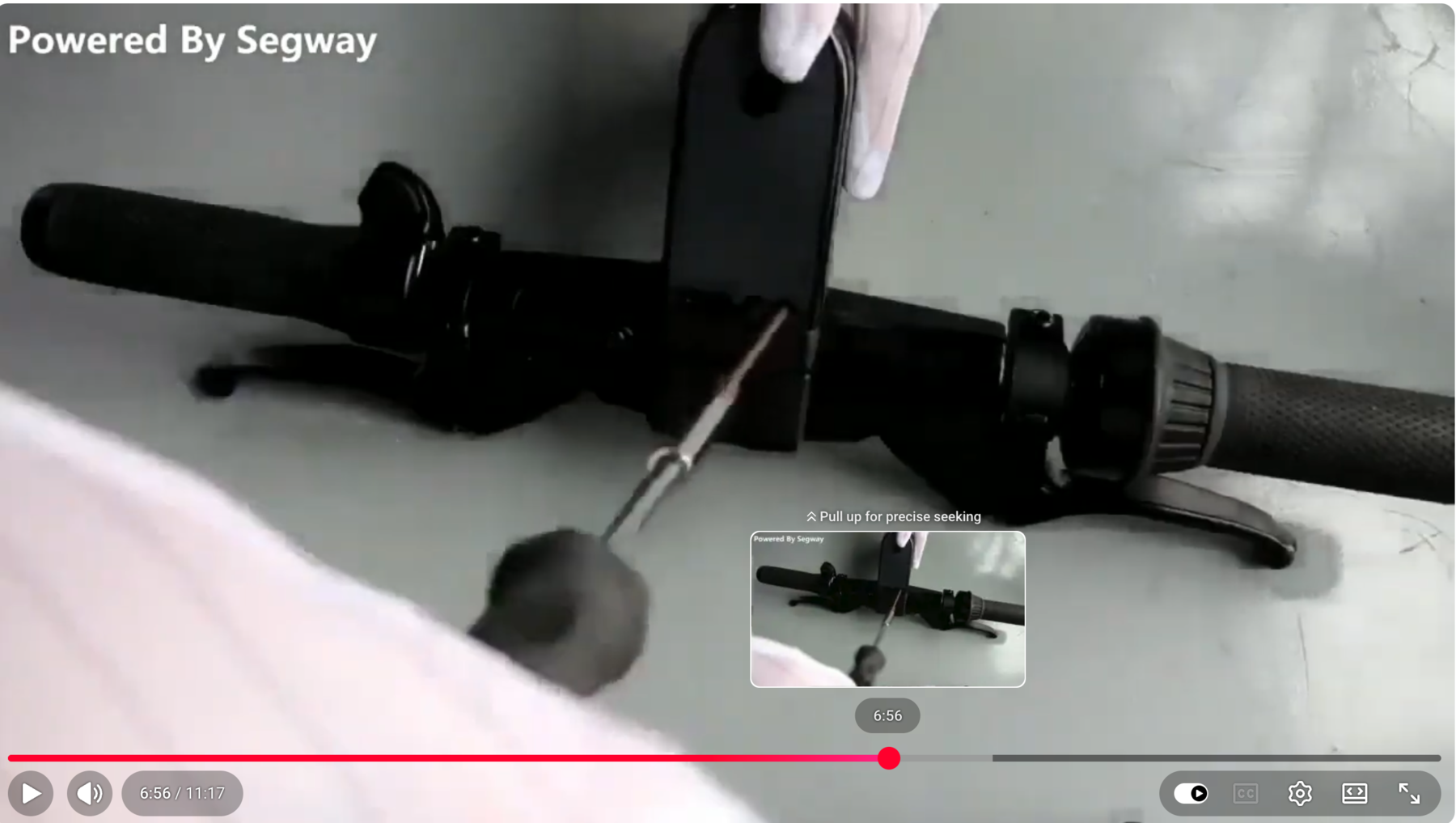
Remove the screws from beneath the black center panel, as shown around the seven-minute mark in the repair video.
- Support the black center panel with one hand.
- Remove the screws from the underside of the panel.
- Lift the top cover slowly. Do not pull on the wiring harnesses.
- If the cover resists, check for a missed screw instead of forcing it open.
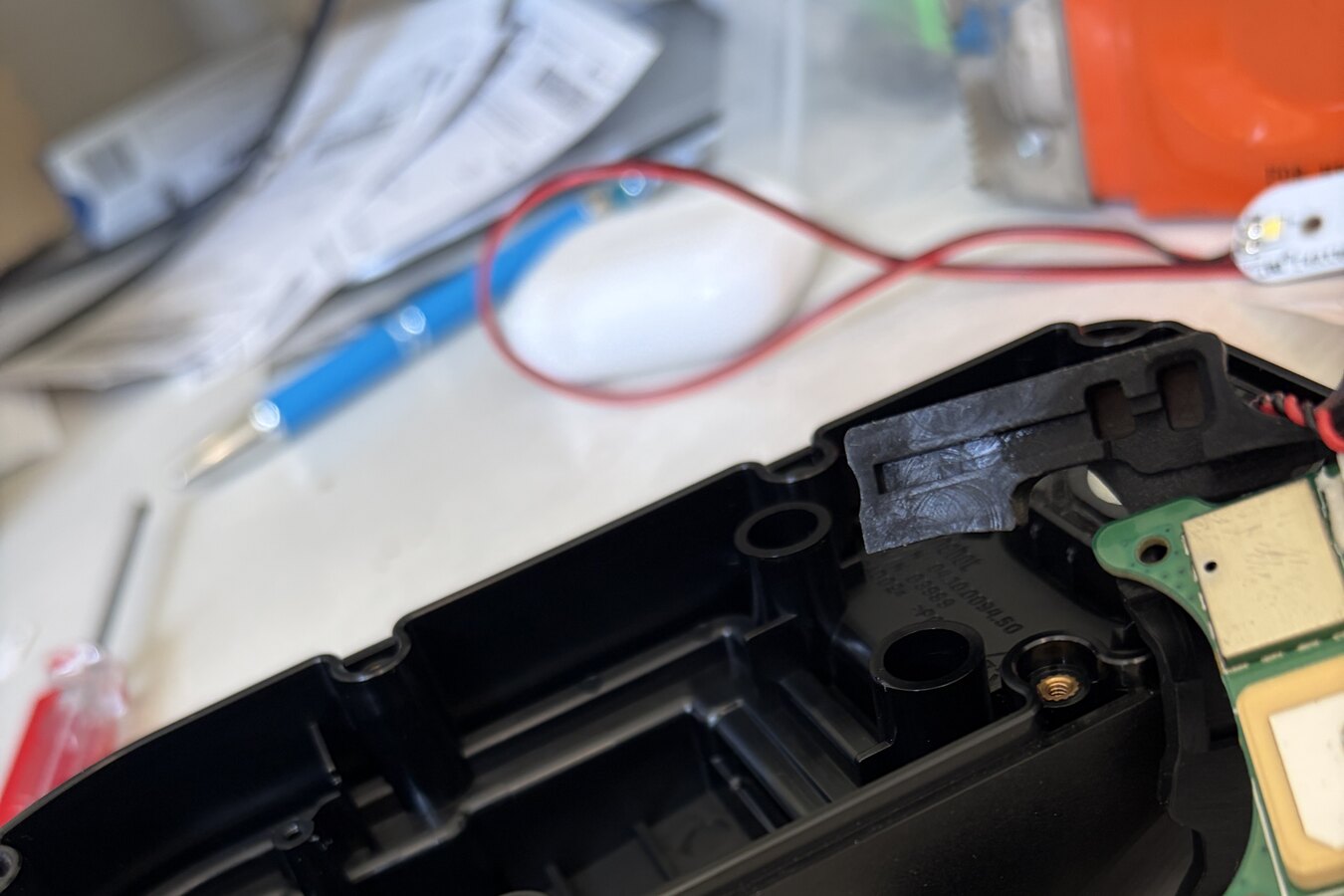
The black center housing opened on a workbench. Support the circuit board and harnesses instead of pulling them from the cover.
Step 2: Confirm the ZK601 Dashboard IoT
Compare the opened dashboard with the reference photo below. The board label should identify the Queclink ZK601 family used by the NB-Y IoT.
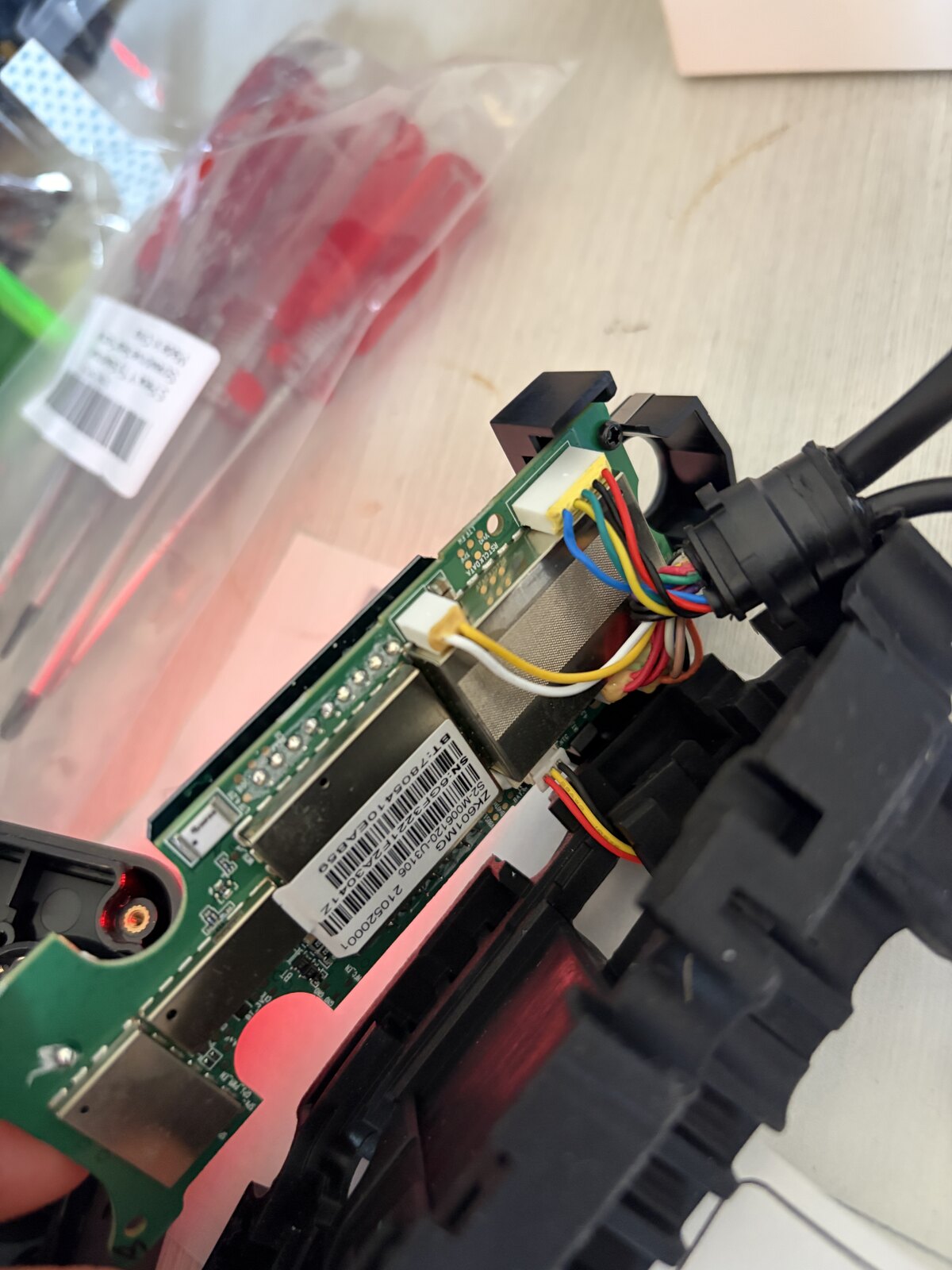
Opened Segway Max Plus 2.3 dashboard with the Queclink ZK601 board. Keep the connected harnesses supported while you work.
Stop if the hardware differs
Do not remove shields, pry at the circuit board, or continue with a different IoT layout. Send a clear photo of the board label and open housing to support@levyelectric.com so the hardware can be identified first.
Step 3: Replace the SIM
- Locate the removable SIM holder in the opened IoT.
- Before removing the old SIM, take a close photo showing its notched-corner orientation.
- Release or slide out the old SIM using the holder's normal movement. Do not lift or bend the metal holder.
- Insert the replacement SIM in the same orientation.
- Confirm the replacement sits flat and fully seated. Do not force it.
Board revisions can place the SIM holder differently. If the holder is not immediately visible, stop and contact support rather than removing the circuit board or metal shielding.
Step 4: Close the Dashboard
- Confirm the SIM is seated and no loose screws or tools remain inside.
- Place every harness back in its original path so no wire is pinched by the cover.
- Check that the panel's seal or gasket is clean and correctly seated.
- Lower the black top cover into place.
- Reinstall the underside screws evenly until snug. Do not overtighten them into the plastic.
- Reconnect the battery and power the scooter on.
Step 5: Configure and Verify the Scooter
After a SIM change, confirm the cellular settings and connection:
- In the Levy Operator app, open the scooter and tap Queclink BLE.
- Follow Configure Queclink IoT from the Operator App to apply the correct APN, server, and port.
- Allow one to two minutes for the IoT to reboot and reconnect.
- In Levy Fleets Dashboard > IoT Devices, search for the scooter by IMEI.
- Confirm it shows Online with recent telemetry before replacing SIMs in other scooters.
Troubleshooting
The scooter does not appear in Queclink BLE
- Stand within a few feet of the scooter
- Confirm Bluetooth and Location permission are enabled
- Make sure the scooter has power
- Power-cycle the scooter and scan again
The scooter stays offline after configuration
- Reopen the dashboard and confirm the SIM is fully seated
- Use Read Current Config in Queclink BLE to confirm the new settings were saved
- Wait a full two minutes after the IoT reboots
- Contact support@levyelectric.com with the scooter IMEI, a photo of the ZK601 label, and a close photo of the SIM holder
Finish one scooter before the fleet
Once the first scooter is online and reporting recent telemetry, repeat the same process on the remaining Segway Max Plus 2.3 scooters.
Running a fleet on this hardware?
Levy Fleets runs scooters, e-bikes, mopeds and golf carts on the IoT hardware you already have, with integration pages for 29 vendors including Segway, Okai, Omni, Queclink, Invers and Comodule. Keyless unlock, geofencing, rider payments and rider support are included, and the Managed plan is a share of revenue with no per-vehicle software fee.