Connect to a Segway Max 2.3 by Bluetooth in the Levy Operator App
The Levy Operator app can connect directly to a nearby Segway Max 2.3 or Segway Max Plus scooter through its Queclink NB-Y Bluetooth module. This local connection lets an operator lock or unlock the scooter even when its cellular connection is unavailable.
Queclink, not “Quick Link”
Segway Max 2.3 and Max Plus scooters use a Queclink NB-Y IoT module. In the Operator app, the Bluetooth option is labeled Queclink BLE.
Before You Start
- Charge the scooter before scanning. A deeply discharged scooter may not have enough power for its Bluetooth radio to advertise.
- Stand within a few feet of the scooter.
- Turn on Bluetooth on your phone.
- Allow the Levy Operator app to use Nearby devices and Location if your phone requests those permissions.
- When several scooters are together, power on and test one scooter at a time. Move the others out of range or power them off to avoid choosing the wrong device.
The Scooter Must Have Power
A scooter can already be configured correctly in Levy Fleets and still show Not found if its main battery or IoT module is too discharged to broadcast over Bluetooth. Charge it fully, then scan again.
Connect to the Scooter
Open the vehicle
In the Levy Operator app, select Vehicles, then tap the Levy vehicle ID for the physical scooter you are standing beside.
Open Queclink BLE
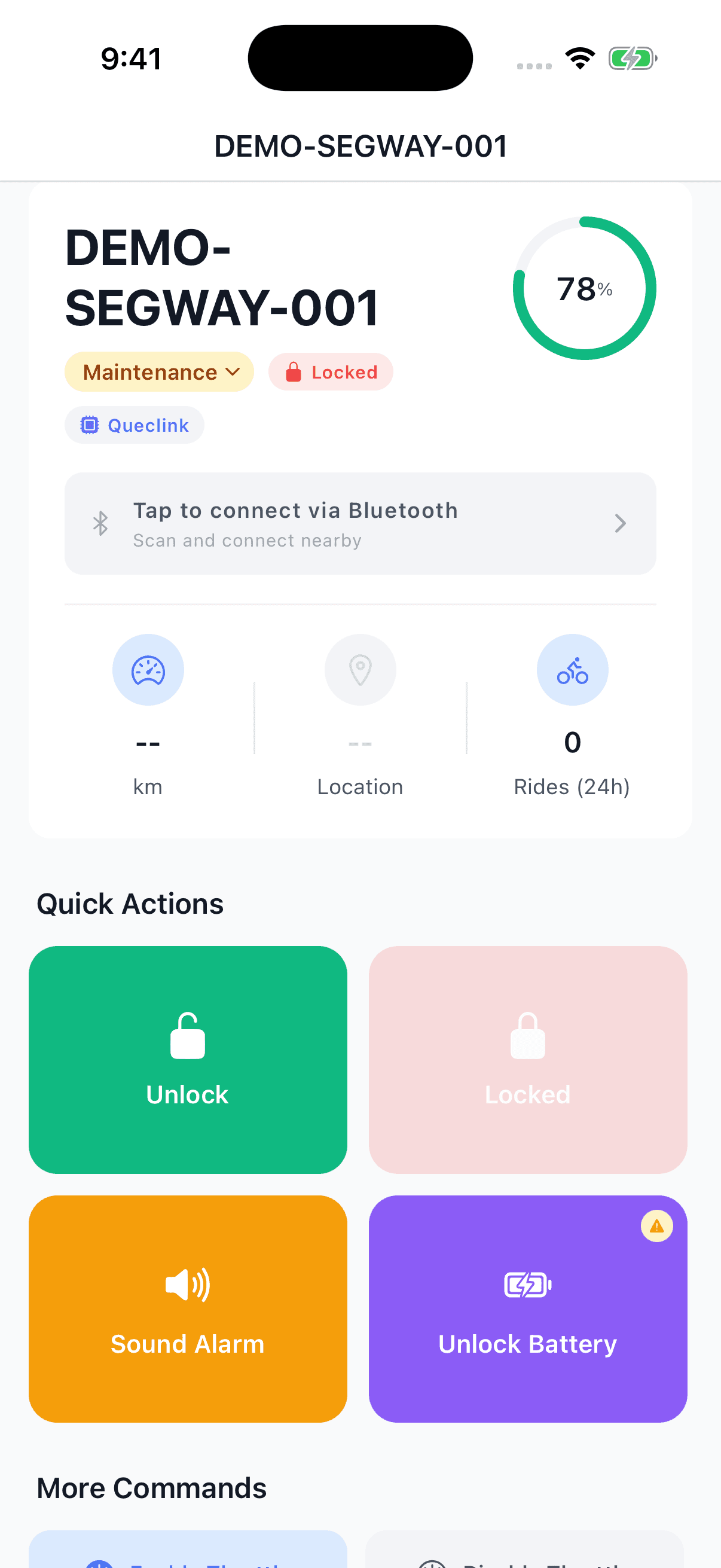
On the vehicle detail screen, tap Tap to connect via Bluetooth, or scroll down and tap Queclink BLE. The Queclink screen begins scanning automatically.
Choose the nearby device
Select the Queclink device shown closest to your phone. The strongest nearby result normally appears first. If the list is empty, tap Scan for Queclink Devices.
Wait for Connected
The app authenticates with the scooter using the Bluetooth credentials already stored in Levy Fleets. Continue only after the screen shows Connected.
The device name and signal strength help you choose a nearby device, but they do not prove which physical scooter it is. Verify the selected scooter responds before saving or moving to another unit.
Lock or Unlock
After the screen shows Connected:
- Tap Unlock and confirm the prompt.
- Verify that the physical scooter beside you unlocks.
- Tap Lock and confirm the prompt.
- Verify that the same scooter locks again.
You can also return to the vehicle detail screen while the Bluetooth connection remains active. Its green BLE Connected banner confirms that Unlock (BLE) and Lock (BLE) use the local connection.
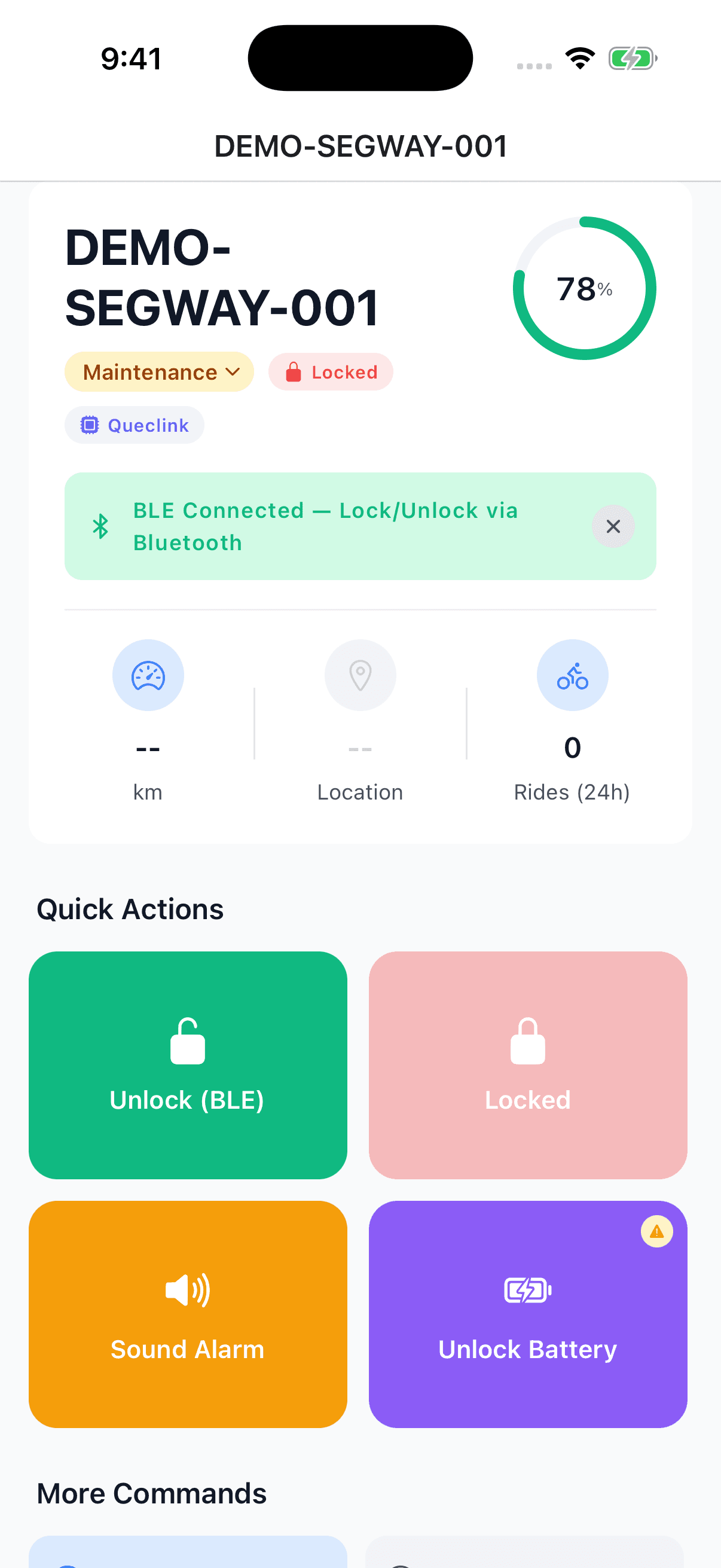
After unlocking, the vehicle screen shows Unlocked and enables Lock (BLE).
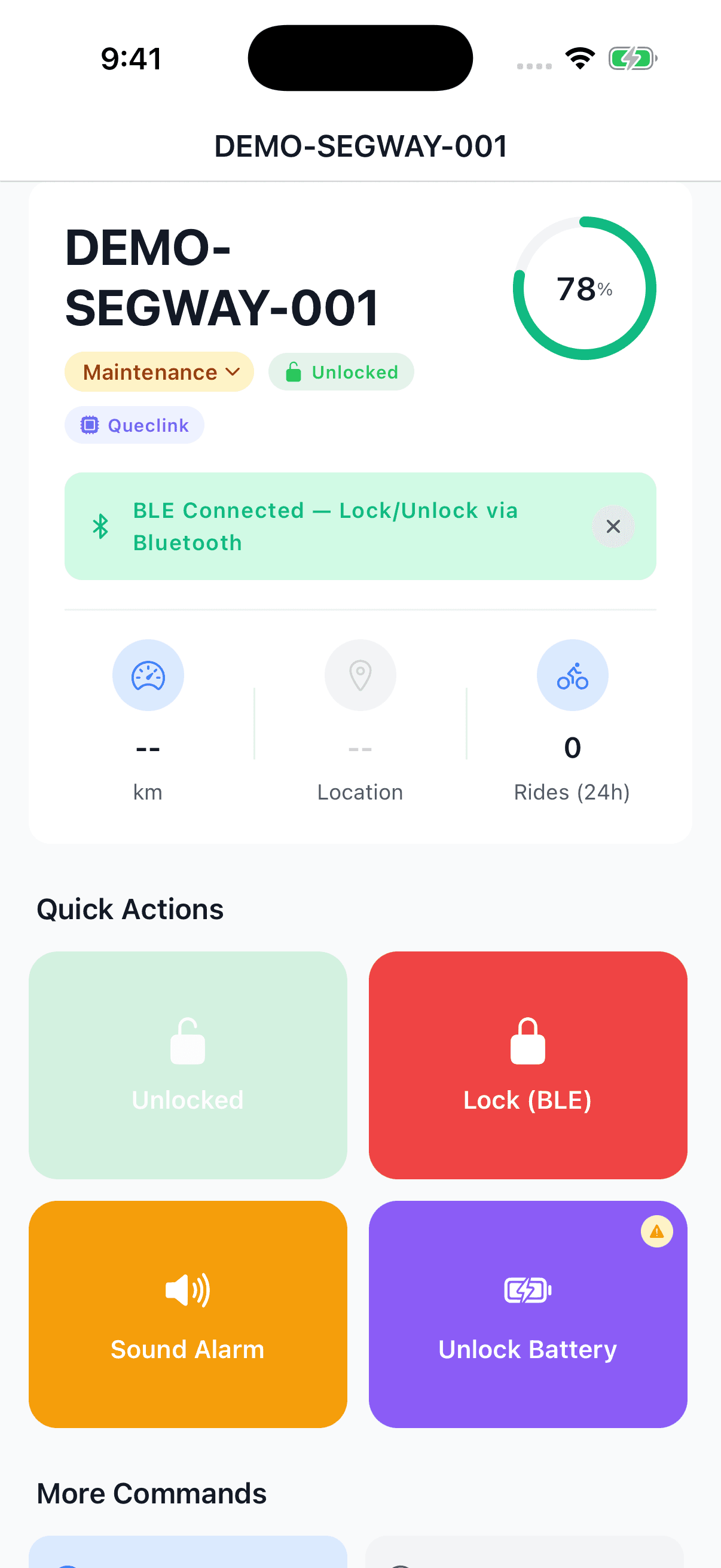
These are actual Operator app screens with a demonstration vehicle and simulated Bluetooth states. They illustrate the controls, not a physical scooter test.
The first successful connection is saved to that Levy vehicle so future connections are faster.
Verify Before Saving Each Scooter
Always confirm that the physical scooter you are touching responds to the lock or unlock command before moving to the next vehicle. This prevents a nearby scooter from being saved under the wrong Levy vehicle ID.
If the Scooter Is Not Found
Try these steps in order:
- Charge the scooter fully, then power it on.
- Stand within a few feet of the scooter.
- Confirm that Bluetooth, Nearby devices, and Location permissions are enabled.
- Power off or move other scooters away, then tap Scan for Queclink Devices again.
- Tap Show all if the module is broadcasting with a non-standard device name.
- Power-cycle the scooter and scan again.
If a fully charged scooter still does not appear, send support@levyelectric.com the Levy vehicle ID. The vehicle may need its IoT power, radio, or wiring checked.
When to Use the Separate BLE Configuration Guide
The steps above are for normal local lock and unlock through the Levy Operator app. To change a scooter's APN, server, or port settings, use the Segway BLE configuration guide.
Running a fleet on this hardware?
Levy Fleets runs scooters, e-bikes, mopeds and golf carts on the IoT hardware you already have, with integration pages for 29 vendors including Segway, Okai, Omni, Queclink, Invers and Comodule. Keyless unlock, geofencing, rider payments and rider support are included, and the Managed plan is a share of revenue with no per-vehicle software fee.