Levy provides Lock My Scooter and Unlock My Scooter for the scooter paired in Owner Mode. You can run them in Apple Shortcuts immediately after setup. Adding buttons to your Home Screen is optional.
Before you start
- Use an iPhone with iOS 16 or later and Levy 58.0.37 or later from the App Store. If that update is not available yet, check again after its App Store release.
- Open Levy, sign in, and pair your scooter in Owner Mode. These actions belong to the Levy app, not Levy Operator.
- Keep Apple's Shortcuts app installed. Allow Bluetooth access to Levy if you want to connect nearby.
Find the ready-made Levy actions
- In Levy, open Owner Mode → Settings → Apple Shortcuts → Open Shortcuts. You can also open Apple's Shortcuts app yourself.
- Find Levy under App Shortcuts or on All Shortcuts. Use the back button or Library tab if needed; labels vary by iOS version.
- You'll see Lock My Scooter and Unlock My Scooter. Tapping either action runs it. Try commands only while the scooter is parked and it is safe to change its lock state.
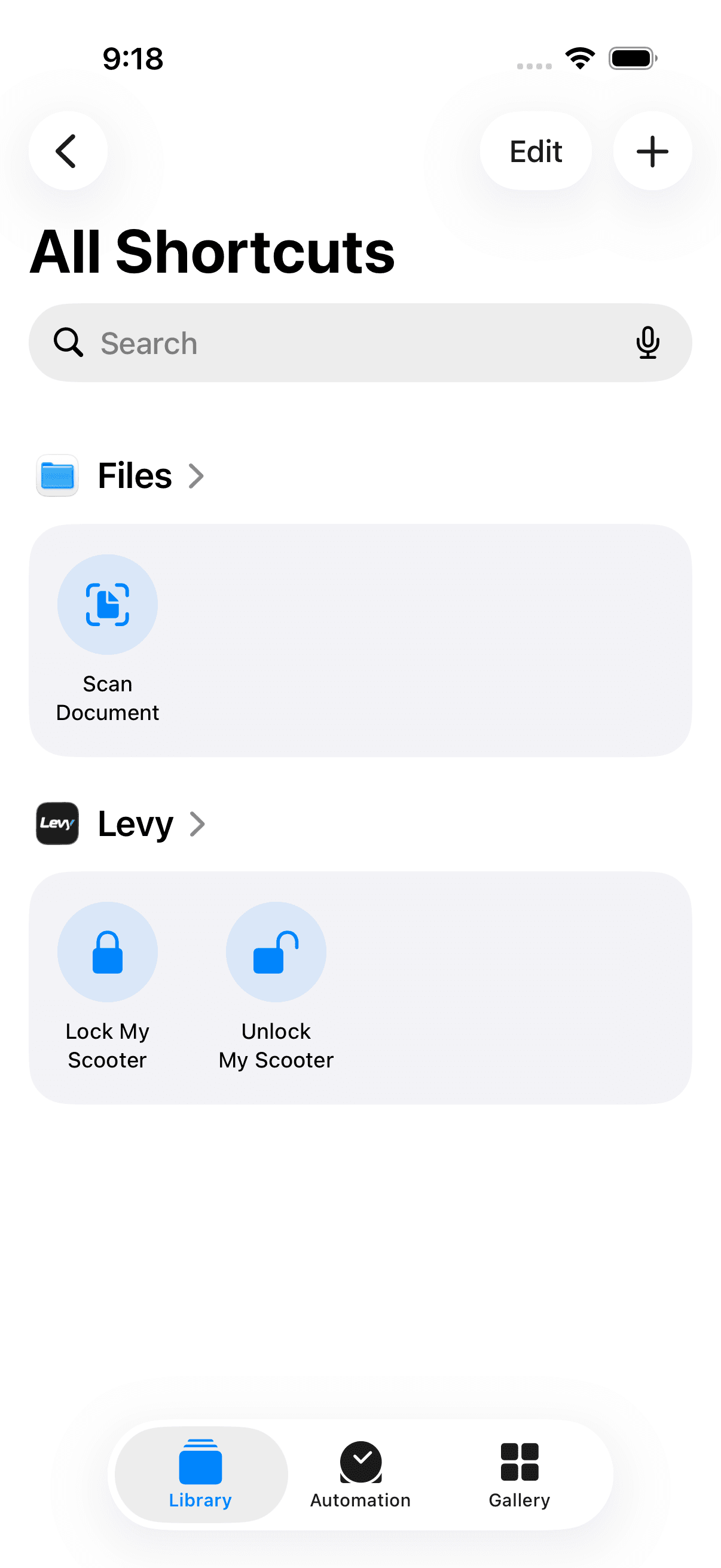
You do not need to download a shortcut file or enter a scooter ID, password, or API key. Levy uses the scooter paired to your signed-in account.
Save two shortcuts for your Home Screen
Save one shortcut for each action so you can name it, choose its connection, and use it in a widget:
- In Shortcuts, tap + to create a shortcut.
- Search the actions for Levy, then select Lock My Scooter.
- Leave Connection set to Automatic, or choose a connection from the table below.
- Name the shortcut Levy Lock and save it with Done or the save/checkmark control shown on your iOS version.
- Repeat with Unlock My Scooter, naming it Levy Unlock.
You can also open the menu on a Levy app action and choose Use in New Shortcut, where available. Each saved shortcut should contain just the intended lock or unlock action.
Option 1: Add individual Home Screen buttons
- Open the editor for your saved Levy Lock shortcut using its … menu.
- Open the shortcut's name menu or Details, then choose Add to Home Screen. Some iOS versions show this option in the share menu.
- Choose the name/icon you want, then confirm Add.
- Repeat for Levy Unlock.
Levy's Open Shortcuts button takes you to Shortcuts. It does not place icons on your Home Screen automatically; you choose and confirm their placement in iOS.
Option 2: Put both buttons in one widget
- In Shortcuts, create a folder called Scooter and move Levy Lock and Levy Unlock into it. Keep only these two shortcuts in that folder, in your preferred order.
- Touch and hold an empty area of the iPhone Home Screen. Open Edit → Add Widget, or tap + on older iOS versions.
- Search for Shortcuts, choose a widget that displays multiple shortcuts, and tap Add Widget.
- Touch and hold the widget, select Edit Widget, and set its folder to Scooter.
- Finish editing the Home Screen. You can now tap either button in the widget.
If you prefer the smallest widget, add two small widgets and select one saved shortcut for each. Available widget sizes and layouts vary by iOS version.
Choose how to connect
| Connection | When to use it |
|---|---|
| Automatic | Tries Bluetooth first. If it cannot connect before sending a command, it tries cellular. |
| Bluetooth | Use near your scooter with Bluetooth enabled. It does not fall back to cellular. |
| Cellular | Use the scooter's supported, active cellular connection. Your iPhone needs internet and the scooter's cellular module must be reachable. |
Automatic does not send a second cellular command after an uncertain Bluetooth result. If a result is unconfirmed, check the scooter before trying again. A message saying the command was sent is not confirmation that the physical lock changed.
Everyday use and troubleshooting
- Unlock your iPhone when asked. These actions require device authentication. You do not need to navigate to a Levy control screen to run them.
- Levy is missing from Shortcuts: update Levy from the App Store, open it once, sign in, and pair the scooter. Then reopen Shortcuts.
- “Pair your scooter first” or “account or paired scooter changed”: open Owner Mode and confirm the intended scooter is paired to your current account.
- Changed scooters: the shortcuts follow your current pairing. They are not permanently assigned to the scooter you used when creating the Home Screen buttons.
- No response: check Bluetooth range/permission or cellular connectivity, depending on the selected connection. Use Levy to inspect the current state before repeating an unconfirmed command.
- Signed out or forgot the pairing: sign in and pair again before using the shortcuts.
- Remove a button: remove the Home Screen icon or widget. This does not remove your scooter from Levy.
For Apple's current screen-by-screen instructions, see app shortcuts, Home Screen icons, and Shortcuts widgets.
Running a fleet on this hardware?
Levy Fleets runs scooters, e-bikes, mopeds and golf carts on the IoT hardware you already have, with integration pages for 29 vendors including Segway, Okai, Omni, Queclink, Invers and Comodule. Keyless unlock, geofencing, rider payments and rider support are included, and the Managed plan is a share of revenue with no per-vehicle software fee.