Getting Logs from the Moped IoT
This guide explains how to access the IoT module in a Segway moped and extract diagnostic logs using a USB to TTL cable and the desktop diagnostic application.
Tools Required
- USB to TTL converter cable (see USB to TTL Cable guide)
- 3.95mm pentagonal bit (P bit)
- PH2 Phillips bit
- Desktop diagnostic program (contact Segway to obtain)
- Windows laptop
Steps
Step 1 - Disassemble the front panel:
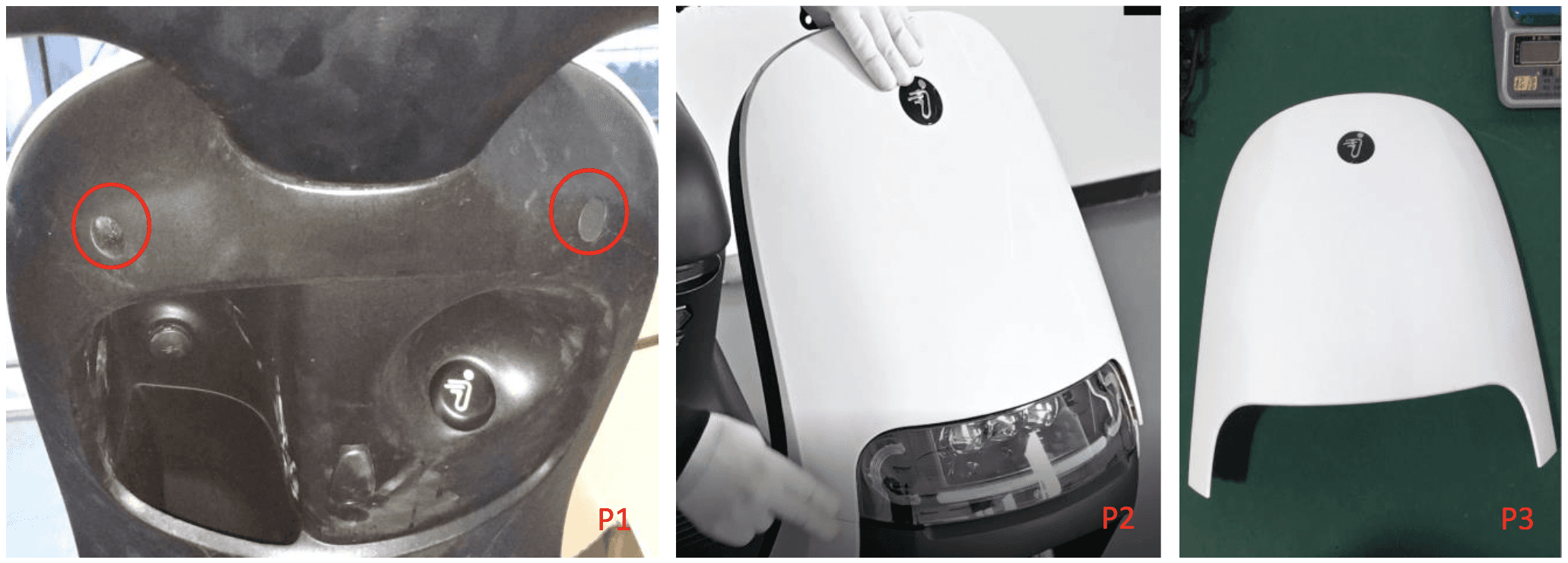
Power off the moped. Remove 2 rubber stoppers. Remove 2 screws ST4.2×12 using the 3.95mm pentagonal bit (P1). Separate the front panel from the windshield (P2) and remove the panel (P3).
Step 2 - Remove inner protect plate and access IoT:
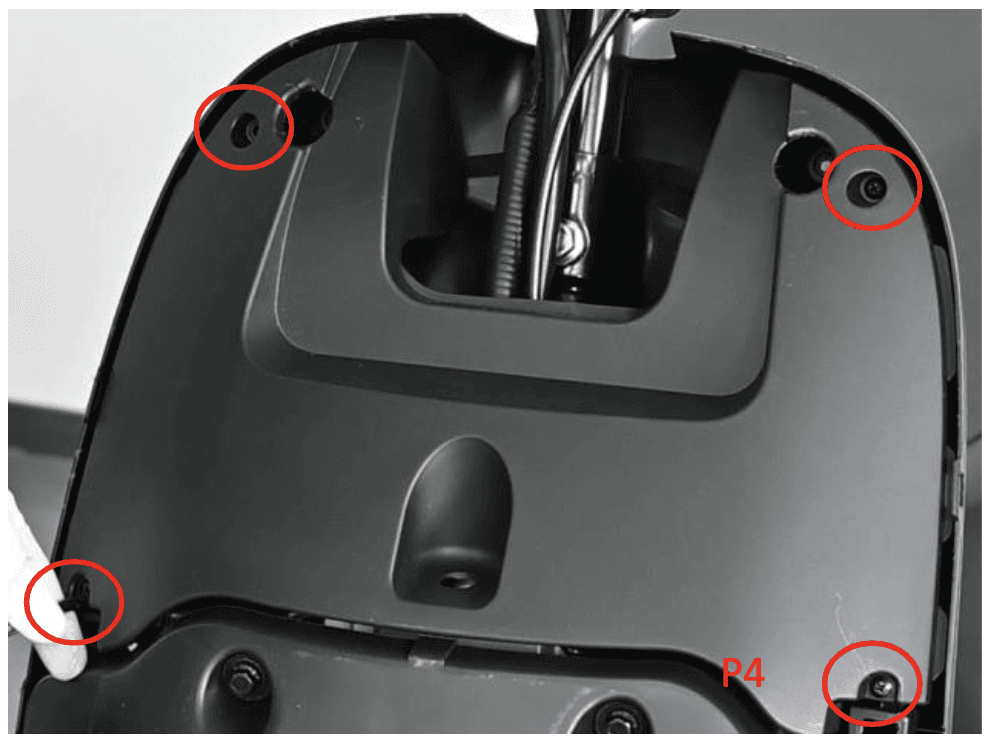
Remove 4 screws ST4.2×12 using a PH2 Phillips bit. Remove the front inner protect plate. Locate the IoT module and connect the USB to TTL cable to its diagnostic port.
If you need a USB to TTL converter cable, see the USB to TTL Cable guide.
Step 3 - Connect to laptop:
Connect the USB end of the cable to your Windows laptop. Open the desktop diagnostic program (download from Segway if needed).
Step 4 - Establish connection:
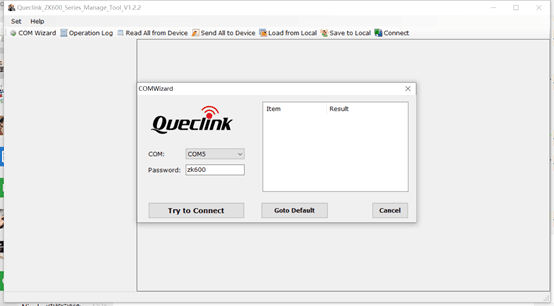
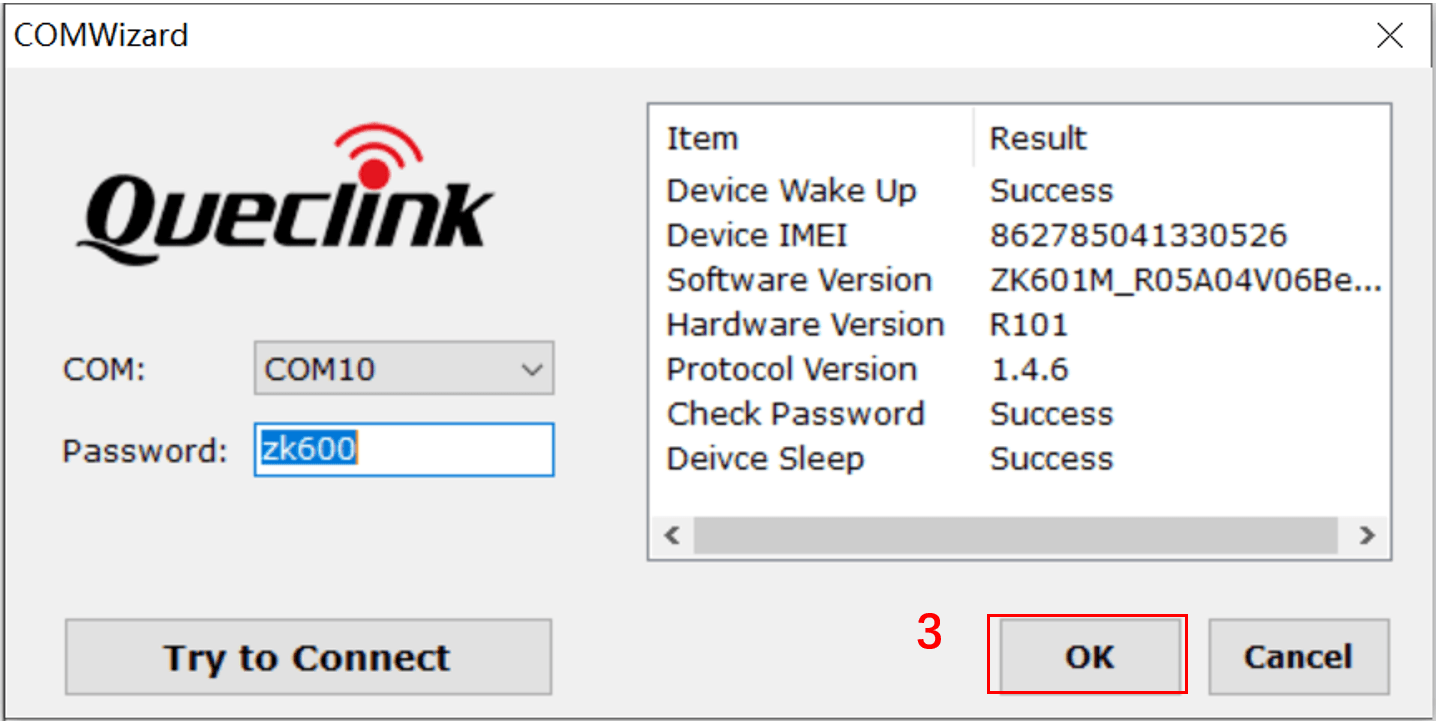
Select the correct COM port in the software and click Try to Connect. When connected, you will see device information. Click OK to proceed.
Step 5 - Capture logs:
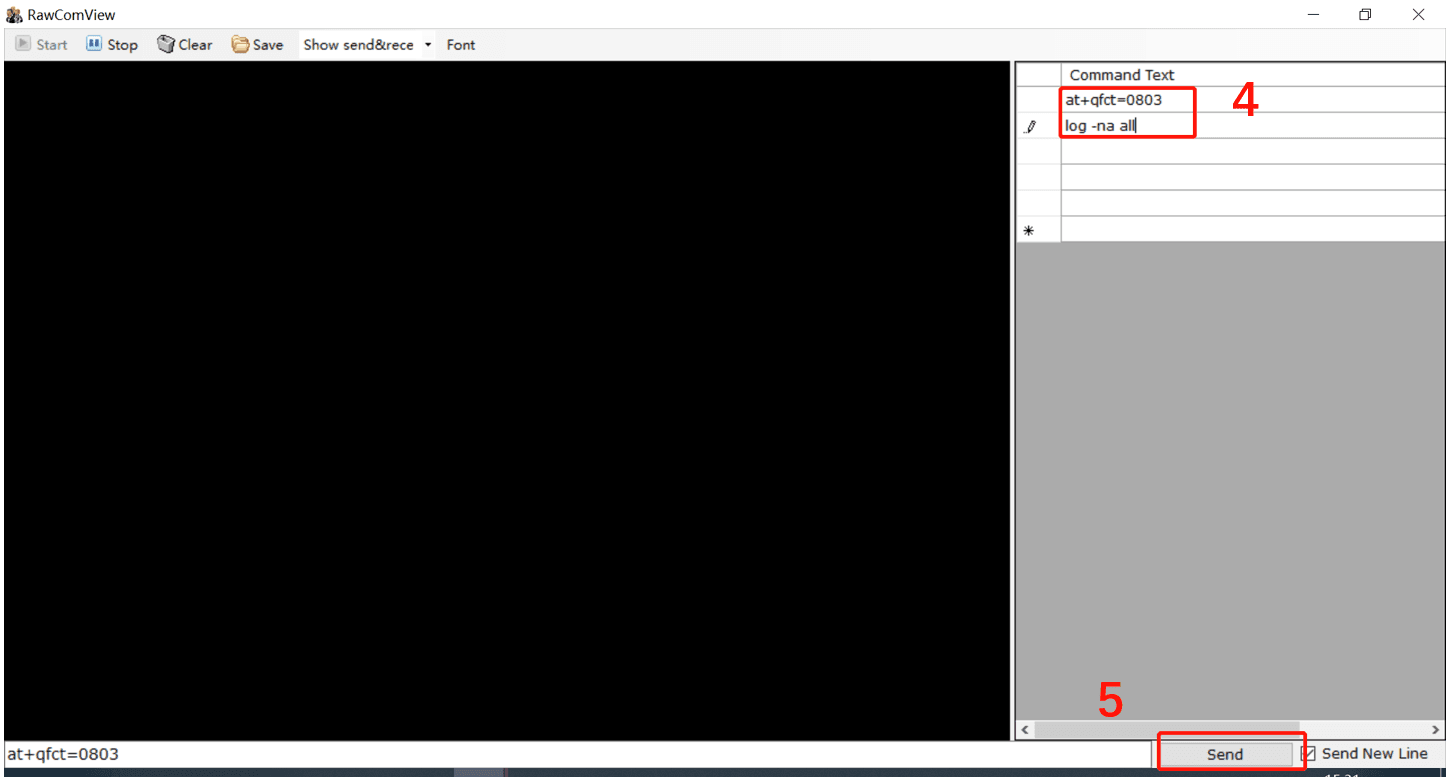
In the main window, press Ctrl + L on your keyboard. A command window will appear. Enter the following commands in sequence:
- Type
log -na alland click Send - Type
at+qfct=0803and click Send - Type
log -na allagain and click Send
Step 6 - Save logs:
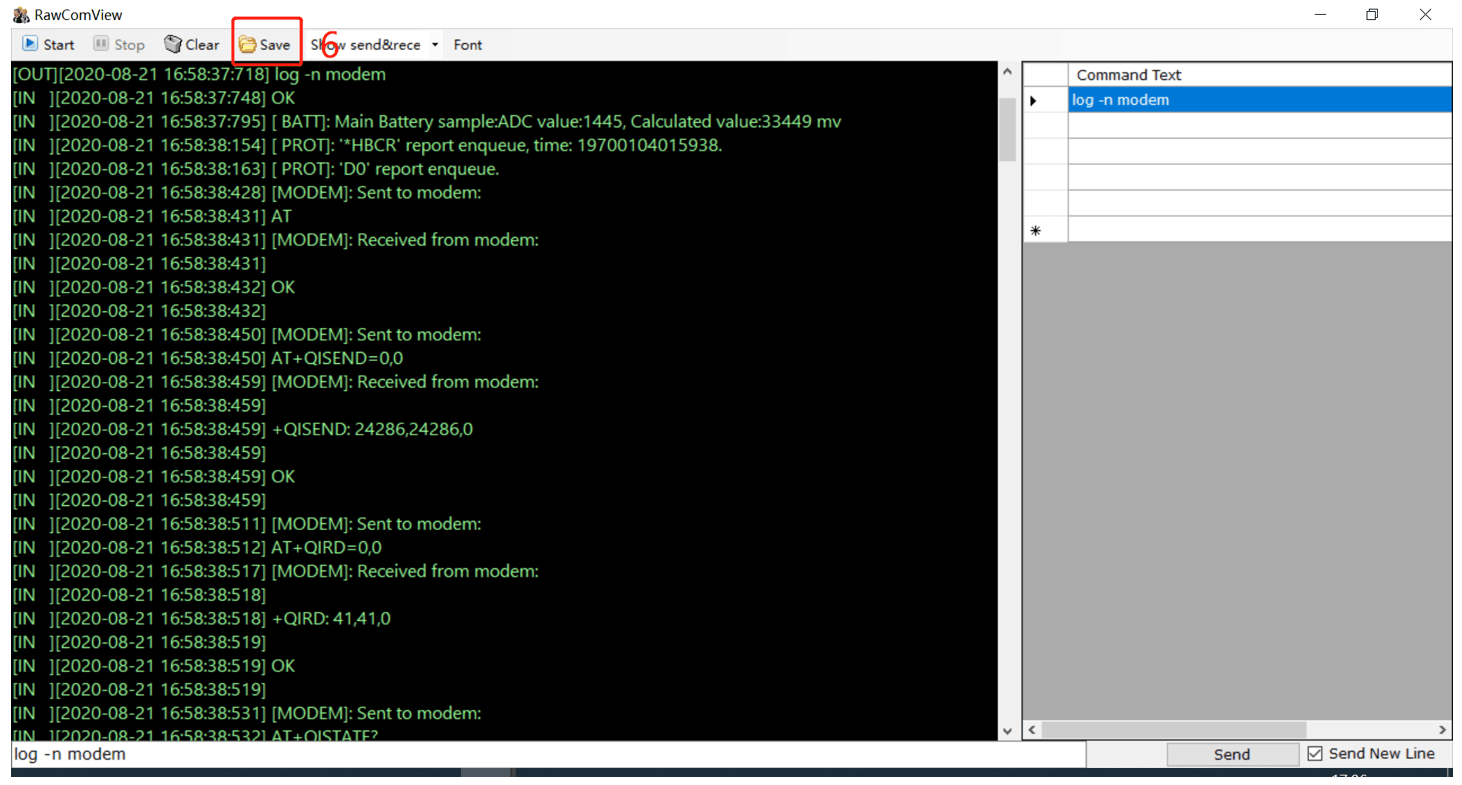
Wait approximately 10 minutes for log data to accumulate. Then click Save to download the log file to your PC.
To stop log printing at any time, type log -f all and click Send.
Sending Logs to Segway Support
After saving the log file, send it to Segway support along with:
- Moped serial number
- Description of the issue you are investigating
- When the issue started
Reassembly
After log capture:
- Disconnect the USB cable from the IoT
- Reinstall the inner protect plate (4 screws ST4.2×12)
- Reattach the front panel (2 screws ST4.2×12 with pentagonal bit)
- Replace the 2 rubber stoppers