Reading Logs from Queclink IoT via USB (MAX PLUS)
This guide explains how to read diagnostic logs directly from the Queclink IoT module on a Segway MAX PLUS scooter using a USB to TTL cable. This is useful for advanced troubleshooting when the wireless ZK600 app is insufficient.
Tools Required
- USB to TTL cable - see USB to TTL Cable guide
- Phillips screwdriver (M3)
- Tweezers
- Windows laptop with serial terminal software (SSCOM or similar)
Accessing the IoT Module
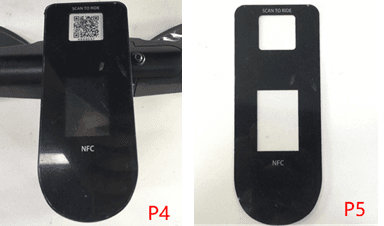
Step 1: Remove the decorative cover using tweezers. Use a hot-air gun to soften adhesive if needed.
Step 2: Remove 3 screws (M3×20) from the dashboard and 1 screw (M3×10) from the front. Lift the IoT box up.
Step 3: Connect the USB to TTL cable to the IoT's diagnostic port. Connect the other end to your laptop.
Step 4: Open your serial terminal and select the correct COM port. Set baud rate to 115200.
Reading the Logs
Step 5: Power on the scooter. Log output will appear in the terminal.
Step 6: Let the scooter run for 2-3 minutes to capture connection events.
Step 7: Save the log output to a file for analysis or to share with Segway support.
Key Things to Look For
- Boot sequence - confirms IoT is initializing correctly
- SIM/ICCID - confirms SIM is detected
- APN registration - confirms network connectivity
- Server connection - confirms the IoT reaches the Segway server
- Command acknowledgments - confirms the IoT is receiving and responding to commands
Reassembly
After capturing logs, reconnect all cables, reposition the IoT box, secure the dashboard screws, and replace the decorative cover.
Easier Alternative
For most log-reading tasks, the ZK600 app provides wireless access to logs without disassembly. See ZK600 Master Guide.