Changing IP and APN in Batch
When you need to update the server IP address or APN on a large number of scooters, the batch configuration app allows you to change settings on multiple IoT devices without configuring each one individually.
Prerequisites
- An Android smartphone
- The batch configuration app (contact Segway to obtain the APK)
- Your Segway login credentials
- The correct server IP and APN values from Segway support
Steps
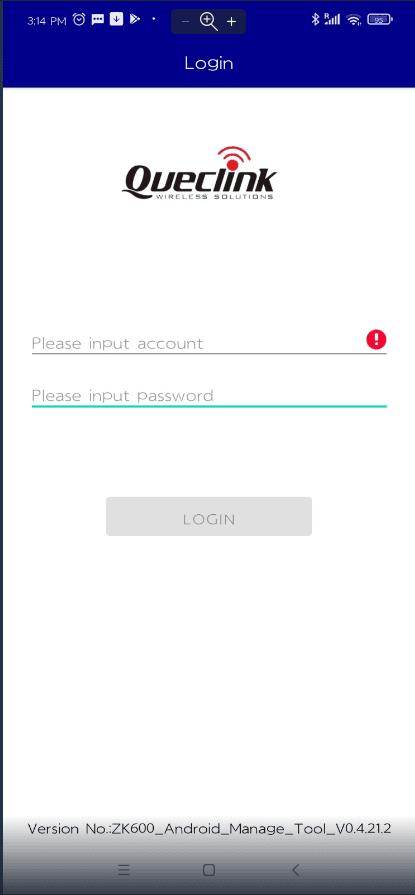
Step 1 - Login: Open the batch app and log in with your Segway credentials. If the default credentials do not work, contact Segway support.
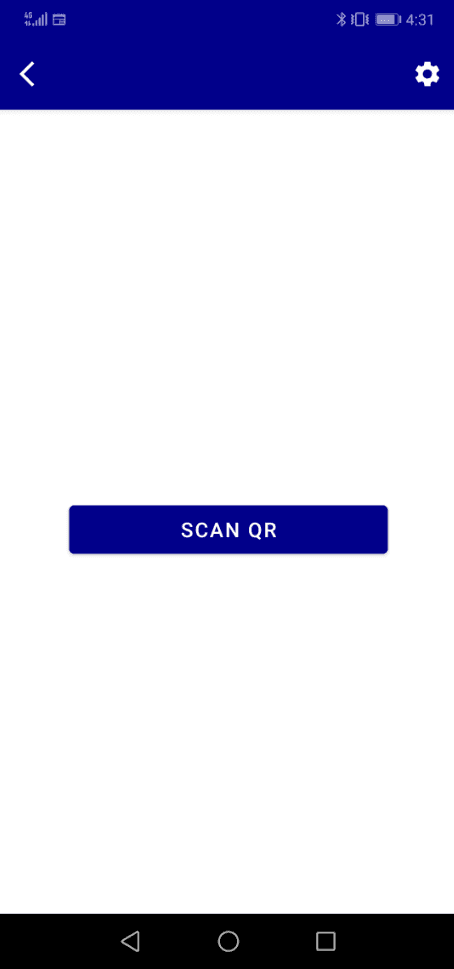
Step 2 - Settings: Tap the settings icon in the top right corner. Enter the required parameters:
- Server IP: Enter the correct server IP address
- APN: Enter the APN for your SIM card carrier
- Port: Leave as default unless instructed otherwise by Segway
Step 3 - Scan: Tap Scan to discover nearby IoT devices via Bluetooth. All devices in range will appear in the list.
Step 4 - Select Devices: Select all the devices you want to update, or tap Select All.
Step 5 - Apply: Tap Set or Apply to push the new IP/APN settings to all selected devices simultaneously.
Step 6 - Verify: Check the Segway Dashboard after a few minutes to confirm the scooters are coming online with the correct settings.
Tips
- Work in small batches (10-20 scooters) to ensure reliable Bluetooth connectivity
- Stand in a central location relative to the scooters for best Bluetooth range
- If some devices don't receive the update, configure them individually using the Omni IoT IP/APN guide or ZK600 guide
Running a fleet on this hardware?
Levy Fleets runs scooters, e-bikes, mopeds and golf carts on the IoT hardware you already have, with integration pages for 29 vendors including Segway, Okai, Omni, Queclink, Invers and Comodule. Keyless unlock, geofencing, rider payments and rider support are included, and the Managed plan is a share of revenue with no per-vehicle software fee.