Handling Scooter Damage: Reports, Repairs and Customer Fees
When you discover damage, make the scooter safe, document what you found, arrange repair, and decide whether the evidence supports charging a customer. Your fleet decides the damage fee. Levy does not set a damage charge schedule.
This guide covers scooters and bikes. Riders use Report damage when they find a problem; a full before-and-after condition report is not required for every micromobility trip. Parking photos are separate evidence, not an automatic damage assessment.
1. Take the scooter out of service
If a brake, wheel, steering component, frame, battery or other safety-critical part may be damaged, stop customer use and arrange retrieval and physical inspection.
- Open Dashboard > Vehicles and select the correct vehicle.
- Click Edit, select Maintenance in the status field, and save.
- Reload the vehicle page and confirm its status is Maintenance. This removes it from normal customer availability.
- If a trip is still active, use the normal trip-end process and confirm it ended. Changing vehicle status is not a substitute for ending a trip or confirming a physical lock.
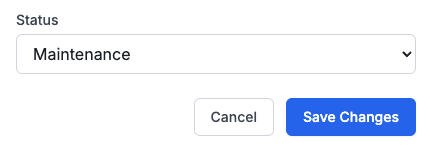
Filing or reviewing a damage report does not automatically put the vehicle in Maintenance. Set and verify the status yourself.
2. Save the damage report and trip reference
First check Dashboard > Damage reports. If the rider already reported the same issue, review that report and add your findings in its review notes rather than creating a duplicate.
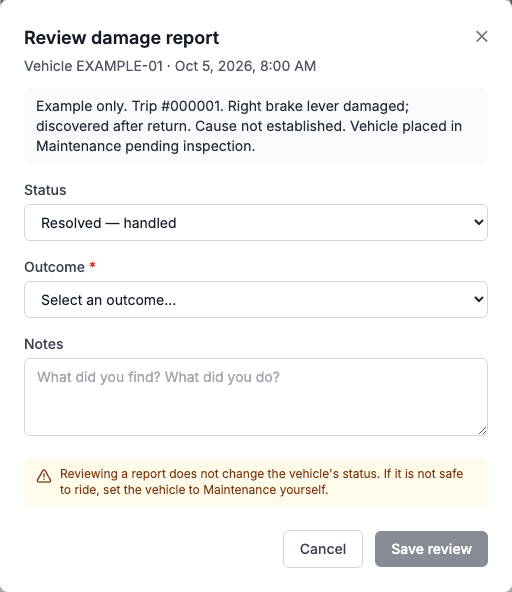
While inspection or repair is pending, choose In progress, enter the trip number/URL and findings in Notes, and save. An outcome is optional at this stage; use Repair scheduled only when that is established. Reload and verify the notes. Later reviews prefill the saved notes, so keep the trip reference and earlier findings when adding updates. Use Edit review if a resolved or closed report needs a correction.
If no report exists:
- Open the vehicle page and click Damage (the button's tooltip is Report Damage).
- Enter what is broken, where it is, when it was discovered, who inspected it, and whether the scooter is safe to ride.
- Include the relevant trip number and trip URL from Dashboard > Rides. For a group booking, use the individual vehicle's trip, not only the group reference.
- Save, then open View damage reports on the vehicle page. Select All if an existing report has already been resolved or closed.
- Keep dated photos, inspection notes and any available CCTV with the case. A rider can submit a description and optional photo in the app. The current dashboard Damage prompt is text-only; keep staff photos in the maintenance case or send them to Levy support with the report reference.

How the trip is recorded today
Reports are stored against the vehicle. The current form has no dedicated trip selector and does not automatically attach a report to a trip. Put the trip number and URL in the description or review notes so the association is explicit and can be read later. A report's customer link identifies its reporter; it does not establish responsibility.
Example description:
Trip #000001, vehicle EXAMPLE-01. Right brake lever found broken after return at 14:10 local time on 5 October. Physical inspection pending; cause not established. Vehicle moved to Maintenance. Trip URL: [paste the dashboard trip URL]. Photos retained with the inspection case.
3. Establish what happened before deciding who to charge
Inspect the scooter and review trip history, dated staff checks, photos and CCTV where available. Record when the part was last confirmed intact and when damage was first confirmed. Consider staff handling between rentals and ordinary wear or a component failure.
The last booking account, the person reporting damage, and the person who caused it may be different people. A successful earlier ride or an onboard error code alone cannot prove responsibility. If the evidence is inconclusive, keep the cause recorded as unknown and complete the repair assessment before deciding on a fee.
4. Identify parts and calculate the repair cost
For OKAI ES400A/ES400B scooters, start with the parts catalog and exploded diagrams. Match the exact model, side, OEM SKU and connectors before ordering. Use the ES400B repair guides, including the brake-lever replacement guide.
The following ES400B parts prices were checked on 5 October 2026. Prices are USD per item, excluding shipping, taxes, duties and labor. Checkout is the current price and availability source; these are parts costs, not recommended customer fees.
| Part | OEM SKU | USD | Order |
|---|---|---|---|
| Right brake lever / handle | 2010900037 | $34.70 | Product |
| Left brake handle with bell | 2010900050 | $37.40 | Product |
| Handlebar grip | 2020500059 | $15.00 | Product |
| Throttle | 2010800084 | $23.80 | Product |
| Upper handlebar cover | 2021000064 | $17.00 | Product |
| Display cover | 2020600003 | $15.00 | Product |
For another model or uncertain fitment, contact support@levyelectric.com with the vehicle number, model, photos and part SKU. Do not assume an ES400B part fits another scooter.
Your fleet sets any justified customer fee under its rental terms. Consider the replacement part plus labor needed to return the scooter to service, and document the actual estimate or invoice. Convert USD parts costs into the customer's account currency before choosing a fee. Explain the evidence and cost breakdown to the customer; a parts price does not determine liability.
5. Add the fee to the correct customer account
After deciding responsibility and the amount:
- Open the individual trip and confirm the relevant booking account. For group trips, confirm the rider/booking relationship before billing.
- Open Dashboard > Customers and the correct customer profile.
- Choose Wallet > Charge Fee, enter the positive amount in the customer's wallet currency, and confirm.
- Reload and check the wallet transaction and resulting balance before attempting any further charge. Record the report/trip reference, amount, currency and reason in the case notes. The current fee prompt records a generic manual wallet charge rather than a damage-specific invoice line.
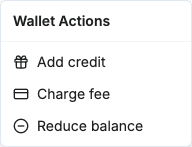
A fee uses available wallet funds first. If it exceeds the wallet balance, the remainder becomes a negative balance owed. For example, a 100-unit fee against a 20-unit wallet leaves an 80-unit debt. Do not also charge a saved card for the full fee without accounting for the wallet debit and any recovery already performed.
6. Arrange recovery of an unpaid fee
A new manual fee needs a recovery handoff
Charge Fee does not itself create a new payment-retry job or email an itemized invoice. If the fee leaves an unpaid balance, contact Levy support with the customer, report and trip references, amount/currency, evidence and cost breakdown. Ask Levy to confirm payment-recovery enrollment and arrange the customer invoice/payment follow-up. An existing retry job may already cover the current negative wallet; verify this before adding another charge.
Once enrolled in Levy's payment-recovery workflow:
- Levy attempts collection from eligible saved payment cards, trying alternatives where available. A valid card, sufficient funds and any bank authentication are still required; recovery is not guaranteed.
- A pending card authorization is not a settled payment. The debt is cleared only after successful capture and the corresponding wallet credit; confirm those results before marking it paid.
- Failed attempts follow the system's retry schedule. Eligible overdue cases receive payment reminders and requests to update their payment method.
- A negative wallet prevents the customer from starting a new ride until it is cleared. This ride-start restriction is separate from a manually blocked account or a block for unresolved damage.
- Send the customer the online add-card page. They can add a new payment method without reinstalling the app; saving a card attempts to settle the negative wallet. Confirm the payment result, not just that a card was added.
- If no usable payment method is supplied, Levy support handles the unpaid-balance and collections follow-up. Escalation depends on the case, amount, age and applicable regional process. Do not promise automatic recovery, a fixed collections date, or credit reporting for every damage fee.
A successful payment clears the debt it covers. Any separate manual/damage-related account block still requires review. If the customer disputes the fee, preserve the evidence and ask Levy support to review the case before further action.
7. Repair, close the report and return to service
Record the parts used, repair cost, technician, date and physical test result. Once the repair is complete, review the damage report, select Resolved and an appropriate outcome such as Repaired, and save the notes. Keep the trip number/URL, inspection history and any fee/transaction reference in those notes. Only one outcome is stored: if the scooter was repaired and a fee was added, choose Repaired and record the fee and its payment status in the notes. Charged the customer for damage is a recorded outcome, not a payment button.
After a qualified technician confirms safe operation, change the vehicle from Maintenance to Available, save and verify its status and location. Closing a report does not automatically make the scooter available. Repair readiness and customer debt are separate: complete the safety checks even if payment is still being pursued.
Frequently asked questions
Does reporting damage prove the reporter caused it?
No. Riders often report damage they found. Use the inspection and dated evidence to make your decision.
Will the system choose the fee or put the scooter in maintenance?
No. Your fleet sets the amount and changes the status. Levy's payment workflow pursues an established unpaid balance after it has been enrolled.
What should I send Levy support?
The vehicle, individual trip and damage-report references; discovery/inspection times; photos and findings; the reason for any customer attribution; parts/labor breakdown; fee amount and currency; wallet transaction reference; and what you have already told the customer. Keep personal customer information in the private support case.