Update Firmware and Parameters in BACDoor Mobile
Use this procedure to update an ASI BAC motor controller from a phone. The order matters: install the firmware first, reboot the controller by locking and unlocking the scooter, then load the matching parameter file and save it to flash.
Allow about 5–10 minutes for the complete process. The firmware upload usually takes 3–5 minutes; the parameter file is faster.
Use Only Approved, Matching Files
Controller firmware and parameter files are specific to the vehicle, controller, motor, and firmware version. Use only the .ehx firmware file and .xml parameter file supplied or approved by Levy or ASI for that exact vehicle configuration. The wrong file can make the vehicle unsafe or inoperable.
Download the Firmware and Final Parameter File
The firmware used in this walkthrough is available here:
Download BAC 6.027 e-bike TTL firmware (.ehx)
| File detail | Value |
|---|---|
| Exact filename | Levy-BAC-6027-TTL.ehx |
| Controller target | BAC 6.027 e-bike, TTL communication |
| File size | 319,080 bytes (approximately 312 KB) |
| SHA-256 | 72bf9f2d7fc95419f9a64c5295601a859c3daa821aea34901a056bdb72a4777e |
Download the SHA-256 checksum file.
TTL Firmware Only
Do not install this file on a CAN or CAN Extended controller. In particular, it is not interchangeable with 901-000006-004-01_BAC_Application_6027_0_0_Ebike_CAN_Extended.ehx. Confirm that your Levy or ASI service instructions explicitly call for the 901-000006-002-01 TTL build before downloading or flashing it.
The Filename Must End in .ehx
After downloading, confirm the phone shows Levy-BAC-6027-TTL.ehx. If it ends in _ehx, .ehx.download, or has no extension, rename it in the phone's Files app so the final four characters are exactly .ehx. BACDoor will not allow a firmware file to be selected if the extension is missing or changed.
The final Levy parameter file used with this walkthrough is available here:
Download the final Levy parameter file (.xml)
| File detail | Value |
|---|---|
| Exact filename | Levy-Final-Parameter-File.xml |
| Published profile | V29 |
| Configuration | 57.9 V = 100% SOC, 39.2 V = 0% SOC, with voltage-based power taper from 40.0 V to 39.2 V |
| File size | 117,173 bytes (approximately 114 KB) |
| SHA-256 | 0a17acd57e0733b2961a82c4ddf88c89bf907f2de927ef24238dd0fcc1fa08d0 |
Use This Parameter File Only for the Approved Levy Configuration
This file contains vehicle-specific motor, battery, throttle, braking, power, and safety settings. Use it only for the Levy controller and vehicle configuration covered by this procedure. Do not load it onto a different vehicle or controller configuration.
The SHA-256 checksum file covers all approved downloads.
Before You Start
- BACDoor Mobile installed and signed in with an authorized ASI account
- The correct firmware (
.ehx) and parameter (.xml) files saved on the phone - Bluetooth enabled and the phone within a few feet of the scooter
- The scooter parked securely, with its drive wheel clear of the ground
- At least 50% scooter battery and enough phone battery to finish the update
- Access to the Levy app so you can lock and unlock the scooter after the firmware upload
Battery Level in the Demonstration
The supplied bench-test recording shows a low-battery warning and a 9% battery reading. Do not use that battery level for a field update. Charge a service vehicle to at least 50% before starting.
Do Not Interrupt an Upload
Keep BACDoor open, stay close to the scooter, and do not lock the phone, switch off Bluetooth, power down the scooter, or leave the app while Loading is displayed. The spinner may remain on screen for several minutes without showing a percentage; that is normal.
Update Sequence
| Phase | What you do | Finished when |
|---|---|---|
| Firmware | Select the .ehx file and tap Upload | BACDoor says Done — Reboot of BAC required |
| Reboot | Lock, then unlock the scooter in the Levy app | The scooter is unlocked again |
| Parameters | Reconnect in BACDoor, select the .xml file, and upload it | BACDoor asks Save to Flash |
| Finish | Tap Yes to save to flash | BACDoor disconnects as the controller restarts |
1. Connect to the Controller
- Open BACDoor Mobile.
- Open Channels. If needed, pull down to refresh the nearby-device list.
- Select the controller for the scooter you are servicing.
- Wait until BACDoor shows live controller values and Connected at the bottom.
If several controllers are nearby, move next to the correct scooter and use the strongest matching Bluetooth signal. Service one scooter at a time.
2. Select and Upload the Firmware File
- Open the side menu.
- Under Load Firmware, tap Browse.
- Select the approved firmware file ending in
.ehx. - Confirm that the filename shown below Browse is the intended firmware.
- Tap Upload.
- At Are you sure you want to update the Controller firmware?, verify the file one last time and tap Yes.
- Leave the phone and scooter undisturbed while Loading is displayed.
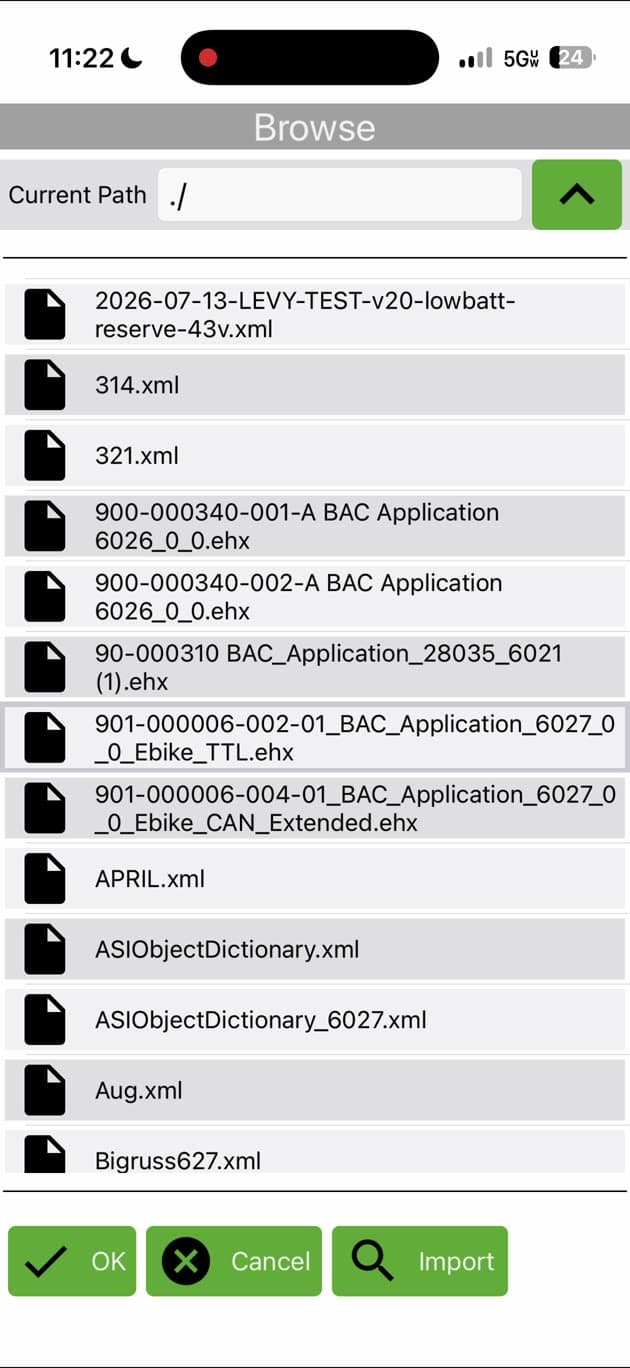
Wait for the completion dialog. Do not continue merely because Bluetooth disconnects or the scooter appears inactive.
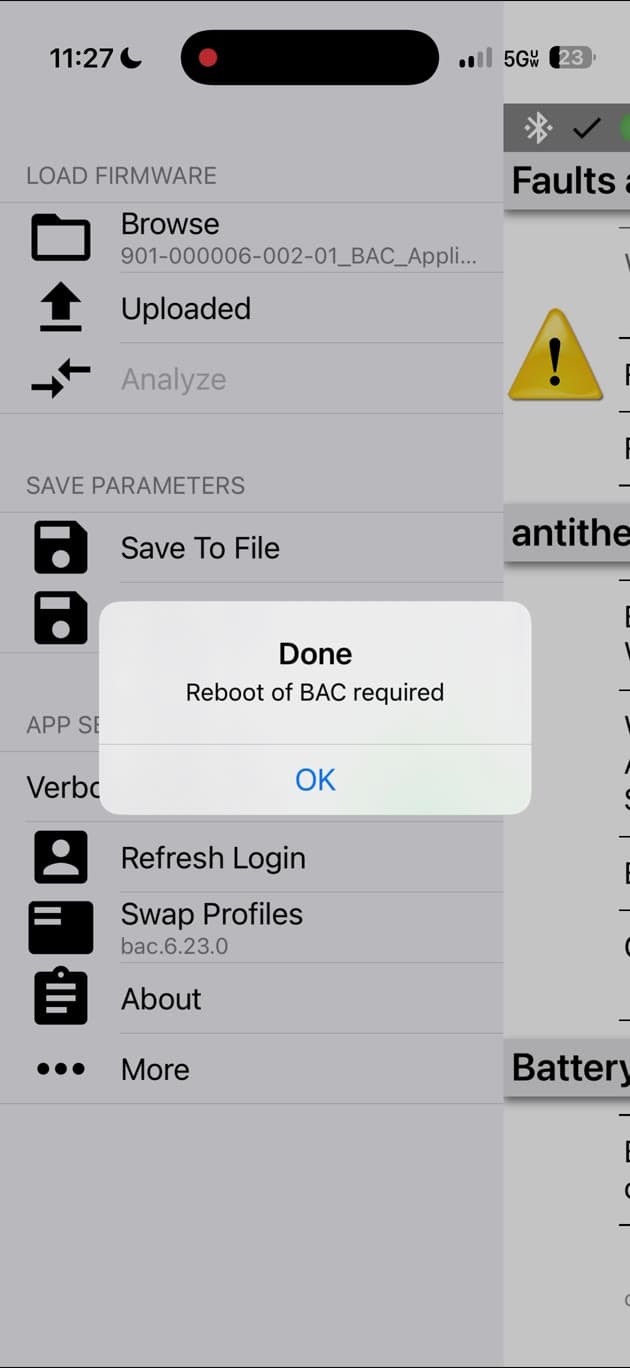
3. Reboot the Controller by Locking and Unlocking
- Tap OK on the BACDoor completion dialog.
- Open the Levy app and select the same scooter.
- Tap Lock and wait until the app shows the scooter as locked.
- Tap Unlock and wait until the app shows the scooter as unlocked again.
This lock/unlock cycle restarts the controller so it boots into the newly installed firmware.
A Reconnection Is Required
BACDoor may still be visible after the lock/unlock cycle, but the previous Bluetooth session is no longer valid. Return to Channels and reconnect to the controller before loading the parameter file.
4. Reconnect and Load the Parameter File
- Return to BACDoor Mobile.
- Open Channels, refresh if necessary, and select the same controller again.
- Wait for live controller values and Connected to appear.
- Open the side menu and tap the same Browse control used during the firmware phase.
- Select the approved parameter file ending in
.xml. - Verify the filename shown below Browse, then tap Upload.
- At Are you sure you want to load this parameter file?, tap Yes.
- Wait while BACDoor loads the parameters.
The Menu Label Does Not Change
BACDoor continues to show the heading Load Firmware even when you select an .xml file. The file extension determines the action: .ehx starts a firmware update, while .xml loads controller parameters.
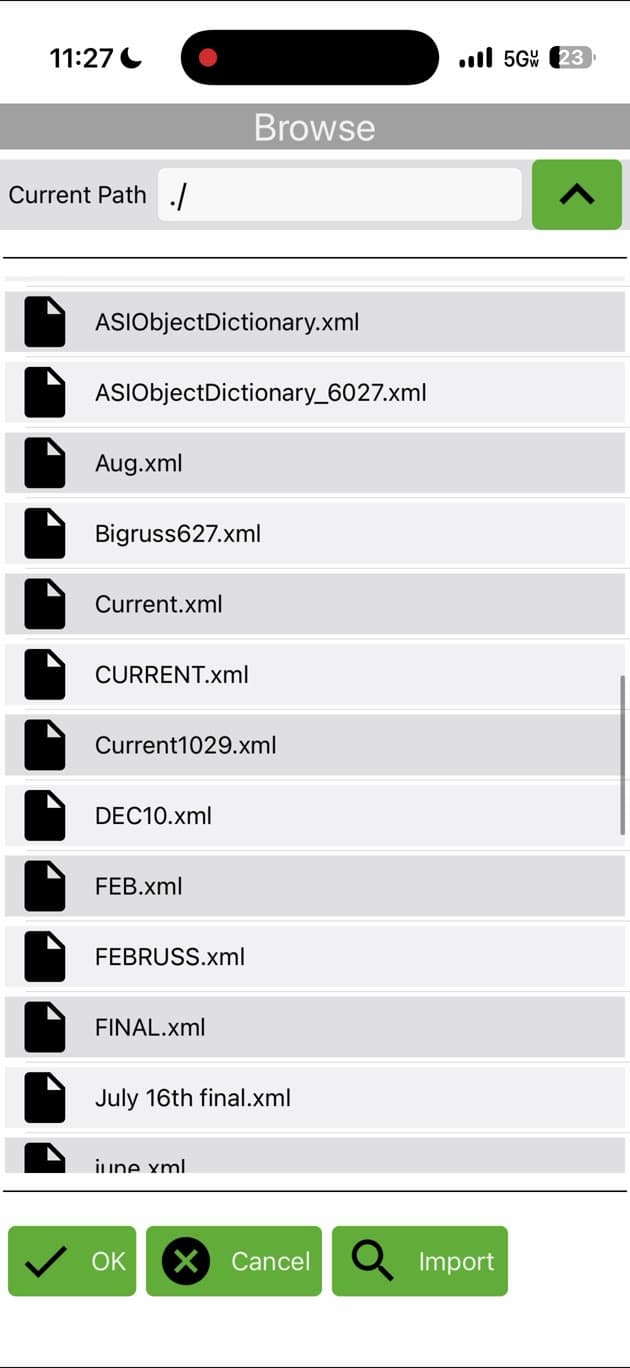
5. Save the Parameters to Flash
When BACDoor displays Save to Flash — Would you like to save to flash?, tap Yes.
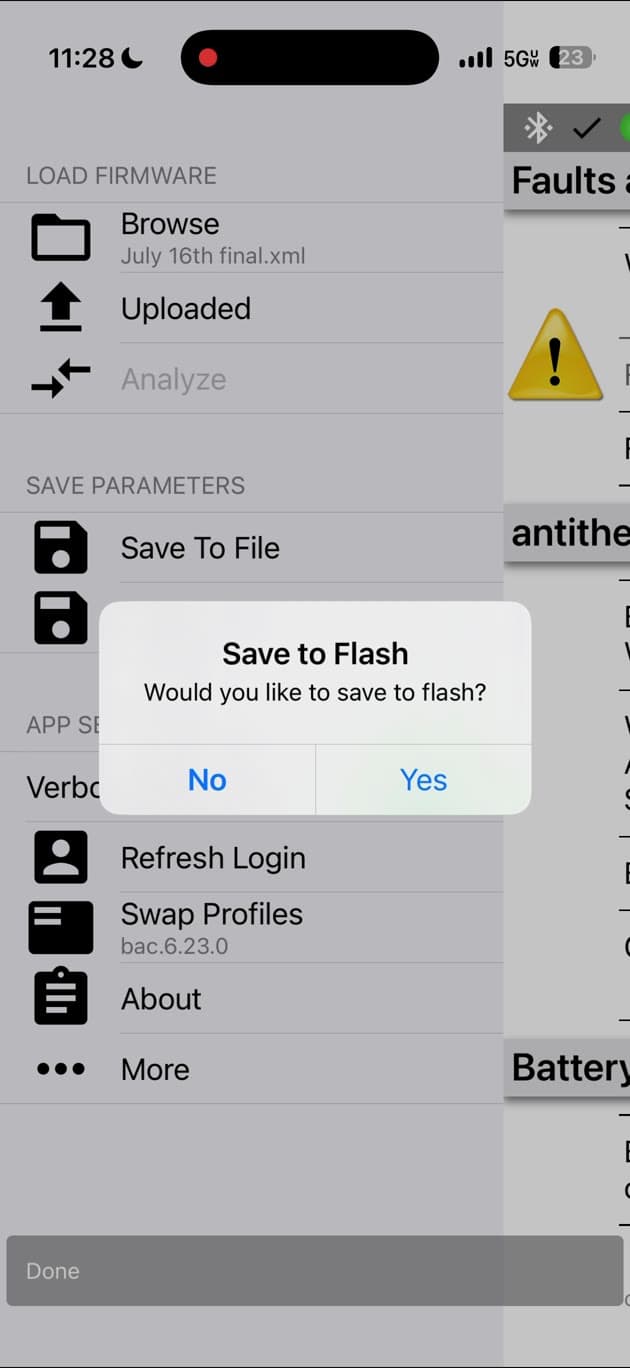
The controller may restart and BACDoor may return to the Channels screen. That disconnect is expected. The update is complete after the parameter file has been saved to flash.
Final Check
Before returning the scooter to service:
- Reconnect in BACDoor and confirm that live controller values load without a connection error.
- Check Faults and Warnings for any new controller fault.
- Confirm the scooter locks and unlocks normally.
- With the drive wheel safely clear of the ground, verify normal throttle, brake cutoff, and wheel direction.
Complete
Firmware uploaded, controller rebooted, matching parameters loaded, and Save to Flash confirmed. No additional upload is required.
Troubleshooting
| Problem | What to do |
|---|---|
| Controller does not appear in Channels | Move closer, confirm Bluetooth is on, pull down to refresh, and make sure another phone is not connected |
| Loading appears stuck | Keep the app open and wait at least 5 minutes; do not interrupt the controller during a firmware write |
| Firmware upload fails | Reconnect, confirm the correct .ehx file, and retry only after the controller is responsive |
| BACDoor will not reconnect after firmware | Lock and unlock the scooter again, wait 30 seconds, refresh Channels, and reconnect |
| Parameter confirmation does not appear | Confirm that the selected file ends in .xml, then tap Upload again |
| Parameters disappear after reboot | Load the .xml file again and make sure you tap Yes at Save to Flash |
| New faults or abnormal motor behavior | Stop testing, keep the scooter out of service, and contact Levy support with the vehicle ID and filenames used |