Custom Parking Rules
Every fleet parks differently. A scooter on a quiet suburban sidewalk is fine; the same scooter in front of a downtown storefront is a complaint waiting to happen. Custom Parking Rules let you tailor the checks Levy's AI runs against each rider's end-of-ride parking photo, so the verdicts match the rules of your city and your fleet — not a generic default.
You start from Levy's recommended defaults and adjust from there: decide which checks block the ride versus log a warning, reword a check so it reads the way your city does, remove checks that don't apply, or add your own. Edits take effect immediately, with no approval step.
Rolling out to selected operators first
Custom Parking Rules is being enabled fleet by fleet. If you don't see Safety > Parking Rules in your dashboard yet, it hasn't been turned on for your fleet — contact Levy and we'll enable it for you.
How parking verification works
When a rider ends a ride, they take a photo of the parked vehicle. Levy's AI — we call it Verify — looks at that photo and decides whether the parking is acceptable. It does this by running a set of rules, where each rule is one thing the AI checks: "Not blocking an entrance," "Not in the roadway," "Not lying on grass," and so on.
Each rule carries a plain-language description that tells Verify exactly when to fail it. For example, a rule named "Not on grass" might be described as "Only fail if the vehicle is clearly sitting on a lawn, garden bed, or landscaped area rather than a paved or designated surface." Verify reads that description, looks at the photo, and returns a pass or fail for each rule.
What happens after a rule fails is up to you — and that's what Custom Parking Rules controls.
To ground this, here's what an acceptable park versus a clear violation looks like for each vehicle family — the kind of distinction your rules tell Verify to make:
Scooters
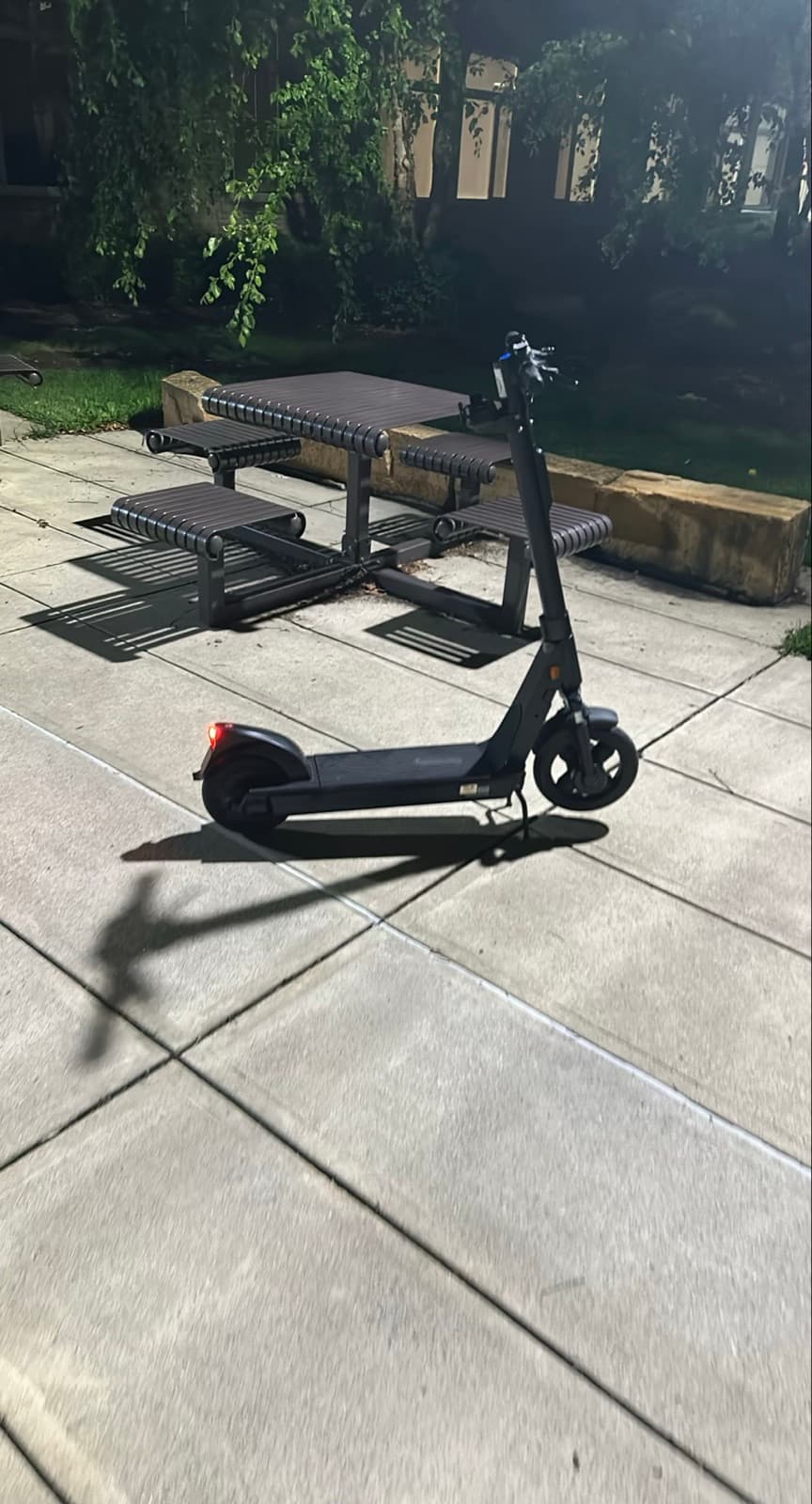
Acceptable — upright on its kickstand, not blocking the path.
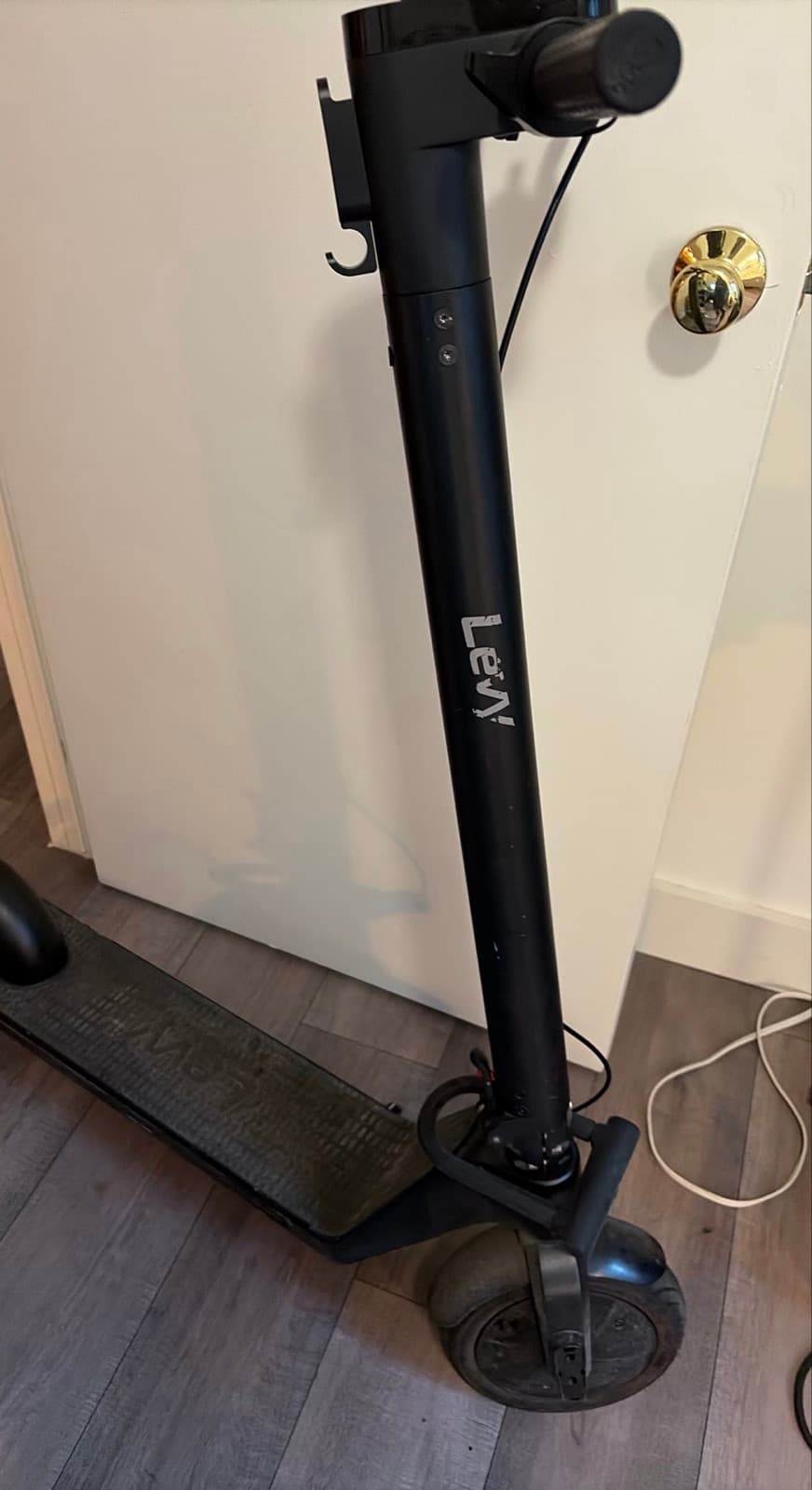
Violation — parked indoors, which a "no indoor parking" rule fails.
Bikes & e-bikes
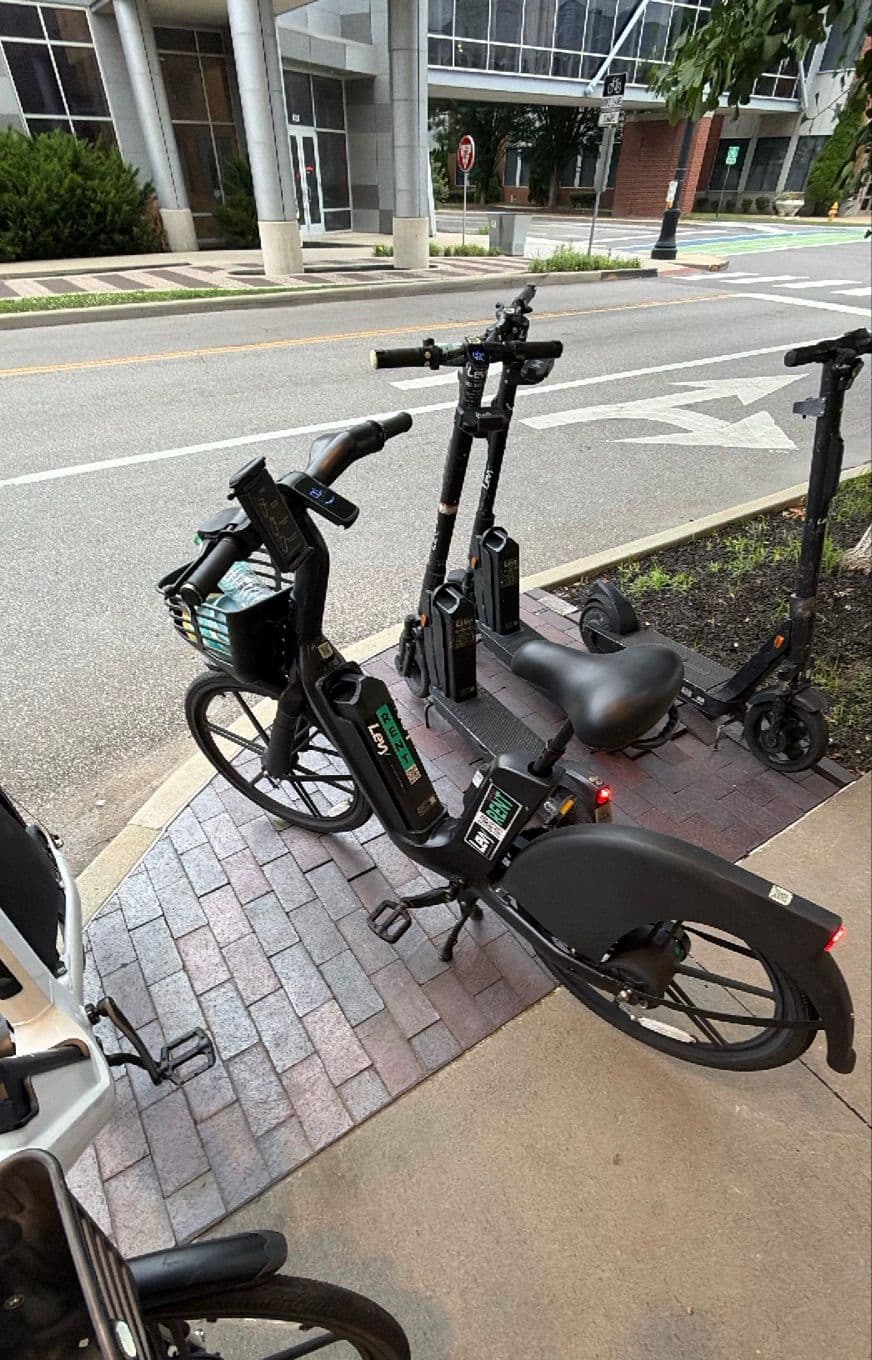
Acceptable — parked in a designated corral.
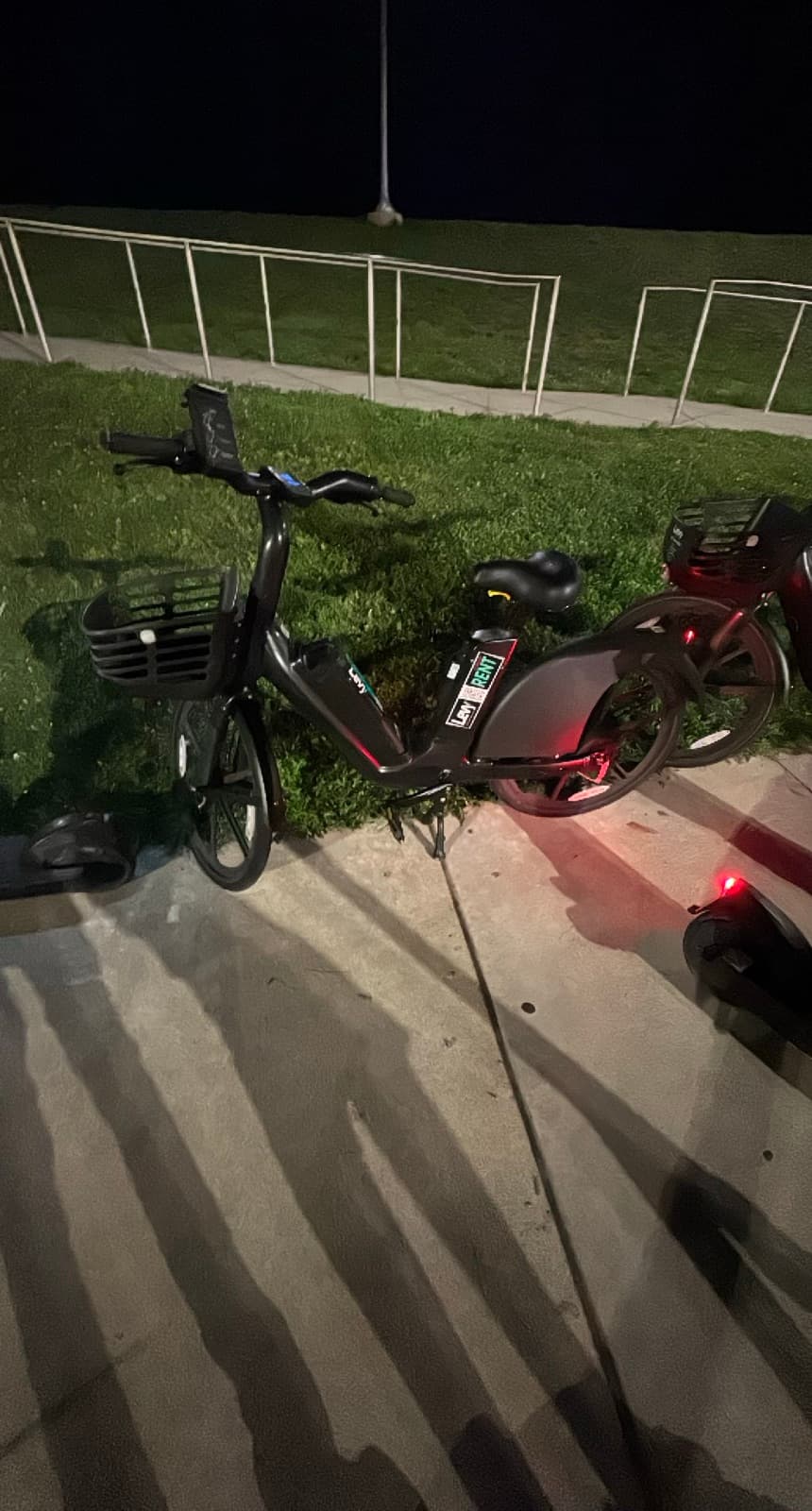
Violation — left on the grass, off any permitted surface.
This sits on top of parking-pose validation
Custom Parking Rules is the configuration layer for the photo checks described in Parking-Pose Validation. That article covers how results flow into your dashboard, fees, and the rider appeal queue. This article is about defining the rules themselves.
Where to find it
Sign in
Sign in to the dashboard at fleets.levyelectric.com and pick the fleet you want to configure from the subaccount switcher in the top-left.
Go to Parking Rules
In the sidebar, under Safety, open Parking Rules.
Pick the vehicle family
At the top you'll see two tabs — Scooters and Bikes & e-bikes. Each vehicle family has its own independent rule set, because a kickstand-parked bike and a scooter raise different parking concerns. Edits on one tab never affect the other.
If you run both scooters and bikes or e-bikes, plan to review both tabs — turning on a custom rule under "Scooters" does nothing for your bikes or e-bikes, and vice versa.
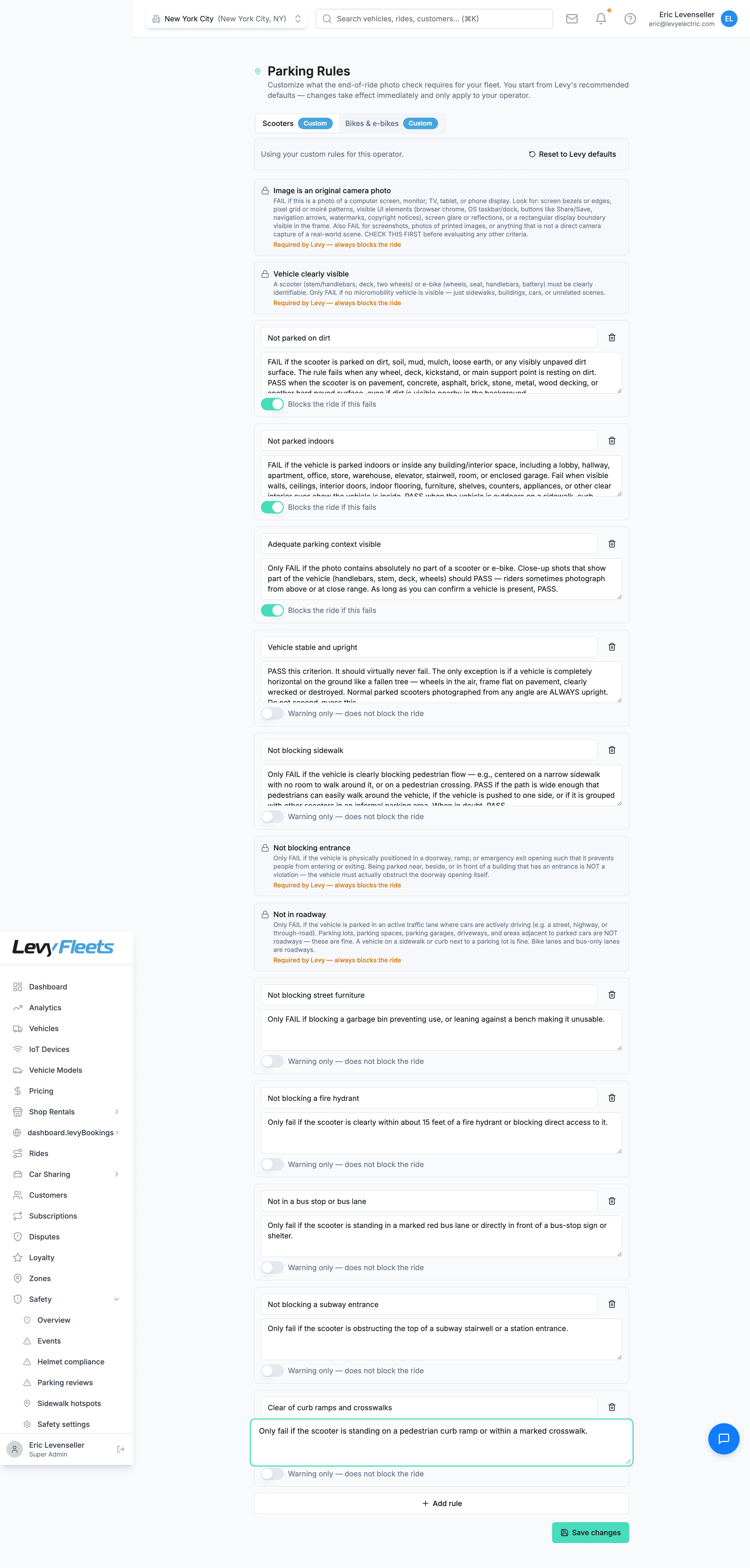
Here's the editor on the Scooters tab — Levy's locked safety-floor rules at the top, with this operator's own custom warning-only rules (a fire-hydrant rule, a bus-lane rule, a subway-entrance rule) below them:
Reading a rule
Each rule in the list shows:
| Element | What it means |
|---|---|
| Name | A short label for the check, e.g. "Not blocking entrance" |
| Description | The plain-language instruction Verify uses to decide when to fail the rule |
| Enforcement | Whether a failure blocks the ride or is logged as a warning |
| Lock icon | If present, this is a protected safety rule that can't be disabled or downgraded (see The locked safety floor) |
You can edit the wording of any unlocked rule, change its enforcement, remove it, or add a brand-new rule of your own.
Blocks the ride vs. warning only
Every editable rule is set to one of two enforcement levels.
Blocks the ride
If Verify fails a blocking rule, the rider is told what's wrong, asked to reposition the vehicle, and prompted to retake the photo, and they keep retrying until a photo passes. Riders are never permanently stuck: after a few failed attempts Levy lets the ride end anyway and flags the photo for manual review. Even so, a blocking rule should be one a reasonable rider can satisfy quickly.
Use this for parking that genuinely cannot stand — blocking a doorway, lying in a traffic lane, parked on private property you've had complaints about.
Warning only
The failure is recorded but doesn't block the rider. The ride completes, and the event shows up in Safety > Events as a parking rule warning. Nothing stops the rider in the moment.
Use this for things you want to track but not enforce — for example, a "Parked far from a rack" rule in a fleet where racks are sparse, or a new rule you're trialing before you trust it enough to block riders.
Start as a warning, promote to blocking later
When you add a new rule or tighten an existing one, set it to warning only first. Watch the resulting events for a week. Once you're confident it's failing the right photos and not the wrong ones, switch it to blocks the ride. This is the single best habit for avoiding rider frustration.
The locked safety floor
A small number of rules are always on and cannot be disabled or downgraded. They appear with a lock icon, and you can't switch them to warning-only or remove them. These protect public safety and the integrity of the verification itself — they're the floor that every fleet on Levy stands on.
The locked rules are:
| Locked rule | Why it can't be weakened |
|---|---|
| Not in roadway | A vehicle left in a traffic lane is a direct hazard to the rider, drivers, and pedestrians. This always blocks. |
| Not blocking entrance | Blocking a building entrance, doorway, or exit is both a safety issue and the single most common source of public and ADA complaints. |
| Vehicle visible (or Bike visible) | If the vehicle isn't actually in the frame, there's nothing to verify — the photo can't confirm anything about how or where it was parked. |
| Real, clear photo | The image must be a genuine, legible photo of the parked vehicle — not a screenshot, a blurry blank, a photo of the ground, or a reused image. This is what keeps the whole check honest. |
For the Bikes tab, Not blocking accessibility is also locked — bikes are frequently left across curb ramps and accessible routes, so this protection is mandatory for the bike rule set.
You can go stricter, never weaker
Custom Parking Rules only lets you raise the bar. You can add rules, tighten descriptions, and promote warnings to blocks — but you can never disable, downgrade, or delete a locked safety rule. The floor is fixed; the ceiling is yours.
Editing a rule's wording
The description is the most powerful field on the page — it's the actual instruction Verify follows. To edit it:
Find the rule
On the relevant tab, locate the rule. An unlocked rule's name and description are editable text fields right in the list.
Rewrite the description
Edit the description so it says, in plain language, exactly when Verify should fail the rule. Be specific about what counts as a failure and — just as important — what does not.
Save changes
Click Save changes at the bottom of the tab. Your edits take effect immediately on the next ride that ends in this fleet — there's no review or approval step.
Write descriptions in a conservative "Only fail if…" style. Verify does what the description tells it, so a vague or aggressive instruction produces vague or aggressive failures. Compare:
- ❌ "Fail if parking looks bad." — Too subjective. Verify has no idea where your line is, so it will fail photos inconsistently and frustrate riders.
- ✅ "Only fail if the vehicle is clearly obstructing a marked pedestrian crosswalk or is standing in an active traffic lane." — Specific, conservative, and easy for Verify to apply consistently.
Adding your own custom rule
Beyond Levy's defaults, you can add rules specific to your city or contract.
Click Add rule
On the tab for the vehicle family you're configuring, click Add rule. A new, empty rule appears in the list.
Name it
Give it a short, clear name — e.g. "Not in bus stop zone" or "Not blocking fire hydrant."
Describe when to fail it
Write the "Only fail if…" description. Keep it tight and conservative so it doesn't catch acceptable parking by accident.
Set enforcement
Use the toggle to set it to warning only to start. Promote it to blocks the ride once you've confirmed it behaves.
Save changes
Click Save changes to apply. New rules go live on the next ride that ends in this fleet.
Good candidates for custom rules are the parking situations your city permit or your neighbors actually complain about: bus stops, loading zones, fire hydrants, transit-station entrances, specific plazas, or a local "must be within X of a rack" expectation.
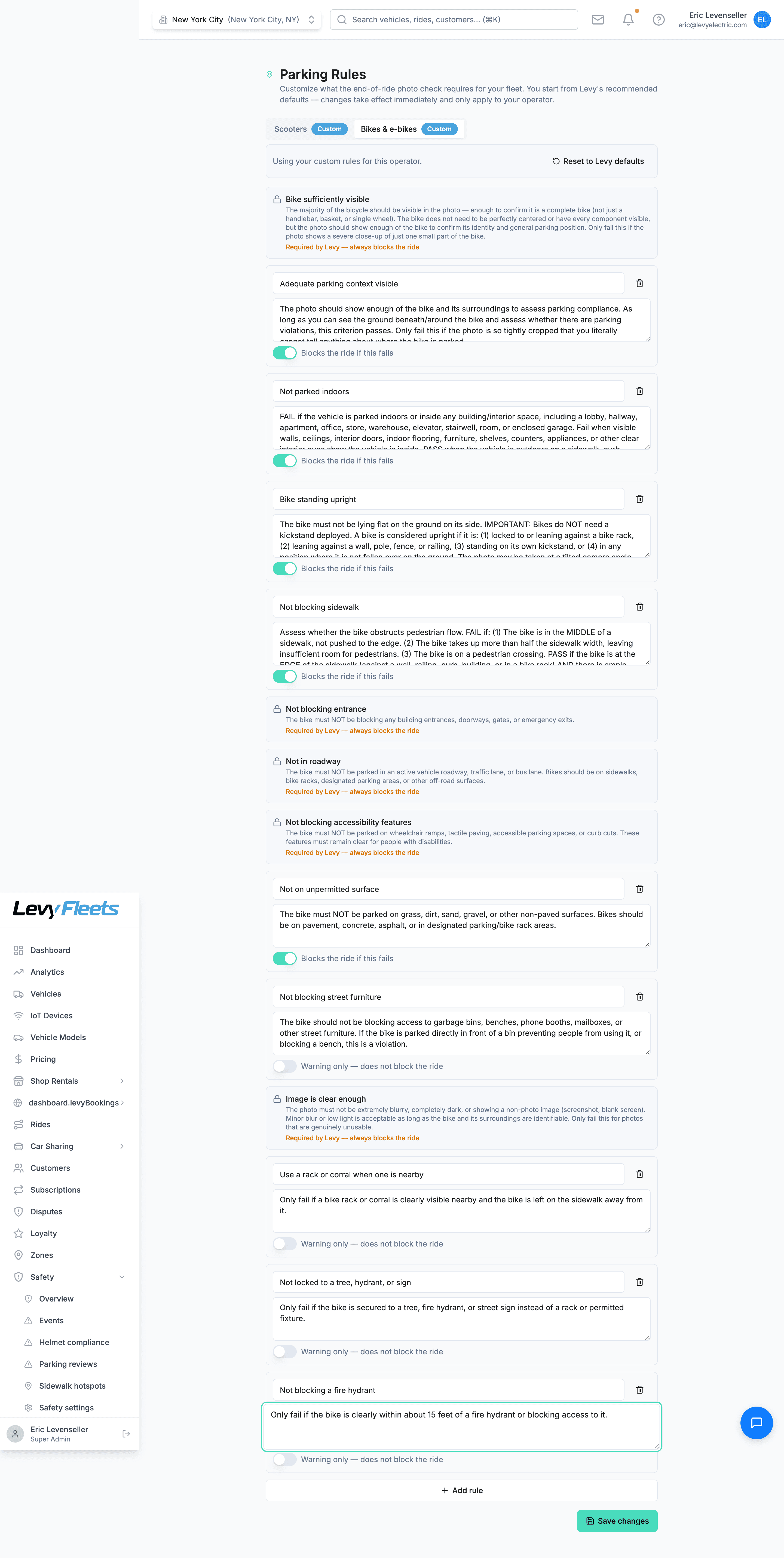
The Bikes & e-bikes tab works exactly the same way, with its own independent rules — here with custom rules like using a rack or corral when one is nearby:
Overly strict blocking rules frustrate riders
Verify checks every photo against every active rule. If a blocking rule is too aggressive, riders get pushed into a reposition-retake-fail loop even when their parking is fine — and once they exhaust their attempts the ride ends and the photo lands in your manual-review queue. That means frustrated riders, support tickets, and review load. Every blocking rule you add should be one you're confident a reasonable rider can satisfy in a try or two.
Trying a rule out safely
The dashboard doesn't include a photo sandbox — the way you "test" a rule is to let it run in warning only mode and watch what it does on real rides before you let it block anyone:
- Add or edit the rule, leave it set to warning only, and click Save changes.
- Let real rides flow for a few days. As a warning, it records a verdict on every ride without blocking anyone.
- Review how Verify scored those rides in Safety > Events. Warning-only custom rule failures appear as "Parking rule warning" events with the rule id and photo attached. Check that the rule fails the photos you'd want it to and leaves acceptable parking alone.
- Once you're confident, switch it to Blocks the ride and Save changes. If it's over-failing, soften the description ("only fail if…clearly…") and keep watching.
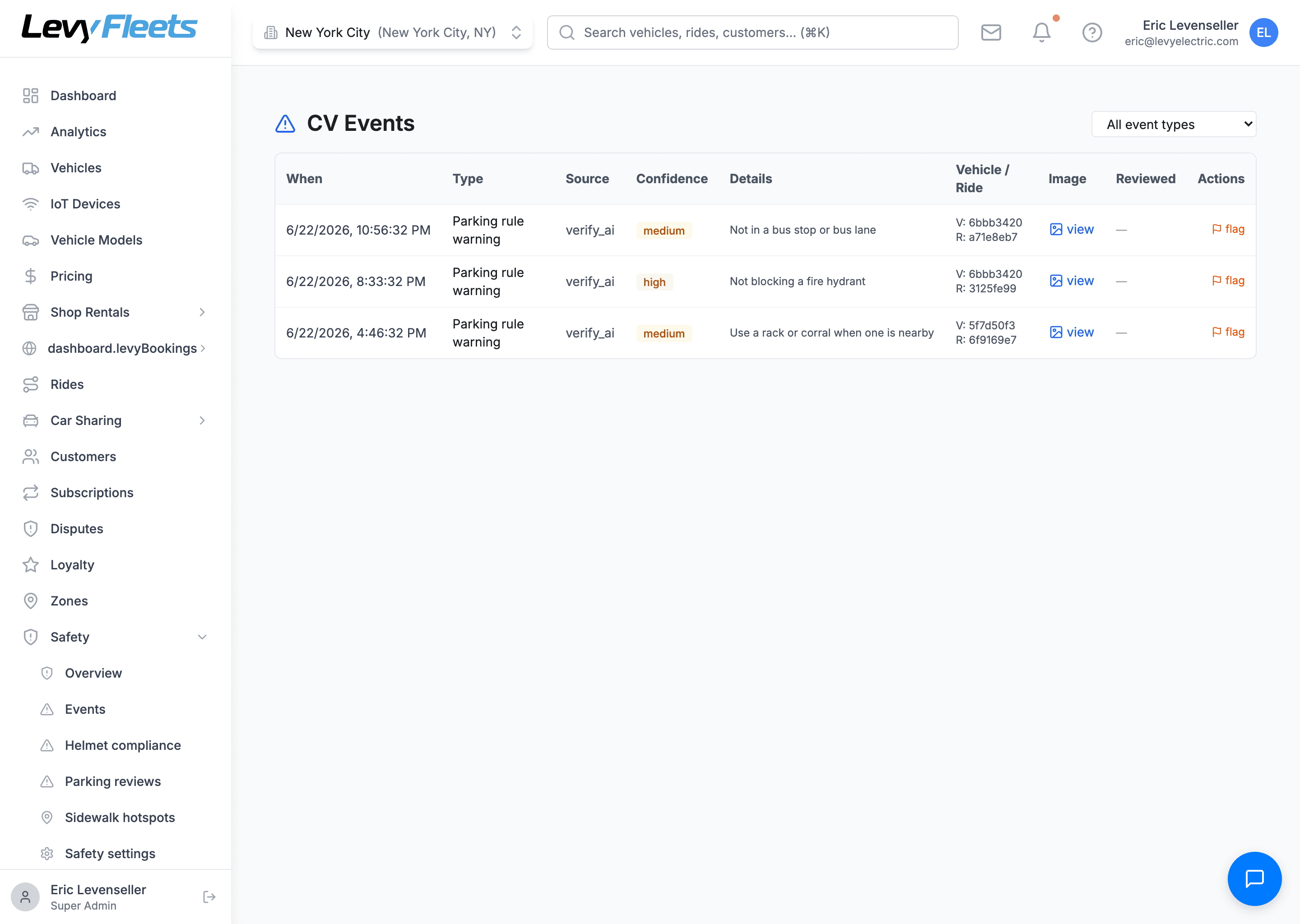
Warning-only failures land in Safety > Events, where you can see exactly which rule failed, how confident Verify was, the vehicle and ride, and a link to the rider's parking photo:
This warning-first loop is the safest way to roll out any new or tightened rule. For riders who dispute a failure, see Reviewing Parking Appeals.
Resetting to Levy defaults
Each tab has a Reset to Levy defaults option. Use it when your rules have drifted, you've over-tightened, or you simply want to start clean from our recommended baseline.
- Resetting affects only the tab you reset — resetting "Scooters" leaves your "Bikes & e-bikes" rules untouched.
- It restores Levy's recommended descriptions and enforcement levels and removes your custom rules on that tab.
- The locked safety floor is unaffected either way — those rules are always present.
Reset is per tab, and immediate
Like every other change on this page, a reset takes effect immediately. If you've spent time tuning custom rules, make sure you actually want to discard them before resetting — there's no approval gate to catch a misclick.
Best practices
- Start lenient, then tighten. Begin close to Levy's defaults, run them, and only add or strengthen rules once you see what your fleet actually does. Cities and parking habits vary more than you'd expect.
- Lead with warnings. New and edited rules should ride as warnings first. Promote to blocking only after the events look right.
- Write "Only fail if…" descriptions. Conservative, specific wording prevents false failures. Describe what a failure looks like and what acceptable parking looks like.
- Validate on real rides. There's no photo-upload tester — run a new or tightened rule as a warning and review real-ride results before you let it block anyone.
- Mind both tabs. Scooters and bikes/e-bikes are configured separately. A change to one is not a change to the other.
- Don't fight the floor. The locked rules exist for safety and verification integrity. Build your customizations on top of them.
Frequently asked questions
What's the difference between this and Parking-Pose Validation?
Parking-Pose Validation is the underlying system that grades photos and routes results, fees, and appeals into your dashboard. Custom Parking Rules is where you define what Verify actually checks — the rules, their wording, and whether each one blocks a ride or just logs a warning.
Do my changes need approval before they go live?
No. Every edit — changing a rule's wording, switching enforcement, adding a custom rule, or resetting a tab — takes effect immediately on the next ride that ends in that fleet.
Can I turn off a rule I don't care about?
You can remove or downgrade any unlocked rule. You cannot disable or downgrade a locked safety rule (the ones with a lock icon) — those are always enforced.
Why can't I weaken the locked rules?
They protect public safety and the integrity of verification: a vehicle in the roadway or blocking an entrance is a genuine hazard, and a check is meaningless if the photo isn't a real, clear image of the vehicle. You can always make your rules stricter; you can never fall below this floor.
A custom rule is failing photos that look fine. What do I do?
The description is almost always too aggressive. Reword it in the conservative "Only fail if…clearly…" style, and switch the rule to warning only while you watch it on real rides (see Trying a rule out safely). Promote it back to blocking once it behaves.
Do scooters and bikes share the same rules?
No. The Scooters and Bikes & e-bikes tabs are completely independent rule sets. Configure each one separately.
What happens to a rider when a blocking rule fails?
They're told what's wrong, asked to reposition the vehicle, and prompted to retake the parking photo, and they keep retrying until a photo passes. If they exhaust their attempts, the ride is allowed to end and the photo is flagged for manual review — a rider is never stranded mid-trip. For what happens after — fees and disputes — see Parking-Pose Validation and Reviewing Parking Appeals.
I don't see Parking Rules in my dashboard. How do I get it?
The feature is rolling out to selected operators first. If Safety > Parking Rules isn't there yet, it hasn't been enabled for your fleet — contact Levy and we'll turn it on.
Need a hand?
For help tuning your parking rules or enabling the feature for your fleet, contact support@levyelectric.com.
Running a fleet on this hardware?
Levy Fleets runs scooters, e-bikes, mopeds and golf carts on the IoT hardware you already have, with integration pages for 29 vendors including Segway, Okai, Omni, Queclink, Invers and Comodule. Keyless unlock, geofencing, rider payments and rider support are included, and the Managed plan is a share of revenue with no per-vehicle software fee.