Enable and Configure Book Ahead
Book Ahead availability is controlled per subaccount. Operators decide whether riders can open Book Ahead for a fleet, how far in advance riders can schedule pickup, and which pickup locations and model inventory are available.
Book Ahead is designed for planned rentals where a rider reserves a model, quantity, pickup location, and time window. Operators assign the actual physical vehicle before pickup.
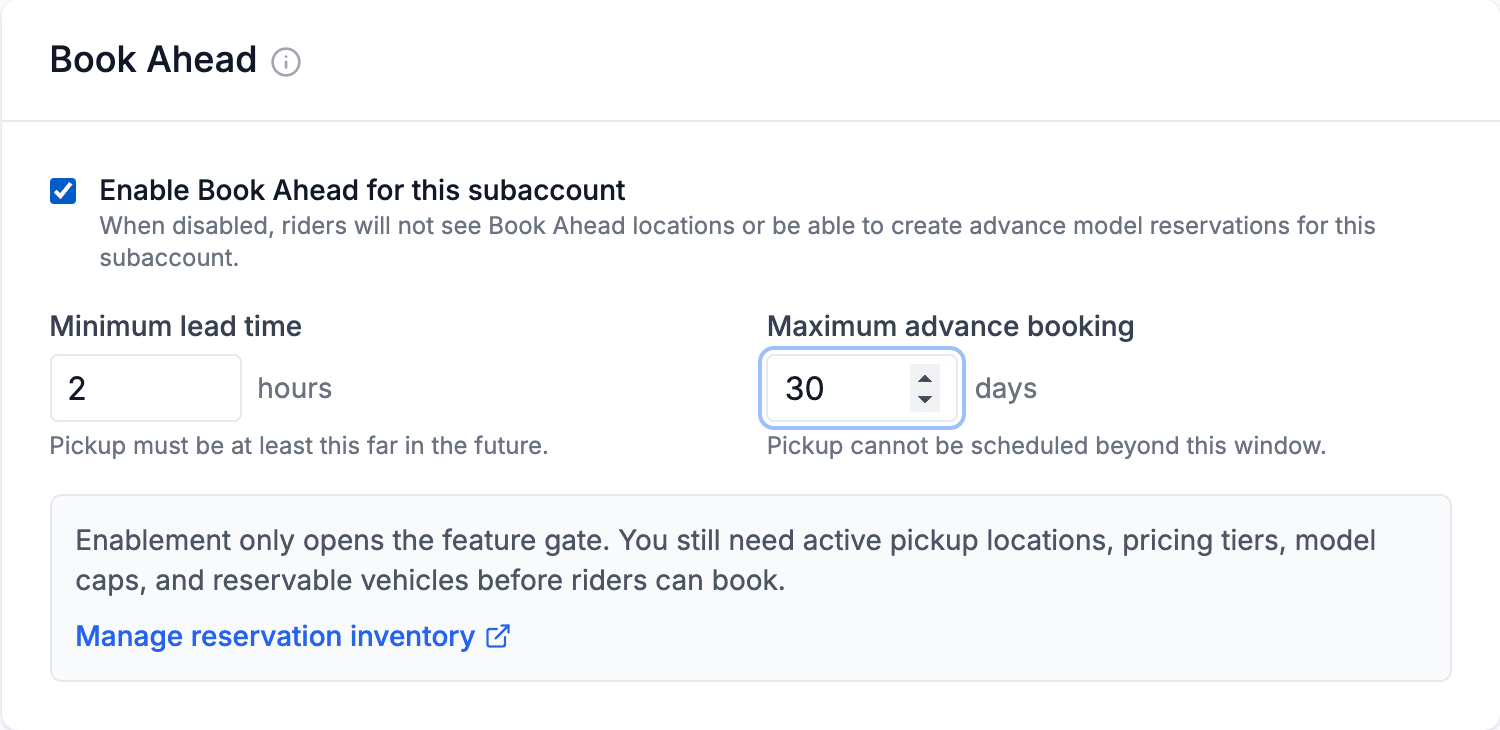
The Book Ahead switch lives in Dashboard > Settings > Rides. Enablement, lead time, and maximum advance booking are all scoped to the active subaccount.
Book Ahead is opt-in per subaccount
A subaccount must have Book Ahead enabled in settings before riders can see its Book Ahead pickup locations or create model reservations.
Setup Checklist
Before opening Book Ahead to riders, confirm:
- Book Ahead is enabled for the subaccount in Dashboard > Settings > Rides > Book Ahead.
- The minimum lead time and maximum advance booking window match your operations.
- Vehicle models exist for the active subaccount.
- Reservation pricing tiers exist for the models or vehicle types you want to sell.
- Pickup locations are configured with the correct timezone.
- Each reservable model has an inventory cap at each pickup location.
- Physical vehicles that may fulfill bookings are marked reservable.
- Operators know who owns assignment and staging before pickup.
- A full booking, assignment, pickup, checkout, cancellation, and no-show test has passed in staging.
Enable Book Ahead
Go to Dashboard > Settings > Rides > Book Ahead.
Turn on Enable Book Ahead for this subaccount.
This switch controls the rider-facing mobile Book Ahead feature for the current subaccount. When it is off:
- Riders do not see that subaccount's Book Ahead pickup locations.
- Availability checks for that subaccount are blocked.
- Model reservation creation for that subaccount is blocked.
- Existing reservation records and dashboard management tools remain available to operators.
When it is on, riders still need active inventory configuration before anything appears as bookable.
Enablement is not inventory
Turning on Book Ahead opens the feature gate only. A rider will not be able to book unless the subaccount also has active pickup locations, pricing tiers, model caps, and reservable vehicles.
Set the Booking Window
Book Ahead uses two subaccount-level timing settings:
| Setting | What It Controls | Example |
|---|---|---|
| Minimum lead time | How soon a rider can schedule pickup from now | 2 hours blocks immediate same-hour pickup |
| Maximum advance booking | How far into the future pickup can be scheduled | 90 days blocks pickup dates more than 90 days away |
These settings are enforced by the mobile availability and booking APIs. If a rider selects a pickup time outside the allowed window, the booking is rejected before inventory or payment is attempted.
Choose values that match real operational readiness:
| Fleet Type | Suggested Starting Lead Time | Suggested Advance Window |
|---|---|---|
| Staffed rental counter | 1 to 2 hours | 30 to 90 days |
| Hotel, campus, or apartment pickup | 4 to 24 hours | 30 to 90 days |
| Group rides or event rentals | 24 to 72 hours | 90 to 180 days |
If you are not sure, start conservative. You can increase the advance window after the team is consistently assigning, charging, inspecting, and staging vehicles on time.
Create Pickup Locations
Go to Dashboard > Reservations > Inventory and use Pickup Locations.
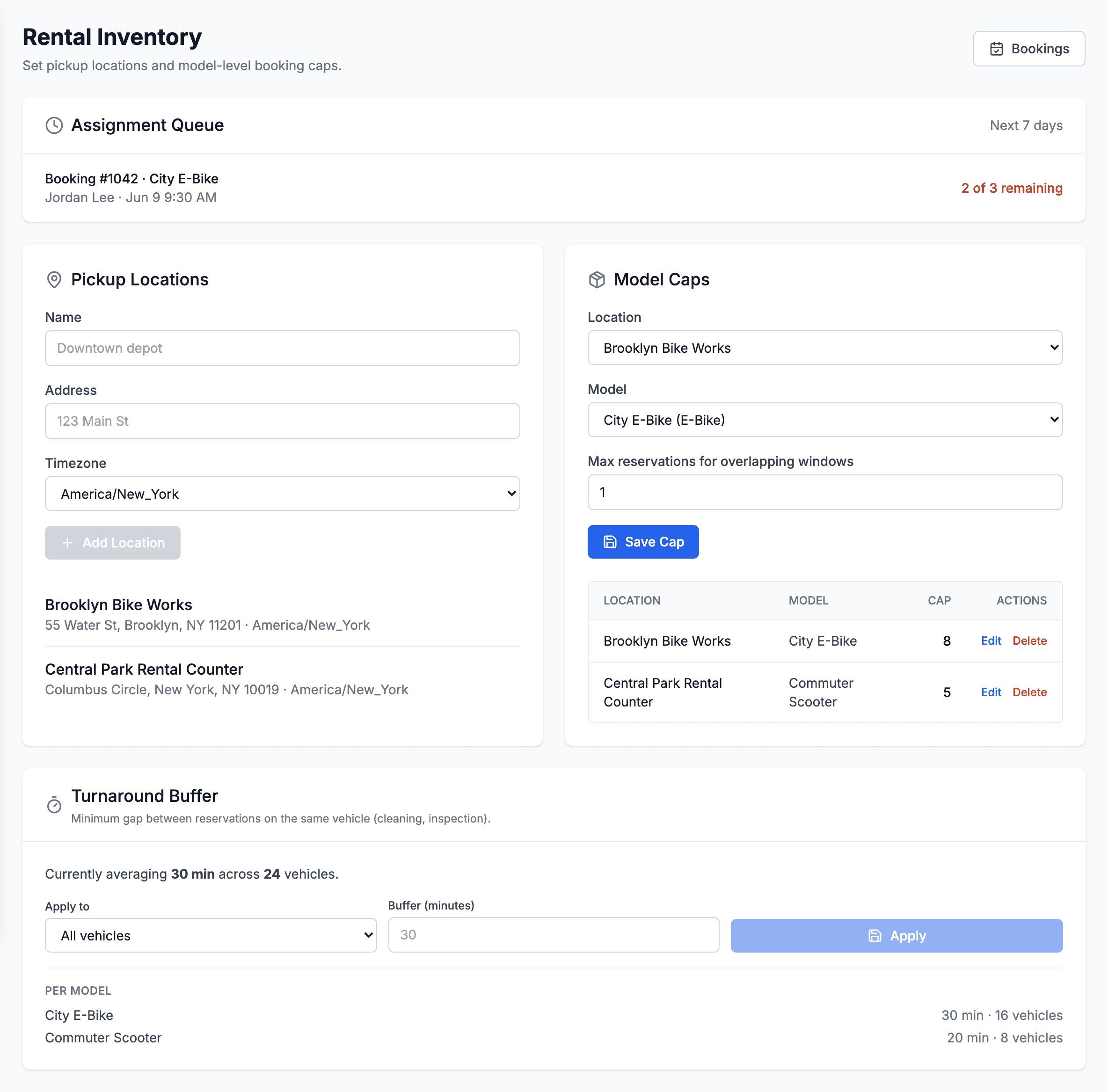
Use Pickup Locations for rider-facing pickup points and Model Caps for the number of overlapping model reservations you are willing to sell at each location.
Each location needs:
| Field | Guidance |
|---|---|
| Name | Use the rider-facing pickup point name, such as "Downtown Depot" |
| Address | Enter the pickup address or staging note riders and operators recognize |
| Timezone | Choose the local timezone where pickup and return times should be interpreted |
The timezone matters because the mobile app sends local pickup and return input. The backend converts those local times to UTC for storage and conflict checks.
Timezone accuracy matters
A wrong timezone can make availability appear in the wrong window, especially around daylight saving time changes. Verify the location timezone before taking live bookings.
Configure Pricing Tiers
Book Ahead uses reservation pricing tiers to calculate the booking total and deposit.
Go to Dashboard > Reservations > Pricing.
At minimum, every reservable model should have a tier that defines:
| Pricing Field | Used For |
|---|---|
| Hourly, daily, weekly, or monthly rate | Calculating the reservation cost for the selected time window |
| Deposit amount | Calculating the upfront booking deposit |
| Minimum duration | Rejecting bookings that are too short |
| Maximum duration | Rejecting bookings that are too long |
| Included distance and overage | Capturing distance rules in the pricing snapshot, when applicable |
| Cancellation settings | Capturing the policy snapshot shown with the booking |
The mobile app will show a pricing error instead of a bookable card if a model has capacity but no valid pricing tier.
Deposits are charged immediately
Model reservations use an immediate booking deposit charge. Do not describe the deposit as a temporary card authorization hold.
Add Model Caps
In Reservation Inventory, use Model Caps to define how many reservations can be sold for overlapping windows.
| Cap Field | Meaning |
|---|---|
| Location | The reservation pickup location |
| Model | The vehicle model riders can book |
| Max reservations for overlapping windows | Maximum quantity sold at the same time for that location and model |
If a cap is set to 5, the platform can sell up to five total units of that model for overlapping bookings at that pickup location. A single booking with quantity 3 consumes three units of that cap.
Choose Safe Cap Values
Do not automatically set caps equal to the number of physical vehicles in the fleet. A safe cap should consider:
- Vehicles that may be in repair or maintenance mode.
- Vehicles with low battery before pickup.
- Vehicles that are missing, misplaced, or not staged.
- Expected walk-up demand before the booking window.
- Buffer time needed for cleaning, charging, or inspection.
- Staff capacity for multi-unit pickup.
Example:
| Physical Units | Recommended Starting Cap | Reason |
|---|---|---|
| 5 | 3 or 4 | Keeps one unit available for recovery or maintenance |
| 12 | 8 to 10 | Leaves operating room for charging and walk-up pressure |
| 30 | 20 to 24 | Protects against uneven distribution and staging limits |
Mark Vehicles Reservable
Inventory caps sell model capacity, but checkout still requires real vehicles. Eligible vehicles should:
- Belong to the same subaccount.
- Match the booked vehicle model.
- Be marked
reservable. - Be active and not deleted.
- Be in an assignable availability state.
- Be free of overlapping reservations or active assignments.
- Not be inside a blocked availability window.
If a vehicle does not appear in the eligible picker, open the reservation detail page and review Unavailable vehicles for the reason.
Test Rider Availability
After locations, pricing, caps, and vehicles are configured:
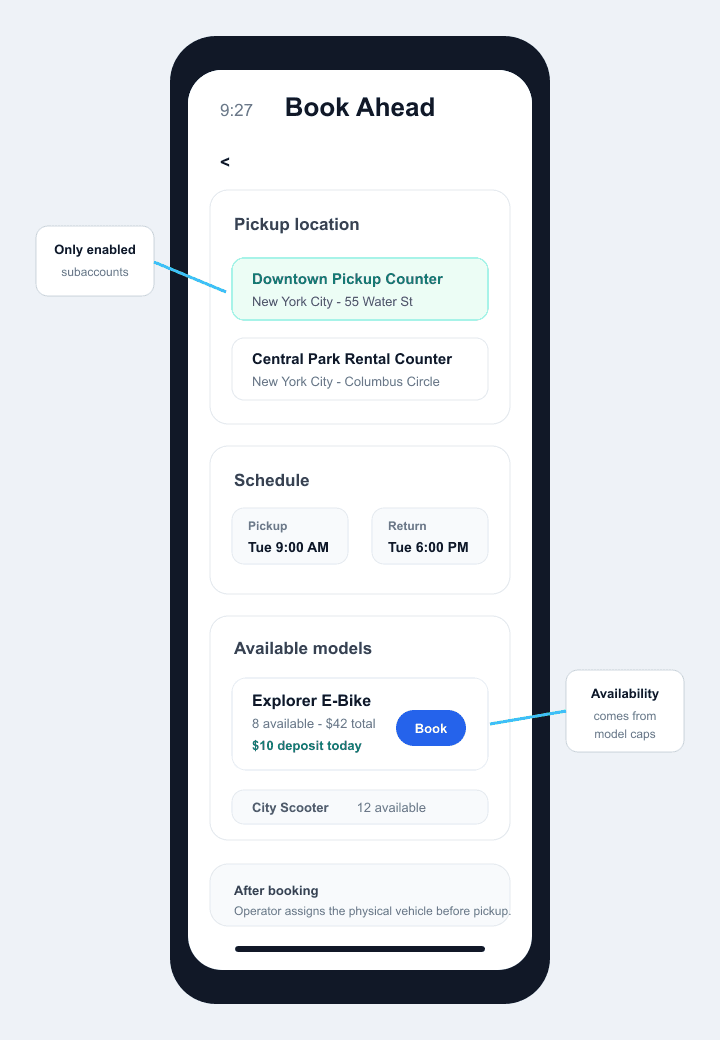
In the rider app, Book Ahead shows only pickup locations from the enabled, resolved subaccount. Model cards appear after the rider selects a valid pickup and return window.
Open Book Ahead
In the mobile app, open Book Ahead from the drawer while located inside the subaccount service area.
Select the Location
Choose the pickup location you configured.
Pick a Window
Select a pickup and return time that should be allowed by pricing rules.
Confirm Models Appear
Verify that expected models show available quantity, total price, and non-refundable deposit.
Create a Test Booking
Complete a reservation and confirm it appears in the dashboard assignment queue.
If Book Ahead does not appear in the mobile drawer, check that the rider is scoped to the intended service area or customer account and that Dashboard > Settings > Rides > Book Ahead is enabled for that subaccount.
Operational Handoff
Before going live, decide who owns each step:
| Responsibility | Typical Owner |
|---|---|
| Location and cap configuration | Operations manager |
| Pricing tier setup | Operations or finance admin |
| Daily assignment queue review | Field operations |
| Vehicle staging and charging | Field operations |
| Customer pickup assistance | On-site operator |
| Failed payment or balance follow-up | Support or finance |
Start with one location
Roll out Book Ahead at one high-control pickup point first. After the assignment and staging rhythm is reliable, add additional locations and higher caps.
Related Guides
Running a fleet on this hardware?
Levy Fleets runs scooters, e-bikes, mopeds and golf carts on the IoT hardware you already have, with integration pages for 29 vendors including Segway, Okai, Omni, Queclink, Invers and Comodule. Keyless unlock, geofencing, rider payments and rider support are included, and the Managed plan is a share of revenue with no per-vehicle software fee.