Segway Scooter BLE Configuration Guide
This guide shows you how to configure Segway Max scooters to connect to the Levy Fleets platform using the BLE-O (Omni) and BLE-Q (Queclink) Bluetooth apps.
Levy Fleets Server Settings
Server IP: 137.66.36.122
Segway/Omni Port: 9001
Queclink Port: 9003
iOS Limitation (BLE-O)
The iOS BLE Tool Plus app can connect for basic checks, but BLE-O IP/port changes require Android.
Which App Do I Need?
Different Segway scooter models use different IoT modules. Use this table to determine which app you need:
| Scooter Model | IoT Type | App | Port |
|---|---|---|---|
| Max 2.0, Max 2.2 | NB-O (Omni) | BLE-O | 9001 |
| Max 2.4, Max Plus X | NB-O3 (Omni) | BLE-O | 9001 |
| Max Plus, Max 2.3 | NB-Y (Queclink) | BLE-Q | 9003 |
Check the IoT label on your scooter or look up the IMEI in your Levy Fleets dashboard under IoT Devices to confirm the IoT type.
BLE-O App (Omni IoT)
Use the BLE-O app for Max 2.0, 2.2, 2.4, and Max Plus X scooters with Omni IoT modules.
Download & Install
| Platform | Download Link |
|---|---|
| Android | Download APK from omnibike.net |
| iOS | BLE Tool Plus on App Store |
Android users: You may need to enable "Install from Unknown Sources" in your Android settings to install the APK.
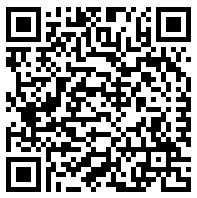
Scan this QR code to download the BLE-O Android APK:
Android Required for IP/Port Updates
The BLE-O Android app is required to change the server IP and port. The iOS BLE Tool Plus app can connect for basic checks, but cannot update IP/port settings.
Login Credentials
| Field | Value |
|---|---|
| Username | levy |
| Password | levy |
Connecting to the Scooter
Open and Login
Launch the BLE-O app and log in with the credentials above
Enable Bluetooth
Ensure Bluetooth is enabled on your phone
Scan for Devices
Pull down to scan for nearby devices. Stay within 10 meters of the scooter.
Connect
Look for devices named "Scootor" (note the spelling) and tap to connect
Configure Server IP & Port
These steps require the BLE-O Android app. Watch this quick walkthrough to see how to access and configure the server IP and port settings:
After connecting to the scooter:
- Go to the Set IP menu
- Enter the following settings:
| Parameter | Value |
|---|---|
| IP Address | 137.66.36.122 |
| Port | 9001 |
| APN | Leave as default (depends on SIM carrier) |
- Tap Save to apply settings
- Send a Reboot command for changes to take effect
Verify Connection
After rebooting, wait 2-3 minutes then check Levy Fleets Dashboard > IoT Devices to confirm your device appears online.
Common BLE-O Commands
| Command | Function |
|---|---|
| Unlock | Unlock the scooter |
| Lock | Lock the scooter |
| Find | Play sound to locate the scooter |
| Reboot | Restart the IoT module |
BLE-Q App (Queclink IoT)
Use the BLE-Q app for Max Plus and Max 2.3 scooters with Queclink IoT modules.
Download & Install
| Platform | Download Link |
|---|---|
| Android | Download APK from Queclink |
| iOS | BLE-G on App Store |
Login Credentials
| Field | Value |
|---|---|
| Username | levy |
| Password | levy123 |
BLE Connection Keys
These keys are required to connect to the scooter via Bluetooth. Enter them in the app settings before scanning for devices.
| Field | Value |
|---|---|
| BLE Key | 4BKNwi77 |
| BLE Password | G3S-EB |
Connecting to the Scooter
Open and Login
Launch the BLE-Q app and log in with the credentials above
Configure BLE Keys
Go to Settings and enter the BLE Key and Password shown above
Enable Bluetooth
Ensure Bluetooth is enabled on your phone
Scan for Devices
Scan the QR code on the device or use Bluetooth scan to find nearby devices
Connect
Tap the device to connect
Configure Server IP & Port
After connecting to the scooter:
- Navigate to the server configuration screen
- Enter the following settings:
| Parameter | Value |
|---|---|
| IP Address | 137.66.36.122 |
| Port | 9003 |
| APN | Leave as default (depends on SIM carrier) |
| APN User | Leave empty |
| APN Password | Leave empty |
- Save the settings
- Reboot the device for changes to take effect
Complete Port Reference
| Device Type | Port | App |
|---|---|---|
| Omni (Generic) | 9000 | - |
| Segway / Omni (NB-O, NB-O3) | 9001 | BLE-O |
| OKAI | 9002 | - |
| Queclink (NB-Y) | 9003 | BLE-Q |
| ZIMO MQTT | 9004 | BLE Debugger |
Troubleshooting
Device not appearing in scan?
- Ensure you are within 10 meters of the scooter
- Make sure the scooter has battery power
- Check that Bluetooth and Location are enabled on your phone
- Try power cycling the scooter
Device not connecting after configuration?
- Verify you entered the correct IP:
137.66.36.122 - Confirm the correct port for your device type (9001 for Omni, 9003 for Queclink)
- Make sure to reboot the IoT after saving settings
- Check that the SIM card has active data service
- Wait 2-3 minutes after reboot for the device to connect
Verifying Connection
After configuration:
- Wait 2-3 minutes for the device to establish connection
- Go to Levy Fleets Dashboard > IoT Devices
- Search for your device by IMEI
- The device should show as "Online" with recent telemetry data
Need Help?
Contact support@levyelectric.com with your device IMEI if you encounter issues. See also IoT Troubleshooting for more solutions.