Using IAP to Update Component Firmware
The IAP (In-Application Programming) tool allows you to update firmware on individual scooter components — Controller, Dashboard, and Battery BMS — via a USB cable connection. Use this method when OTA updates are not possible or when a specific component needs to be flashed directly.
Prefer OTA when possible. The Dashboard OTA feature (see Firmware Upgrade via Dashboard) is easier for fleet-wide updates. Use IAP only when OTA is unavailable or has failed.
Tools Required
Hardware:
- Cable connector: USB to 5-pin cable
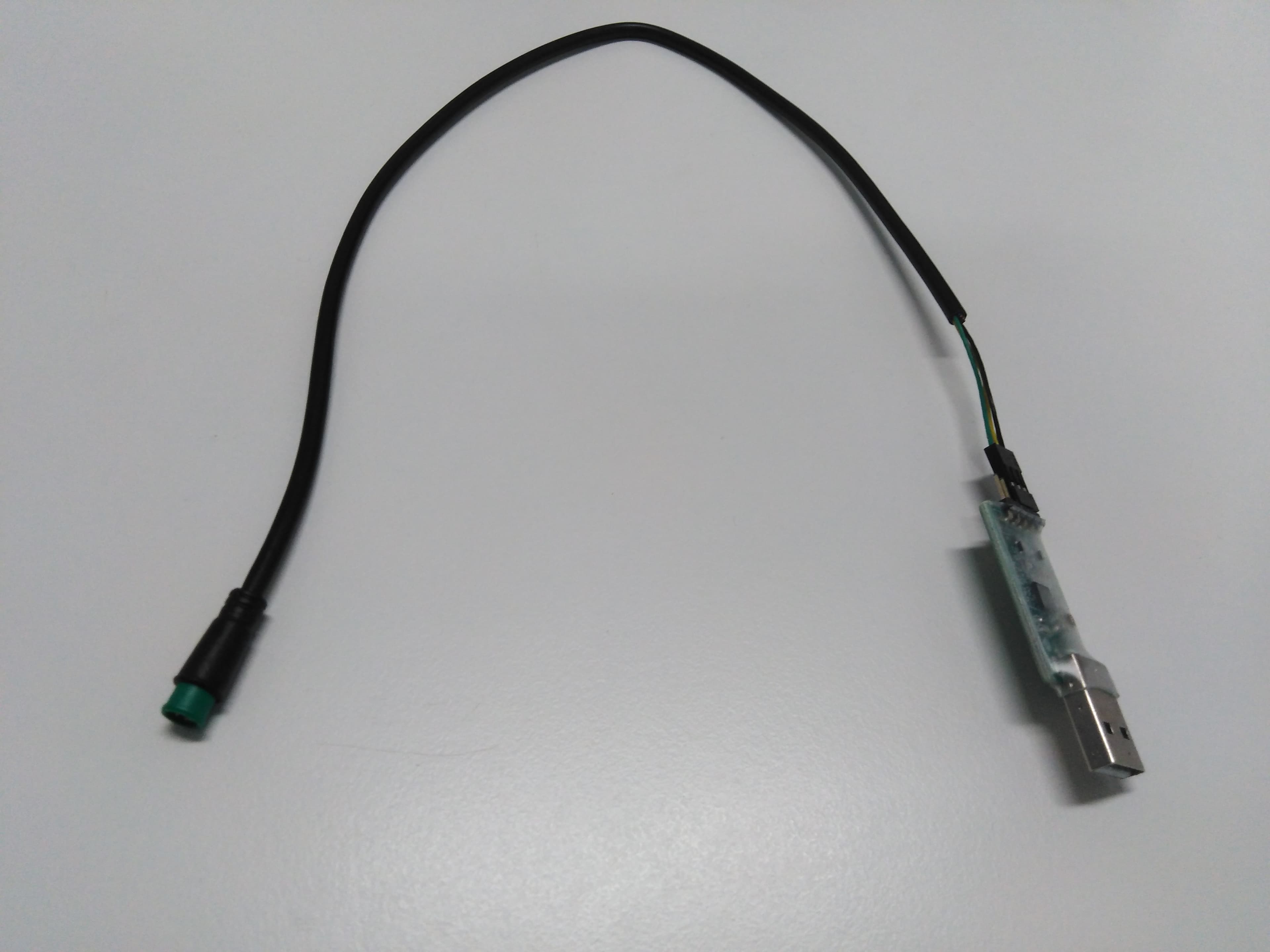
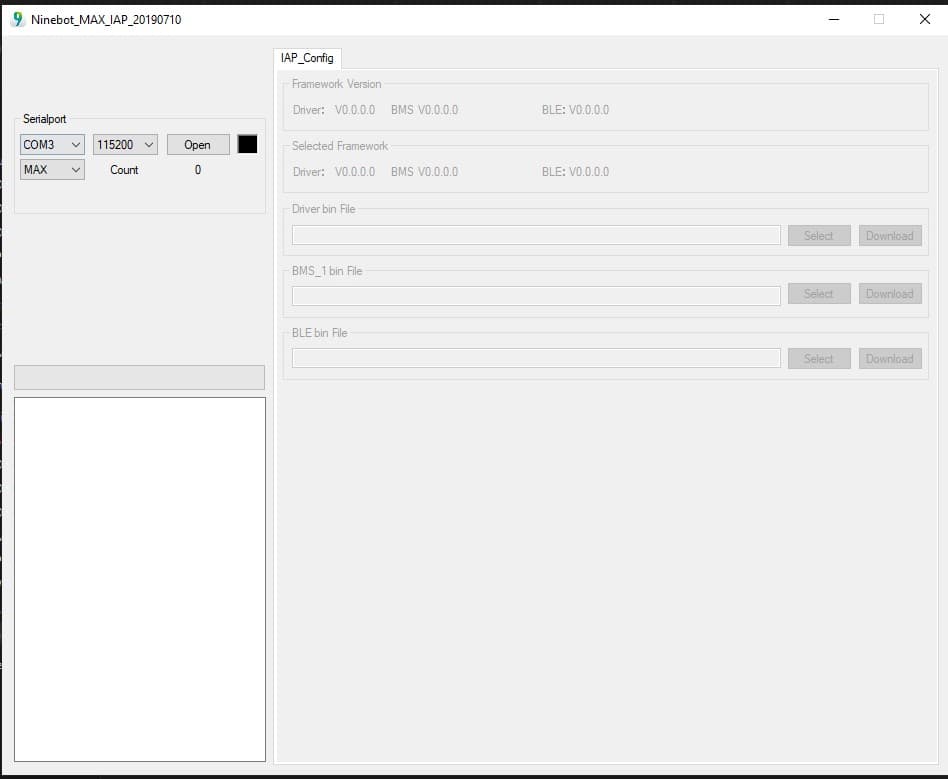
- IAP tool (software application)
- Firmware .bin file for the component you are updating (provided by Segway)
- Windows laptop
Firmware Files
Contact Segway support for the correct firmware .bin file for your scooter model and component. See Latest Firmware Version for current version numbers.
Firmware Update Sequence
Always update components in this order:
- IoT firmware (if applicable)
- BMS (Battery) firmware
- Dashboard firmware
- Controller (Driver) firmware
Updating out of order can cause errors.
Steps
Step 1 - Install IAP tool: Install the IAP application on your Windows laptop. Open the IAP tool.
Step 2 - Connect cable: Connect the USB to 5-pin cable from your laptop to the scooter's charging/data port.
Step 3 - Power on scooter: Turn on the scooter. The IAP tool should detect the connection and show the device.
Step 4 - Select component: In the IAP tool, select which component you want to update (Controller, Display/Dashboard, or Battery BMS).
Step 5 - Load firmware file: Click Browse or Select File and choose the correct .bin firmware file for that component.
Step 6 - Start update: Click Flash or Update. The process typically takes 1-5 minutes per component. Do not disconnect the cable during flashing.
Step 7 - Verify: Once complete, the IAP tool shows the new firmware version. Verify it matches the expected version.
Step 8 - Repeat: If updating multiple components, repeat Steps 4-7 for each in the correct sequence.
Troubleshooting
- Tool does not detect scooter: Check the cable connection and USB driver installation
- Update fails midway: Retry; if it fails again, the firmware file may be corrupt
- Scooter won't start after update: The firmware may be incompatible - contact Segway support